Invoices and getting paid
Bill a job, email your client a link they can pay by card, and have the payment recorded against the invoice without you touching it.
Watch it

An invoice is how the work turns into money. You build it from the job, send your client a link, and they pay by card without signing in to anything — the payment lands against the invoice on its own.
Build an invoice
Open Invoices and add one, or start from the job so the client and the work come with it.
Each line can be one of three shapes, and picking the right one saves you doing arithmetic:
- A fixed amount — a flat price for the thing.
- Quantity × unit price — 12 fixtures at $45.
- Hours × hourly rate — 6.5 hours at $95.
Drag lines to reorder them. The subtotal, tax and total add themselves up as you go.
Sales tax. An invoice takes the sales tax rate of its job — the rate whose ZIP codes include the place the work is done — or with no job, its client’s, and Sales tax on the form says which rate and how it was found. Tax is charged only on the lines that are taxable: each line has a Taxable switch, a Price Book line starting as its item says and a line you type as your business’s default. The diagnostic fee and its credit follow the fee’s own setting, and a discount comes off the taxed and untaxed lines in proportion. A payment that bills part of a quoted job — the deposit, a scheduled payment, Remaining on the agreement — is taxed on the share of the job’s quoted lines that is taxable, so a job billed in parts is taxed once on its whole; a proposal’s line says whether it is taxable. To bill at another rate, or with no tax, choose it under Sales tax and say why; the reason stays with the invoice. The invoice keeps the rate it was made with, so changing a rate later never changes an invoice you have made, and its page and PDF name the rate and its parts, show what was taxed, and mark the lines that were not. Your rates are set under Invoices → Sales tax. What your client pays toward an invoice is split into the tax it carried and your part, and every revenue and margin figure counts only your part (see Tax reporting).
Tax-exempt clients. A client marked exempt with their certificate has new invoices with no sales tax, saying Exempt — certificate and its number; a rate you choose by hand on one invoice still applies. Sales tax says how to mark a client exempt and what an expired certificate does.
Starting from a job, the payments on its Payment schedule not yet invoiced — each marked Due once its moment has come, the balance at whatever is left of the agreement — and the change orders your client accepted are offered as lines. A payment or change order can be billed once: one already on another invoice, taken off the schedule, or — for a change order — not yet accepted can’t go on this one. A change order with a payment of its own is billed by that payment, never beside it. See Milestones and the payment schedule.
A deposit your client agreed to on a proposal is invoiced for you when they sign — see Proposals. It is the first part of the price, not a credit toward a later invoice.
The due date is 15, 30, 60 or 90 days, or a date you pick. Choose a client who has paid you before and their habit appears under it — how long they usually take, how many paid by the due date, how often they needed a reminder. A client who has always paid on time is offered Due in 15 days: short terms they have always met, and your money sooner. It changes nothing until you press it. A client who is slow to pay is said to be, with a reminder that their next proposal can ask for a deposit. See How long clients take to pay.
See what is left to bill on a job
On every job’s Financials tab, the Invoices panel opens with what is left to bill above the invoices themselves, and it answers the question an owner asks most: what is still to bill.
- Agreed — what your client agreed to pay, before tax: the accepted proposal’s price (with options, the option they chose and the add-ons they took) plus the change orders they accepted — a credit takes it down. On a job made without a proposal, it is the agreed price you entered on the job.
- Invoiced — the invoices you have sent, before tax. Voided invoices are left out, and drafts are shown apart ($550.00 in drafts).
- Left to invoice — Agreed less Invoiced. A job billed past its agreement reads Billed beyond, and by how much, rather than a negative number.
- Paid — payments received. A tip is never counted.
- Owed now — what the sent invoices still say is due, tax included.
A job billed as it goes — from its time, materials and expenses, with no amount agreed — shows Invoiced, Paid and Owed now, and nothing is expected to be left. Tax is added on each invoice and is never counted against the agreement; a member discount counts as billed that much less.
Bill the rest with one final invoice
Bill the rest, in the Invoices panel on the job’s Financials tab, opens a new invoice, Bill the Rest, holding every payment on the schedule not yet invoiced and every accepted change order not yet invoiced, marked final. The balance is the last line, at whatever is left of the agreed price once the others are taken off — and if more is still to invoice than is left, it takes the difference off and says why. A job whose payments do not include a balance gets one more line instead, Remaining on the agreement, carrying the difference either way, with the reason said above the lines. Change or remove anything before you save.
Once it is sent, Left to invoice reads $0.00 and the job leaves Needs invoicing. The invoice’s page marks it Final; voiding it puts its amounts back to be billed.
Bill the rest is not offered on a job with nothing left to invoice, one whose rest is already on a draft, or one billed as it goes. To bill many finished jobs at once, see Invoicing several jobs at once.
Follow an invoice through to paid
| Status | What it means |
|---|---|
| Draft | Yours to edit freely. Nobody has seen it. |
| Sent | Emailed to your client. |
| Opened | Your client has opened the link. |
| Partially paid | Some money has come in, with a balance still owed. |
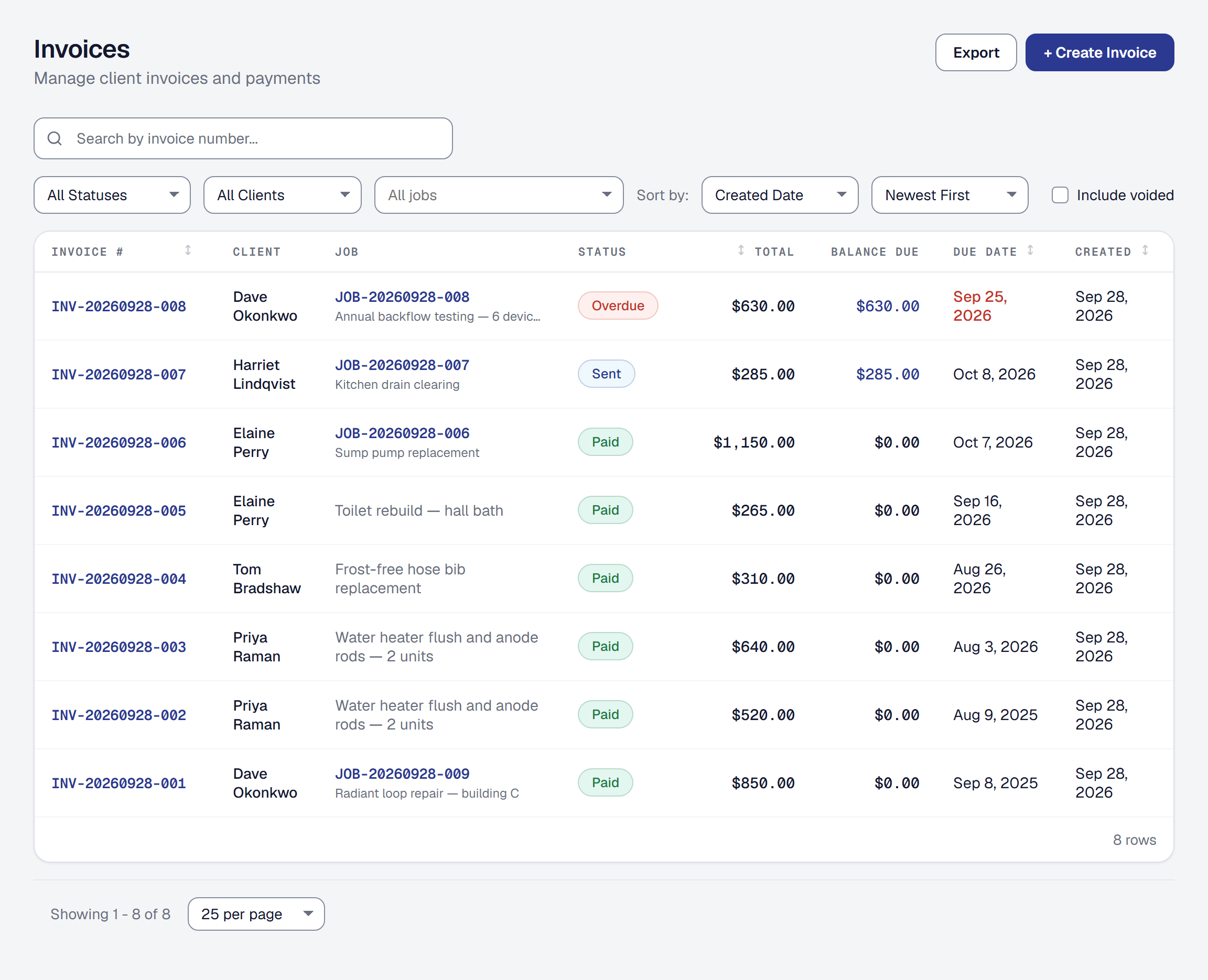
| Overdue | Still owed after its due date. Pick it in the list’s status filter to see what to chase. |
| Paid | The balance is zero. |
| Void | Canceled. The record stays. |
A draft is fully editable. Once an invoice has been sent, what you can change is limited — an invoice somebody is looking at should not move under them.
Send it to your client
The Send to client panel at the top of an invoice holds everything about getting it out, beside the state of the link itself:
- Email to client — sends the invoice with a pay button.
- Mark as sent — for when you handed it over some other way.
- Send again — emails the same link again, or a fresh one when the last has stopped working. The invoice keeps the day it was first sent, under Send to client, and shows the send again as Sent again in its details.
- Revoke link — kills the link if it went to the wrong place.
An invoice, its reminders and its receipt go to the client’s billing contact when it has one with an email — its accounts payable, say — greeted by their name, and to the client’s own email when it has none (see Add the people to reach). The client’s Communication tab says when one went to a billing contact: Invoice INV-… sent to Priya Raman. When the client has other contacts with an email, Send to above the panel’s buttons offers them, and the client itself, beside the billing contact, so this invoice — and Send again — can go to somebody else; the reminder dialog offers the same (see Choose who a document goes to).
Send payment reminder sits in the invoice header for an invoice sent and not yet paid in full, separate from the send panel, because chasing is a different act from sending. It opens a dialog showing what is still owed, and Send reminder there emails your client. The message is optional; without one, the email says how many days past due the invoice is, or, before its due date, that it is still outstanding.
On Professional, Draft it for me writes the message for you: a short paragraph in your business’s voice, from the invoice — what is owed and how late — and how this client usually pays. A client who always pays on time gets a light touch; one who is slow, a clear, polite ask for payment or a date. It never mentions a fee or a consequence, never an amount the invoice does not carry, and never how the client has paid before. The draft lands in the message box for you to change; Redraft writes another, Clear empties the box, and nothing goes to your client until you press Send reminder. Each draft spends a little of your monthly AI allowance.
Reminders can also go on their own, from Automations: before the due date, then up to three after it, each firmer than the last — see Overdue reminders that firm up. A reminder, sent by you or on its own, carries a working link: one that has stopped working is replaced first, as Send again does. The invoice’s After it is sent panel switches them off for this one invoice, under Automated reminders, and says which have gone; each is on the client’s communication history. The same panel holds the invoice’s review link switch.
Your client opens the link with no account and no password, sees the invoice and its payment history, and can pay from there.
For a client with more than one building (see Keep a client with several buildings), the invoice says where the work was — Service location: Building C, 412 Elm St — beside their reference, on the PDF, in the emails and on the page they pay from, so their accounts payable can match each invoice to its building. It is the building its job is at, as the job says now; an agreement’s invoice for one of its buildings names that building; any other invoice with no job names none, and a client with one location sees nothing new.
If you count your parts with Inventory, the dialog that sends an invoice, or marks it sent, checks the job’s parts first. A part used on the job that no invoice sells yet is listed: Add to this invoice puts it on at its price, and Not billable — warranty, included in the price, or goodwill — records why it is not, which the job keeps. The dialog also says which parts the invoice sells that nobody recorded as used, and where they will be taken from — your one technician’s van, or the place you choose when more than one van was on the job. Sending takes them from stock; voiding the invoice later puts back only what it took.
Send a statement
A client’s Financials tab shows Statement: every invoice you have sent them that is still owing — at what each owes now, never a draft, a voided invoice or one paid in full — with one total. For a client with more than one building it is grouped by building, the main one first and invoices for no job last, under Other invoices. It appears once there is something owing, or the client is set to get one monthly, for anybody whose role includes Invoices and payments.
- Download PDF — the statement as it stands, with your business’s name and logo: for each invoice its date, number, due date, amount and balance, each building’s balance, and the total owed.
- Send statement — emails it with the PDF attached to the client’s billing contact, or to the client when it has none (see Add the people to reach); Send to chooses another of their contacts. The email has a Pay what you owe link: it opens the statement, with what each invoice owes now, and pays every one that can go together in one card or bank payment, where you take payments online. Each invoice is recorded as paid on its own, as if paid from its own page. A deposit, or an invoice whose bank payment is already on its way, is listed with how to pay it instead.
A sent statement is kept as it went — what was owed and the total that day — and the client’s Communication tab lists it, naming the contact it went to. Nothing owed is nothing to send.
Send it on the first of each month, under the statement, sends it for you: on the first of every month, from eight in the morning on your business’s clock, to the billing contact — whenever the client owes anything that day, and not when they owe nothing. It goes from SMG Tools on your behalf, once a month, and the client’s history lists it as any other.
Take payment by card
Your client presses Pay and is taken to a secure checkout. When the payment succeeds it is recorded against the invoice automatically — you do not reconcile anything.
Two things worth knowing about how the money moves:
- Your business is the merchant. The charge is made on your own Stripe account, and your client’s card statement reads your business’s name rather than ours.
- Fees come out of your side, never added to your client’s bill. Your client is charged the invoice amount. Stripe takes its processing fee from your Stripe account, at your own Stripe rate, and SMG Tools’ fee — 0.25%, at least $1.00 unless you’re on Professional — comes out of the same payment.
The one thing that can make the charge larger than the invoice is a tip your customer chose to add — see Tips. It rides along on the same payment, carries no platform fee, and never touches the invoice’s balance.
Each payment taken online shows what came out of it — Stripe’s fee as Stripe took it, then SMG Tools’ fee — and what reached you. A payment from before October 2026, when payments moved onto your own Stripe account, shows the two as one fee.
Partial payments are fine. An invoice can take several payments until the balance reaches zero.
A client who owes on several invoices can also pay them together from their own page — see Your client’s own page. It is one card payment, but it lands as a payment on each invoice for its balance, each with its own receipt and its own line in your books, and SMG Tools’ fee is worked out once on the total. A refund is still made from one invoice, up to what that invoice received; a chargeback on the payment is shared across the invoices it paid.
See what reached your bank
Stripe pays out of your Stripe balance to your bank on its own schedule, usually a few days after your clients pay. Organization → Payments lists every payout once the first has gone: the day it arrives, the amount, the fees taken, and whether it is on its way, paid or failed. Open one to see what it carried — each client payment by its invoice number, refunds and disputes taken back, and the fees — so a deposit on your bank statement can be matched to the work that earned it.
A payout that fails — a closed or mistyped bank account — shows Stripe’s reason. The money goes back to your Stripe balance and out again in a later payout, which the failed one points to. Payouts are the Owner’s to see, like everything else about your Stripe account.
Record a payment that came in some other way
Cash, a check, a bank transfer — record it against the invoice and it counts exactly like a card payment. The amount cannot be more than the balance owed, which catches the common typo before it becomes a reconciliation problem.
A payment recorded by mistake is voided rather than deleted, so the invoice’s history still explains itself. Void Payment asks for a reason, if you want to give one; it shows in the payment’s notes and the invoice’s change history. A payment you voided can be restored, as long as it still fits what is owed: if you have since recorded its replacement, restoring the old one would count the money twice, so it is refused.
Refund a card payment
To give a client money back from a card payment, open the invoice and choose Refund beside the payment. It opens on everything that is left to refund; change the amount for a partial refund, and add a note for your own records if you like — your client does not see it. The Owner can refund, and so can a Bookkeeper — anyone whose role includes refunds — and you are asked to confirm it is you first.
The refund goes back to your client’s card, and the money comes out of your Stripe balance. Neither the card processing fee nor the platform fee on the original payment is returned — that is how card refunds work everywhere. A partial refund comes out of what paid the invoice first, and out of a tip only after that.
The invoice stays paid. A refund is money returned, not a bill reopened, so nothing starts chasing your client again. The invoice reads Refunded or Partly refunded, the payment shows each refund beneath it with when it was made and who made it, and your revenue figures count it out on the day it was made. A refund Stripe fails afterwards is shown as failed, and the money counts as yours again.
A cash, check or bank payment is given back the way it was paid; void it if it should no longer count. A payment under dispute cannot be refunded — the bank decides where that money goes.
Handle a chargeback
If a client’s bank disputes a card payment, Stripe takes the disputed amount from your Stripe balance while the bank decides, and charges its dispute fee to your Stripe account. The payment is your business’s own, so the dispute is too. The product does four things at that point:
- Marks the payment Disputed on the invoice, with the amount the bank withheld and the deadline for sending evidence.
- Emails you the bank’s stated reason, with that deadline.
- Tells you what evidence wins, and sends you to answer the dispute in your Stripe Dashboard, where Stripe sends your evidence to the bank.
- Leaves the invoice reading as paid while it is being decided, because it is not yet unpaid.
If you win, Stripe returns the money and the payment stands. If you lose, the payment is voided and the invoice shows the balance owed again. That void is final: the money is back with the cardholder, so the payment cannot be restored. SMG Tools’ fee on the payment is not returned either way. A payment from before October 2026 is disputed on SMG Tools’ Stripe account instead: reply to the email you are sent with your evidence, and it is submitted for you.
Send a PDF instead
Every invoice downloads as a PDF with your logo, the line items and the totals, laid out for paper. Some clients want a document for their records or their accountant, and the link is not always the answer.
Void an invoice
Voiding is a soft delete — the invoice is canceled and the record stays, which is what you need when somebody asks six months later what happened to invoice 41. Voiding can be undone. Voiding frees the payments it billed, so they can go on another invoice.
This page describes Invoice & Payments - Documentation. It is written from that feature’s record and covers what has shipped, never what is planned.