
Your tools — add what your business does, remove what gets in the way
Every tool SMG Tools has, on one page, with the state each is in for your business. Add one, put one away, and find out why you cannot see one.
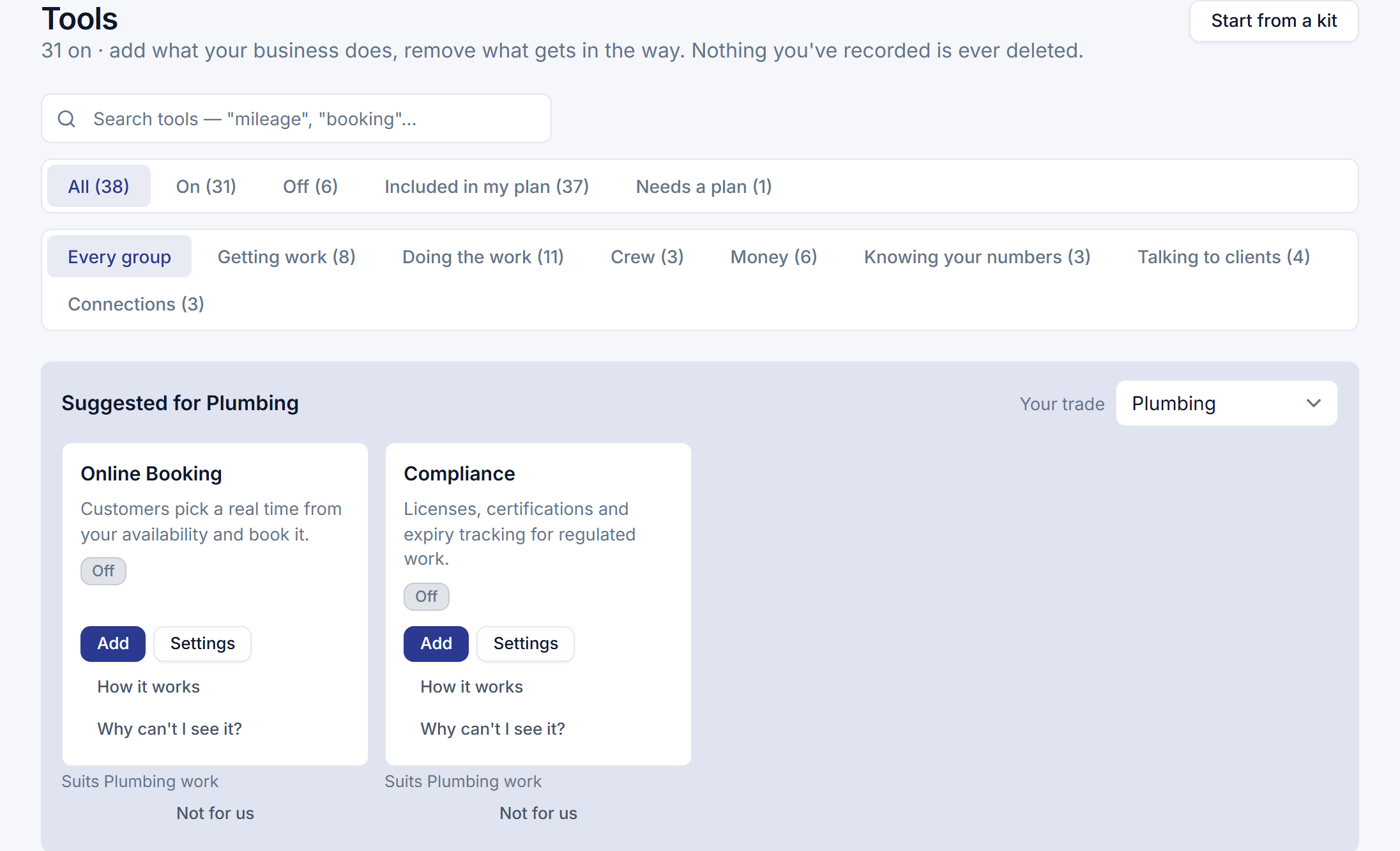
The Tools page is where your business decides what it does. Everything SMG Tools can do beyond quoting, working and billing is a tool, and every tool is a card on this one page — what it does, whether you have it, and what you can do about that.
Adding a tool makes the product bigger; removing one makes it smaller. Nothing you have recorded is ever deleted either way.
See every tool
Tools is in the main menu, beside Organization and Profile. The page opens on Your tools — what your business has on — and then the rest in seven groups: Getting work, Doing the work, Crew, Money, Knowing your numbers, Talking to clients and Connections.
Each card says what the tool does in one line and what state it is in:
- On — your business has it.
- Off — your plan includes it and your business has not added it.
- Needs {tool} — it needs another tool first, and that one is off. A tool you have not added reads Off with the need beside it, because adding it adds both.
- Added — needs setting up — it is on, and waiting for something only you can give it. See Finish setting up a tool you added.
- Included in Professional or Included in Crew — your plan does not include it. The Phone Assistant reads Included in the Call Answering add-on.
- Connected or Not connected — for the two Connections: your bank, and webhooks and inbound leads. The QuickBooks export is a tool in Money, added and removed like any other.
- New — the tool arrived since you first opened this page. It stays until you use anything on its card.
New is yours, not your business’s: two people in the same business see different tools as new. The first time you open the page, nothing is new, so you are not met with a wall of it.
Search finds a tool by its name, what it does, or the words people use for it — mileage, booking, QuickBooks. The filters narrow it to On, Off, Included in my plan or Needs a plan, and to one group. Each filter shows how many tools it holds. The search and the filters stay in the page’s address, so a link you send, or a refresh, keeps the view.
A tool your plan does not include still has its card and How it works, which opens the tool’s help page in a new tab. That is deliberate: this page is where you find out what a bigger plan adds. Its card offers Compare plans in place of Add. For the owner that goes to Billing, where the plan is changed; for anybody else it goes to the public pricing page.
Add a tool
Choose Add on its card. Nothing changes yet: first, one screen says
- what it needs, and whether that is already on,
- what will appear: an entry in the menu, a panel on every job, a widget on the dashboard, a part of the crew’s day on their phone,
- what still has to be set up before it does anything, with a link to each setting, and which of those you have already done.
If it needs a tool that is off, the one confirmation adds both, and the button says so: Add both, or Add all 3 when two are off. If it needs a connection that is not made, such as your bank, the tool is added and waits for it; connect it from its own card, because a connection is never added from here.
Confirm, and the card reads On. The menu and everywhere else the tool shows up have it straight away, without reloading. Adding never changes a tool’s settings, so a tool you add back has the settings it had when you removed it.
If the add is refused, the screen says why in the refusal’s own words and the card is left as it was. The usual reasons are that your plan changed, or that the tool’s settings refuse to switch it on without something missing.
Only the owner adds tools. A manager sees the same screen, with Only the owner adds tools in place of the button.
Finish setting up a tool you added
Six tools do nothing at all until something exists, and each says so:
- Online Booking, until a service can be booked.
- Phone Assistant, until it has a number.
- Contractor Directory listing, until your business says what it does and where.
- Checklists, until one is written.
- Tips, until your business can take a payment online.
- Automations, until a recipe is on.
Added before that, the tool is on — it is in the menu and its settings are open to you — and its card reads Added — needs setting up. Finish setting up on the card goes straight to the missing setting. The card changes when you come back to the Tools page with it done.
Remove a tool
Choose Remove on its card. The screen opens on what stays: nothing you have recorded is deleted, and adding the tool back puts everything where you left it. Then it says what stops:
- What goes from your screens — the same places Add listed.
- What stops — what the tool did on its own: its reminders, its digests, its texts.
- What goes with it — any tool that needs this one is removed too, and the screen names it first. The button says Remove both, or Remove all 3. A tool is never left on with what it needs gone.
Removing Automations asks about your recipes. If any are on, it asks whether to pause them too, with pausing chosen. Paused, they stay paused when Automations comes back, until you switch each one on, and each recipe says why it was paused. Left on, nothing runs while Automations is removed, and they start again the day it is added back.
Remove is offered on any tool your business switched on, including one your plan no longer includes. A connection is disconnected from its own settings, never removed here.
Only the owner removes tools. A manager sees the same screen, with Only the owner removes tools in place of the button.
Find out why you cannot see a tool
Every card that is not on offers Why can’t I see it?. It opens a short list, each line met or not:
- Your plan includes it — or which plan does.
- Your business has it on — and who last added or removed it, and when, and the kit that added it where one did. Where nobody did, it says why: every business that had the QuickBooks export when it became a tool was given it, when the QuickBooks export became a tool.
- Each tool it needs is on — or which one is off, or not connected.
- Your role can use it.
Beside each line that is not met is the one thing that fixes it: Add it, Add it back (where somebody removed it), Add {tool} for one it needs, Set up {connection}, or Compare plans. Anything that adds a tool opens the same screen Add does, so a fix always says what it adds first. A manager sees Ask the owner wherever the fix is the owner’s.
The answer is the same one the menu uses, so the card, this list and the menu never disagree about a tool.
The assistant knows this too. Ask it on its Help tab how to do something a tool you have not added does, and it names the tool and why it is off — not added, the plan that includes it, or the tool it needs first — with Why can’t I see {tool}? going straight to this answer. See The assistant.
Change a tool’s settings
Every tool with settings has Settings on its card, whether it is on or not. The Organization menu keeps the pages about your business itself — business details, team, payments, job types and the like — and a tool’s own settings live with the tool.
A tool with more than one settings page, such as Online Booking with its bookable services and service zones, links the others along the top of each one, with All tools to come back. Every settings page keeps its address, so a link you saved still works.
A tool’s settings are open while the tool is off, so you can set it up before you add it back. The top of the page says the tool is not on and that its settings do nothing until it is. For the owner, the link there is Add {tool}; for a manager, it is Why can’t I see {tool}?.
Take a tool suggested for your trade
At the top of the page, Suggested for {your trade} shows up to six tools your business does not have and would probably use, read from your trade’s kit. Each has a line saying why, and the order follows it: the tools the kit brings for your trade first — Suits HVAC work — then any your own kinds of work name — From your job types: Furnace tune-up, AC install — then the ones nearly every service business uses, which say just that. For the owner, See the whole kit opens your trade’s kit line by line, the way Start from a kit does.
A suggestion is only ever a card. Add on it opens the same screen as anywhere else, and nothing is added because it was suggested. Only tools your plan includes are suggested, never one you would have to buy first.
Not for us hides a suggestion. It stays hidden until your trade or your job types change, because those are what it was suggested for. Removing a tool counts the same way: a tool you have just put away is not offered back to you the next time you open the page.
Your trade is the one you told setup or this page, or else it is read from the service categories you chose in Organization → Business Details. If none of those say, the owner is asked on this page: choose one under Tell us your trade. The owner can change it there any time. A trade with no kit of its own yet reads the general kit — the tools nearly every service business uses — and the tools made for that trade; Something else reads the general kit alone. The owner and managers can hide a suggestion; only the owner sets the trade.
The suggestions show when you are looking at every tool. A search or a filter leaves them out.
Start from a kit for your trade
Start from a kit, at the top of the page, adds a trade’s tools and the starter content that goes with them in one go: the kinds of work, a visit checklist, the readings a visit takes, and the kinds of unit you work on. There is a kit for HVAC, plumbing, electrical, pest control, cleaning and landscaping, and a general one for any service business. The kit for your trade is listed first.
Choosing a kit opens it line by line, and nothing changes yet. Every tool and every piece of content it would add is ticked; untick anything you do not want. Some lines cannot be ticked, and say why:
- Already on — your business has the tool.
- You have this already — a job type, checklist, reading or kind of unit of that name exists, and is left as it is.
- Included in Professional — your plan does not include the tool, so the kit leaves it out.
- Set it up first — the tool’s own settings would refuse to switch it on now, and the line says why in their words. Online Booking, for one, waits until a service can be booked. Add it from its card once that is done.
- Comes with {checklist} — a reading a ticked checklist takes, because a step that asks for a reading needs somewhere to record it. Untick the checklist and the reading can go too.
A kit for a trade that keeps a compliance record — pest control, landscaping, HVAC — brings it with the kinds of work that need it, and each of those says so: Rodent control in the pest control kit, say, then carries the record on every job. That needs Compliance on; with Compliance unticked, the kinds of work are added without it, and the record can be attached to one later in its own settings.
Take the {kit} kit adds what is ticked, once, and the screen then says what it added, what was already there, and anything it left off. A kit never removes a tool or changes anything you already have, so taking one after setting up by hand, or taking it twice, only fills in what is missing. A tool a kit added says so under Why can’t I see it?: Added by {you} with the Plumbing kit.
Who sees the page
The owner sees everything and is the only one who adds and removes tools, takes a kit, or sets the trade.
A manager sees every card, every state and every answer, opens any tool’s settings, and hides suggestions. Where the owner would see Add or Remove, a manager is told to ask the owner.
A field worker never sees the page or its entry in the menu; going to its address takes them back to their day. Their phone shows the tools that are on and are for them, and never tells them a tool is new.
Walk through setup again
At the foot of the page, for the owner: Run setup again asks about your business and sets your tools for you, starting from what you have now. Bring it back returns the Get Started checklist to your dashboard if you hid it. See Setting up and hiding what you do not use.
This page describes Tools — The Tools Page. It is written from that feature’s record and covers what has shipped, never what is planned.