Sending your records to QuickBooks or Xero
Connect QuickBooks Online or Xero once, confirm where each kind of record goes, and your customers, invoices, payments, refunds, costs and payouts are sent as they change.
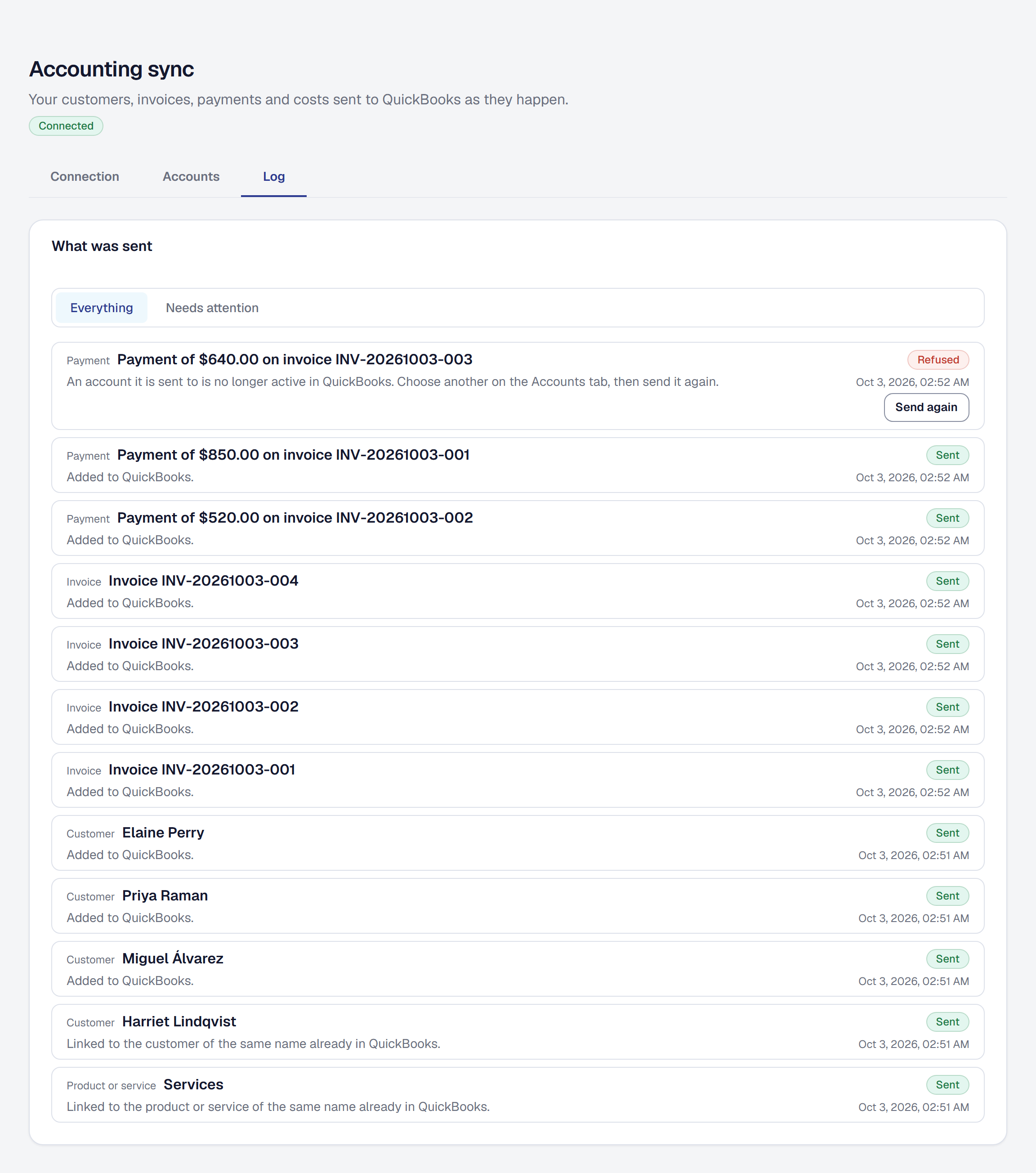
Accounting sync keeps your books in QuickBooks Online or Xero up to date on its own: connect your ledger once, confirm which of its accounts each kind of record belongs in, and from then on every customer, item, invoice, payment, refund, cost and payout is sent as it happens. Nothing comes back the other way — SMG Tools sends, and your ledger receives.
It is on Professional, like the bank feed, because Intuit and Xero charge for the access it uses. A business on Starter sees the tool and Compare plans. If you would rather hand your bookkeeper files once a quarter, the QuickBooks export is on every plan.
Connect QuickBooks or Xero
On the Tools page, open Accounting sync under Connections. On its Connection tab, the Owner chooses Connect QuickBooks or Connect Xero and confirms it is them, as with any change to what can reach the business’s data. You sign in at Intuit or Xero, grant access, and come back to the same tab, connected, with your company’s name shown. Cancel at the ledger and you come back unconnected, with a sentence saying so.
- Xero, with more than one organization. If your Xero sign-in covers several organizations, you come back to a choice of one. Pick the one whose books these are; SMG Tools lets go of the others straight away.
- United States companies only. A QuickBooks company or Xero organization that keeps its books in another country is refused at the door, with that reason, and nothing is kept.
- One ledger at a time. A business keeps one set of books. To move from one ledger to the other, disconnect the first.
Connecting sends nothing yet. The tab says so, and points you to the Accounts tab.
Choose where each kind of record goes
The Accounts tab reads your ledger’s own chart of accounts and fills in a choice for each kind of record from the accounts’ names — each one marked Filled in from its name until you confirm it. Check them; they are grouped the way you think about the money:
| Group | What it asks |
|---|---|
| What you sell | The income account for services and fees, for materials, for tips, and the one refunds come off. |
| Money in | Card payments — an account for Stripe, where card payments wait until Stripe pays them out — Other payments, for cash, checks and the bank feed, and Payouts, the bank account Stripe pays into. |
| Money out | Stripe’s fees, and where expenses are paid from: the credit card, or the bank. |
| Expense categories | One account for each of your expense categories. |
| Income without an invoice | One account for each category of income you record yourself. |
Card payments needs an account of its own. Its balance is what Stripe is holding for you: card payments go in whole, and refunds, Stripe’s fees and each payout come out. Undeposited Funds is never guessed for it, because mixing Stripe’s balance with the checks waiting for the bank makes neither reconcile. If your ledger has no such account, make a bank account named Stripe there, then choose Read the accounts again, which keeps what you have chosen so far. In Xero it has to be a bank account, because Xero moves a payout only between bank accounts.
The tab also says how many of your clients and Price Book items have a namesake already in the ledger. Each of those is linked to the one there rather than added a second time — which matters if your bookkeeper has been importing the export’s files, because they already have every customer.
Choose Confirm the accounts. Each pick is checked against the ledger as it is at that moment; a pick it cannot take — an account made inactive, or one of the wrong type — is refused with its reason, all at once. Nothing is sent until you confirm. Later, Change accounts lets you choose again; a change applies to what is sent from then on, and nothing already sent is moved.
Pick the day to start from
Send records dated from is the first day sent, today unless you change it, and up to a year ahead. Records dated before it are never sent and never listed — they may already be in the ledger from the export or typed in by hand, and sending them again would count them twice. To send the year so far, choose the first of January.
Moving the day earlier later on sends what lies between. Moving it later stops anything dated before the new day from being sent.
Know what is sent, and when
Once the accounts are confirmed, each record goes within minutes of happening:
| Here | In your ledger |
|---|---|
| A client | A customer — added, edited, and made inactive when archived. |
| A Price Book service, fee or material | A product or service earning into the account you chose. A bundle is sent as its lines. Invoice lines with no Price Book item go under one general item, Services. |
| An invoice | Sent when you send it — or when it is first paid, as a deposit taken at signing is — with its number, customer, dates, lines and exactly the tax on it here. Voided there when you void it. A draft never goes. |
| A payment | Against its invoice: a card payment into the card payments account, anything else into other payments. Taken back there when it is voided here, or lost to a dispute. |
| A refund | A refund against the same customer, out of the card payments account. |
| An expense | A purchase in its category’s account, from the card or the bank, naming its vendor. |
| Income without an invoice | Money received into other payments, under its category’s account. |
| A tip | Money received under the tips account, into the account its payment went to — Stripe’s, for a card payment. |
| A payout, once in your bank | Money moved from the card payments account to your bank account, and the fees it carried as one expense. |
Order holds. A customer goes before the first invoice that names them, an item before a line that uses it, an invoice before its payment. A record whose customer the ledger refused waits, and goes once that one does.
Your tax, exactly. Each invoice carries the tax it has here, so the totals agree. Some QuickBooks companies work sales tax out for themselves and set aside the amount sent; the invoice is still added, and its line in the log reads Totals differ, with what the ledger made the total and by how much, so you can set it right there. In Xero, a taxed invoice needs the organization to have a sales tax rate.
An invoice already in the ledger is left alone. One with the same number — imported from the export’s file, or typed in — is linked rather than added twice, and nothing on it is changed, because its payments may already be recorded against it there.
Read the log
The Log tab lists every record sent or tried, newest first: what it is, the name it went under, how it stands and what the ledger answered, in plain words. Needs attention keeps only what did not go.
| It reads | Meaning |
|---|---|
| Sent | It is in the ledger. |
| Waiting to send | It is queued, and goes within minutes. |
| Waiting for another record | Something it needs — its customer, say — has not gone yet; the line says which. |
| Trying again | The ledger was busy or could not be reached. It is tried again after a minute, then five, thirty, two hours, six and twelve, and the line says when. |
| Not sent | The ledger could not be reached through all of those tries. |
| Refused | The ledger would not take it, and the line says why — a name a vendor already uses, an account made inactive, a company whose subscription has lapsed. |
| Totals differ | Added, but the ledger works the total out differently; the line says by how much. |
A refusal never holds up the records behind it. Once you have fixed the cause — renamed the record, or chosen another account on the Accounts tab — the Owner chooses Send again. The same button sends a record waiting to be tried again now rather than at its next try. A Manager reads the log and the accounts and changes neither.
Know what your bookkeeper’s edits meet
SMG Tools is the source for what it sends. An edit made in QuickBooks or Xero to a customer, an item or an expense that SMG Tools sent is replaced the next time that record changes here, and the Connection tab says so. Details SMG Tools does not have — a phone number the client here has none of, say — are left as the ledger has them, never blanked. A record deleted in the ledger is added again the next time it changes.
Invoices, payments, refunds and payouts are written once: they do not change afterwards, so a bookkeeper’s work against them is not touched. Voiding here voids there — or, for what the ledger cannot void, deletes it, and the log says which. In Xero, a payout cannot be deleted, so one that fails after it was sent is answered with a transfer back.
Nothing comes back. A payment recorded straight into QuickBooks or Xero does not appear here, and neither does a customer edited there. Record money here, and it reaches the ledger.
Reconnect when it asks
Your ledger’s sign-in can lapse, or be revoked from its side. When it does, the tool reads Needs reconnecting with the reason, the Owner is emailed once, and nothing is sent meanwhile — but nothing is lost: changes keep queueing. Choose Reconnect QuickBooks or Reconnect Xero, sign in again, and what waited is sent in order.
A connection with nothing to send stays connected on its own; SMG Tools renews its access every week.
Disconnect
The Owner chooses Disconnect QuickBooks or Disconnect Xero on the Connection tab and confirms. Sending stops at once and SMG Tools hands its access back to the ledger and forgets it. What was already sent stays in your ledger, and the log stays here.
The links between your records and their copies in that company are kept, and so are the accounts you confirmed. Reconnecting the same company picks up where it left off rather than sending everything again; connecting a different company starts with its own accounts to confirm.
What SMG Tools receives from your ledger, keeps and sends is in the Privacy Policy, section 4.19, and the terms of the connection in the Terms of Use, section 8.14.
This page describes Accounting Push (QuickBooks Online and Xero). It is written from that feature’s record and covers what has shipped, never what is planned.