The Price Book
Everything you charge for, each with its price and what it costs you, quoted and invoiced from, and told what it should sell for from your own costs and jobs.
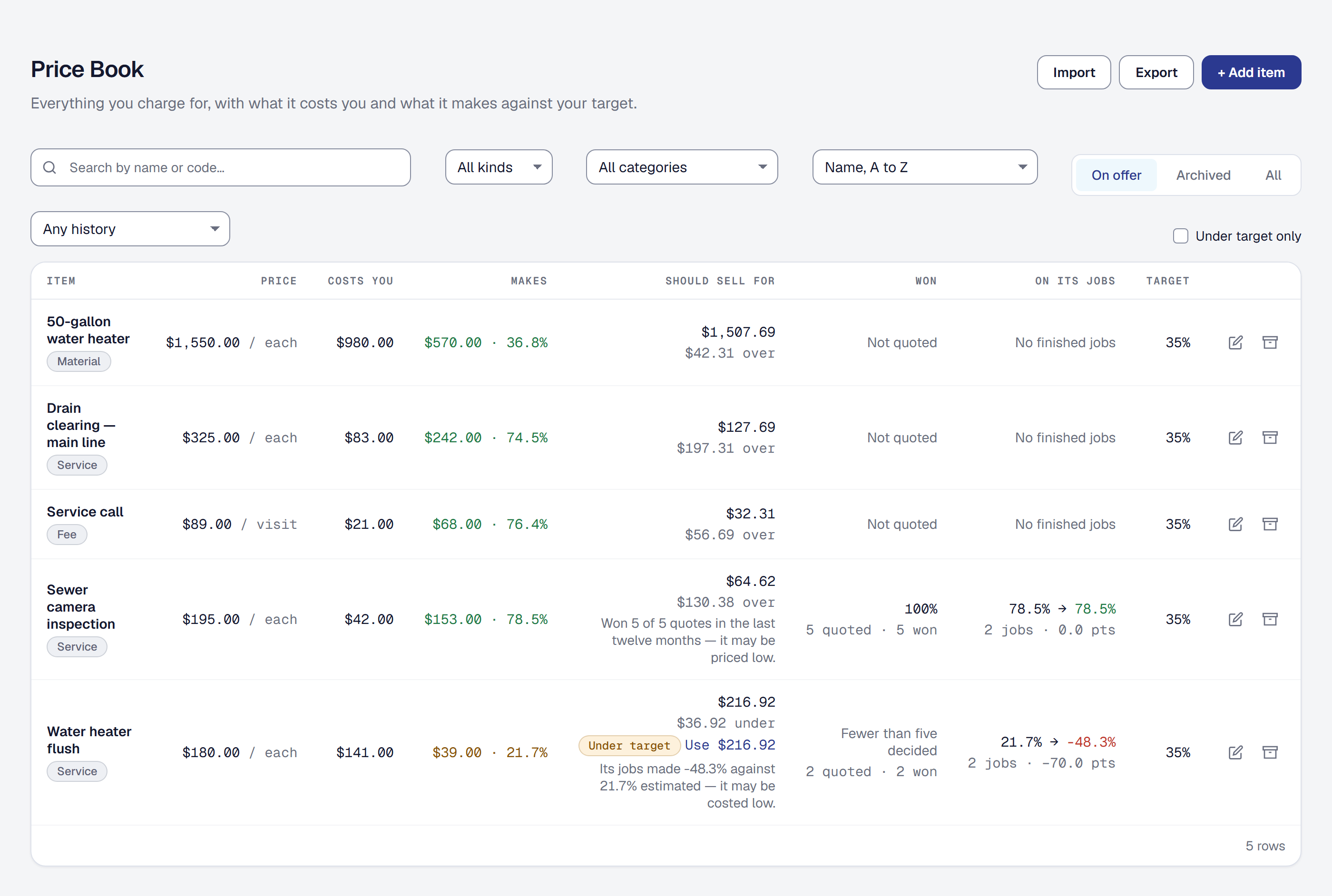
The Price Book is the list of what your business charges for — a drain clearing, a water heater, a service call — each with its price and what it costs you to deliver. Because every price has its cost behind it, every item shows what it makes before you quote it, and the book can tell you which prices are too low.
Add the Price Book and your first items
The Price Book is a tool: add it on the Tools page, under Getting work, and it appears in the menu under Sales. The owner and managers keep it; a field worker never sees it.
Choose + Add item and say what it is:
- Kind — a Service (work you do), a Material (something you supply), a Fee (a service call, a trip charge) or a Bundle (several items sold together, below).
- Name, and an optional Code — unique among the items you have on offer.
- Price per unit, and the Unit it is sold by: each, hour, foot, visit.
- Taxable — kept with every invoice line the item fills.
- What one unit costs you: Hours at a Labor rate, Materials and Equipment. Hours need a labor rate, because an hour with nothing to cost it at would read as free.
- A Category, a Job type whose target margin it is measured against, and two descriptions — Description for the office and Description a customer could read. The customer’s is the one a change order or an invoice shows your client.
The form shows what the item costs you and makes as you type. A material can also point at its entry in your Materials catalog while you have that tool — a link, never a requirement either way.
Already keep a price list in a spreadsheet? Bring it in whole instead (below).
Read what each item makes
Every item shows its Price, what it Costs you and what it Makes, in dollars and as a percent of the price, against its Target: its job type’s target margin where it names one, your business’s otherwise. The margin is green at or above the target, amber under it, and red under 10%.
The cost is worked out from your labor rates as they are now, so a raise shows on every item that uses that rate the day you make it. A price below cost is allowed and shows as a negative margin.
Search by name or code, filter by kind and category, choose On offer, Archived or All, and sort by name, price, margin, win rate, or how far an item’s jobs ran over.
Sell several items as one bundle
A bundle is an item made of other items — a water heater replacement is the heater, the install and the haul-away. Choose the Bundle kind, then Add an item with How many and Add to bundle for each.
Its cost is its items’ cost; its price is what they list at together, unless you set a Package price, and the list says how much less or more the package is than its items. A bundle can hold another bundle, can never hold itself, holds each item once, and holds up to fifty.
Categories are kept on the tool’s own page, Tools → Price Book → Categories.
Quote an item on a proposal or a change order
On a proposal’s costing step, + Add offers From Price Book beside Custom Item. Search, pick an item, set how many, and it becomes an item line: that many at the item’s price, with its cost carried behind it. Type a different price and the line says so: Overridden from $250.00.
A bundle adds one line for each item it holds, grouped under the bundle’s name and priced so the group adds up to the bundle’s price, to the cent.
Item lines count toward the proposal’s price, its margin and its milestones exactly as costed lines do, and a proposal can mix both — see Job costing for how the two kinds of line differ. Your client sees what they always have: the total, the milestones and the terms.
A line keeps what it was quoted with. Change an item’s price or cost later and the proposals already written, the jobs they became and their invoices keep theirs.
A change order takes items the same way. Its client reads an item line as how many at what price — never its hours, rate or markup.
Bill an item on an invoice
On an invoice, From Price Book fills a quantity line from the item: its customer description, how many and its price. The line is then an ordinary line to edit. A bundle becomes a line for each of its items when the invoice is saved.
The invoice’s one tax rate applies to every line as it always has; each item’s Taxable setting is kept with its line for when tax is worked out line by line.
Bring your price list in from a spreadsheet
Choose Import on the Price Book, or find it under Import & export. The file’s columns are
kind, name, code, unit, price, category, taxable, cost_hours, labor_rate, materials_cost, equipment_cost, description, customer_description, bundle, quantity, and the template has them in
order.
- A labor rate is matched by its exact name; one that does not exist is a row to fix, because a rate is set up on its own page.
- A category you do not have is a row to fix too, unless you tick Add the categories this file names that my Price Book does not have yet — the preview then says which it will add.
- A bundle is its own row, with its package price in
price, or blank to sell it at its items’ list. Each item in it is a row naming the bundle inbundle, with how many inquantity. - Names and codes must be new: importing the same file twice is refused, row by row, rather than doubling the book.
The whole file is checked first and nothing is added until you commit; a file that is half right is never half imported. Export gives you the book in the same columns, so it can be edited and brought back in, or taken to another business with the same labor rates.
Let the assistant suggest lines from it
On Professional, the assistant’s line item suggestions on a proposal or a change order are made from your Price Book while you have it — it is shown the names and prices, never the costs. A suggestion that is one of your items is offered as that item, at your price: From the Price Book: 2 × $250.00 / each. A good suggestion that matches nothing can be saved with Add to Price Book, which opens the item form filled from it. Without the Price Book, suggestions are costed lines.
See what an item should sell for
Every item with a cost shows what it Should sell for: the price at which its cost makes its target. Margin is of the price, so the price is the cost divided by what the target leaves — at a 35% target, $141.00 of cost sells for $141.00 ÷ 0.65 = $216.92. Hover it for the sentence that says how it was reached.
An item priced under that is marked Under target, and Under target only shows just those. Use $216.92 prices the item at it in one step. That changes the item, and only the item: a line already quoted keeps its price.
On a proposal, any line under its target — from the Price Book or costed by hand — is marked with what its cost needs it to sell for, and counted: 1 line under 35%. It never stops the proposal being sent, because a price under target can be on purpose.
See how each item really did
The list also reads each item’s last twelve months from your own proposals and jobs.
- Won is how often a proposal quoting the item was accepted, out of those accepted, declined or expired. It is given once five have been decided — Fewer than five decided until then — with how many were quoted and how they went beneath it. Drafts are not quotes.
- On its jobs is, across the finished jobs the item was on, the margin it was quoted at against the margin it made, and the difference in points. The labor is the hours logged at the rate the line was quoted at; the materials and equipment are as quoted. Cost on those jobs that no line can claim — hours at a rate nothing was quoted at, the job’s expenses, its equipment time — is shown beside it as unattributed, never guessed at.
When the history points at the price, a note says so under what it should sell for: an item won nearly every time — 90% or more of at least five — may be priced low; one whose jobs made five points or more under their estimate may be costed low. The notes never change a price. The history filter shows just those items, Wins nearly every time or Jobs run over.
Archive an item, or remove the Price Book
Archive an item to stop offering it. It leaves the pickers but stays on every proposal, job and invoice that used it, and Restore puts it back on offer. Archiving an item a bundle holds names the bundle first; the bundle keeps working, with the item marked archived.
Remove the Price Book on the Tools page and the list and the From Price Book pickers go. Nothing is deleted: the item lines already written stay as they are, and adding the tool back brings the book back as you left it.
This page describes Price Book & Pricing Intelligence. It is written from that feature’s record and covers what has shipped, never what is planned.