Proposals
Build a priced proposal in a guided wizard, send it, see when your client opens it, and have the job created for you the moment they sign.
Watch it


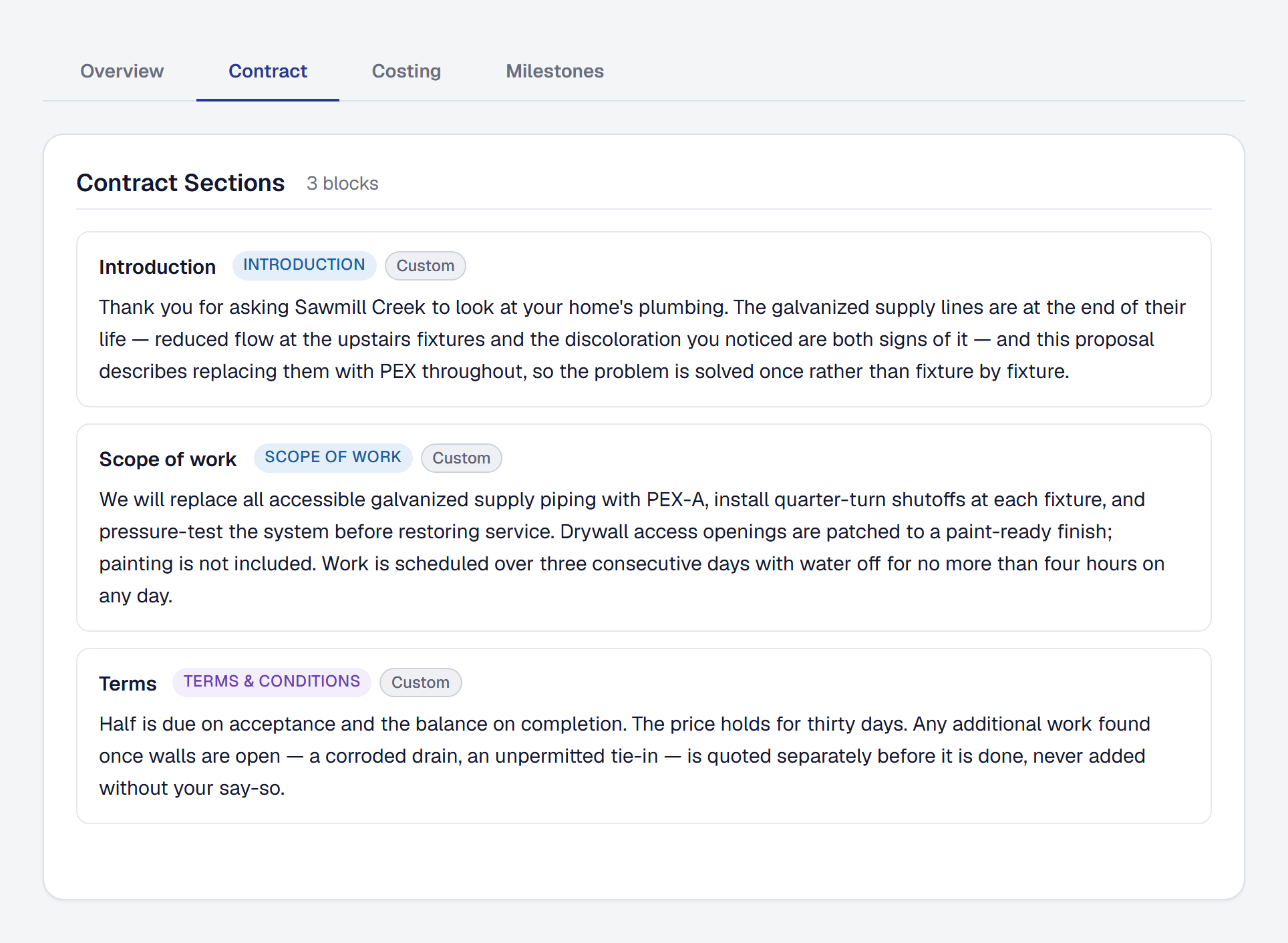
A proposal is the document that wins you the work: the scope, the price, the stages and the terms, in something your client can read and sign without creating an account. When they sign it, the job is created for you with the milestones and the costing already on it.
Write a proposal
Open Proposals and start one. It is a wizard in five steps — four on Starter, which has no step 2. The draft is made when you leave step 2, or step 1 on Starter; leave the wizard after that and the draft waits in Proposals, where it opens on its own page.
Step 1 — who it is for. Pick the client (you can add one without leaving the form), and optionally a title, the kind of work, the service address, a valid-until date and a target price. Valid-until defaults to 30 days out. The client is the only thing you have to fill in to save a draft. Once the draft is made, its client and service address are fixed: going back to step 1 shows them and says so. To quote someone else, start a new proposal.
Step 2 — describe the job. On Professional, write what the work is, in whatever shorthand you would use in a notebook, for the assistant to draft from.
Step 3 — contract and milestones. The contract wording and the payment milestones, as percentages. There is no costing yet, so each milestone is worked out from your target price — a 50% deposit on a $2,200 target reads $1,100.
Step 4 — costing. The line items: hours at a labor rate, materials, equipment and markup, or items picked From Price Book at their price — see Job costing for the two kinds. Under them, one sentence says what the proposal is priced at and how far the costing is from it. To quote the job two to four ways and let your client choose, see Proposal options.
Step 5 — pricing. Pick the price, then read the proposal over before you finish.
Choose the price
This is the part worth reading twice, because it is what stops you quoting a number you cannot make money at. A proposal is priced at one of two numbers, shown side by side under Price, each with the margin it leaves on what the work costs:
- Target — what you set out to charge, typed in step 1.
- Built-up — what the line items actually add up to.
Pick one. The milestones are worked out again from the price you picked, so they always add up to it, and switching back is picking the other one. Until you pick, a proposal with line items is priced at Built-up and one without at Target, and the page says it was preselected rather than chosen.
Priced at Built-up, the price follows the costing. Add, change or remove a line item and the price and the milestones move with it, until the proposal is sent.
Priced at Target, the price stays where you put it. If the costing moves away from it, the page says so in words — how far above or below your target the work now adds up to. To charge a different number, change the target under Edit details.
The same Price block is on the wizard’s last step, the proposal’s Overview and its Costing tab. Once the proposal is sent the price is locked; a revision is how it changes.
A proposal with options is priced by its options instead, each at its own price — see See what each option makes.
Let the product draft it for you
Describe the job in a sentence or two and the product proposes the contract sections, the costing line items and the milestones. Everything suggested is added straight to the proposal for you to edit or delete — nothing waits behind an accept-or-reject step. Suggested milestones always come to the whole price: the product scales their shares to 100% and cuts their dollars from your price itself, whatever the draft said, so a schedule it suggests can be sent.
Costing suggestions are costed at your own labor rates, from what the description says the job involves.
A drafted warranty comes with its coverage — how long labor and materials are covered — as long as it can be said in days, months or years; one it cannot say that way, a lifetime warranty say, is marked as having no length for you to set. See Where warranties come from.
Drafting needs Professional, because it spends against your monthly AI allowance. On Starter the wizard works identically with everything entered by hand, and the manual path is not a lesser version of the flow — it is the same flow.
Say how your client pays
On the proposal’s Payment tab you choose how your client pays, in one click:
- Pay on completion — one payment for the whole price when the work is done. This is where every new proposal starts.
- Deposit, then the balance — a deposit when they sign, as a percent of the price or a dollar amount, and the rest when the work is done.
- Milestones — a schedule of payments, each a share of the price; tick The first payment is due when they sign to ask for the first one up front.
Above the choice, a client who has paid you before has their habit shown — how long they usually take, how many paid by the due date, how often they needed a reminder. A client who is slow to pay is offered Ask a 25% deposit, then the balance, in one click, on a draft whose terms ask nothing at signing yet: the protection that works before the work, rather than chasing after it. It is requested, and you can change the amount like any deposit. Nothing changes until you press it, and your client never sees their habit. See How long clients take to pay.
Under the choice, the schedule in dollars at today’s price — with options, one for each — which follows the price until the proposal is accepted, when the dollars are fixed onto the job. A deposit bigger than the price (or, with options, the cheapest option) can’t be sent.
With a payment at signing — a deposit, or a first milestone due when they sign — you also choose whether it is requested or required:
- Requested — signing accepts the proposal and makes the job, and the deposit is invoiced against the job and sent with their confirmation. It waits to be paid like any invoice.
- Required — signing records their signature, sends their signed copy and invoices the deposit, but the job is made only when the deposit is paid. Your client is told this before they sign.
A required deposit has to be paid by the proposal’s valid-until date, or within seven days of signing when that is later. Change the seven under Required deposits on Organization → Payments, anywhere from one to ninety days.
If you take card payments, your client can pay the deposit right from the proposal — Pay the deposit opens your own secure payment page, the same one your invoices use, and brings them back to the proposal to see it paid. They can come back to the link and pay any time before the deadline, or pay from the invoice email instead. Without card payments set up, the proposal tells them to pay you directly, with your phone and email, and you record it when it arrives. Once the time to pay has passed, no card payment can be started.
A deposit is the first part of the price, not a credit: its invoice bills that part, and Bill the rest on the job bills what remains — see Invoices.
Send it and see when it is opened
Sending checks that the proposal is actually sendable first: it needs contract wording, a total above zero and a valid-until date, a deposit no bigger than the price, and milestones, when it has them, that come to 100%. A schedule of 75% is refused, and so is accepting one — by you, on the pipeline or by your client — so nobody agrees to pay less than the price. Thirds typed as 33.3% are fine: the last payment carries the odd cent. The email goes out with your business’s branding, the total and the payment schedule, and a link unique to that client. It goes to the client’s own email; when the client has other contacts with an email, Send to in the Send to client panel offers them for this proposal and for Send again (see Choose who a document goes to). Review, on a proposal you can send, says the same before you send: it reads the payment schedule your client will see — in dollars, on the terms you chose — and names anything sending would refuse, in the words sending would use. Its checks are on every plan; on Professional the assistant also reads the proposal’s wording for vague scope and missing terms.
Your client opens the link with no account and no password. They see your branding, the scope, the total with plus applicable tax beside it — tax is added on each invoice — and the payment schedule: each payment, when it is due and what it is. They can download it all as a PDF. A proposal carrying the site picture shows the picture on its page; the PDF lists its key instead — each shape’s letter and its name — and never the picture.
The first time they open it, you get an email. After that, every view is counted, and the proposal’s page shows how many times it has been opened, first and last — which is usually the most useful thing you can know before picking up the phone.
Chase a proposal that has gone quiet
A proposal that has been sent but not answered gets one follow-up email automatically, a few days later. Not a drip sequence — a single “just checking in” with the key details and a link back.
The follow-up is Chase proposals that go unanswered, switched on in Automations, where you choose the gap with Change (three days by default, anywhere from one to thirty), and you can turn the follow-up off for an individual proposal from its page. A proposal that has been accepted, declined or expired is never followed up, and neither is one whose valid-until date has passed — a price that no longer holds is expired, not chased. One that has merely been opened still is, because opening something is not answering it.
If it is still quiet a week after that, it is put in For you for whoever sent it, as Quote gone quiet: the client, what was quoted and its value, the day it was sent, and how often it was opened. Where the automatic email was off, that is ten days after sending. A follow-up you write yourself counts too: the week runs from whichever came later, yours or the automatic one, so a quote you wrote about yesterday is not raised today. Change the week on the same row in Automations, under Gone quiet after. From the item you can:
- Follow up — write the client a few lines of your own. It is emailed from your business with a link to the proposal, and recorded on the proposal and on the client’s timeline.
- Let it go — it leaves your list, and the proposal stays as it is.
- Mark declined — record that they said no.
Each quote is raised once. If the person who sent it no longer works on proposals, it goes to the owner — and if they leave or stop working on proposals after it was raised, the owner sees it from then on. Follow up is also on the proposal’s own page, beside They said no, and on its card on the pipeline board, whenever you want to write one.
On Professional, the follow-up is drafted for you the moment you open it: a greeting, a few plain sentences in your business’s voice and your name to sign it, written from what your client was shown — what the proposal includes, its total or its options’ prices, when you sent it and how long the price holds. Never its own title or description, and never what anything costs you. Edit it before you send, Redraft for another, or Clear to write your own. A draft that offers a discount or a deal, promises something the proposal does not, or names an amount it does not carry is not shown — you write your own instead. Each draft spends a little of your monthly AI allowance; when the month’s allowance is used up the message opens empty and says so. On Starter it opens empty, for you to write.
A proposal accepted after a follow-up you sent from a quiet quote counts on your Billing page, in What SMG Tools caught, as Accepted after a follow-up SMG Tools prompted.
Follow-ups are on every plan. An email costs nothing worth charging for.
Get it signed
Your client accepts by typing their name as a signature, entering their name and email, and ticking the agreement box. The acceptance is recorded with the time, their IP address and their browser, so there is a real audit trail behind the signature.
The moment they accept, the job is created for you — Approved, with the title, the description, the kind of work, the line items, and how they agreed to pay in dollars, as its payment schedule: the deposit and the balance, a payment for each milestone — each milestone a stage of the work on the job, its payment due when it is done — or one On completion payment for the whole price. The job’s Agreed price is the proposal’s price, and the Invoices panel on its Financials tab measures what is left to invoice from it — see Invoices. You do not re-key anything. With options, the job is made from the option they chose and nothing else — see When your customer chooses.
When the deposit is required, signing leaves the proposal Waiting on deposit instead — on its page, in the Proposals list and on its pipeline card, which stays in Quoted. The proposal’s page links the deposit invoice. When your client pays by check, cash or transfer, Record Payment on that invoice: once it is paid in full, the proposal is accepted from their signature and the job is made, with the invoice attached to it. A part payment leaves it waiting. They already accepted — or moving the card to Won — accepts it straight away, because you are vouching for it, on exactly what they signed — you are not asked which option again; the invoice moves to the job and can be paid later. While it waits it can’t be edited, revised or declined.
When you mark a proposal with a deposit accepted yourself, the job is made at once — required or not — and the deposit’s invoice is created as a draft for you to send.
The job is made the same way whoever says yes. Your client signing, a paid deposit, They already accepted and Won make the same job from the same proposal: its price, every line with what it carried — the hours, materials and equipment in one unit, the option and add-ons it came from, whether it is taxable, what it was measured from, the Price Book item — the payments, and the warranties. A payment due at signing is dated by your business’s own day. Either all of it is made or none of it is, and a proposal accepted once makes its job once.
If the job cannot be made when your client signs — the job a re-quote was written for has been archived, say — their acceptance still stands and is recorded as given; your notice says why, and so does the proposal’s page, with Make the job. Deal with the reason, press it, and the job is made once. When you accept a proposal yourself and its job cannot be made, you are told why at once and nothing is recorded, so you can put it right and accept again.
A proposal written for a job you made by hand — a re-quote — updates that job when it is accepted, rather than making a second one. The payments it was drafted from are replaced by the proposal’s, never added to; one invoiced since stays. The job then bills to the agreed price, its stocked lines fill its materials list, and its warranties are made whoever accepted.
They can also decline, with optional feedback, which is worth more than silence.
Revise a proposal you have already sent
Create a revision from any proposal. The revision starts from everything the proposal said — its contract wording, its line items at the prices they were quoted, its options and add-ons, how your client pays, its price and its target — as a draft for you to change and send. If its valid-until date has passed, move it before you send. The new version gets its own link, and the old one is marked superseded — a client who goes back to the original link is told there is a newer version rather than reading a stale price. The proposal’s page keeps the whole version history; the Proposals list shows one row per proposal with a count of its versions.
After a proposal has been accepted, changes are change orders on the job instead: additions and credits you send for your client to accept, with the same audit trail. An accepted change order raises the job’s agreed price, or lowers it for a credit.
Void, delete and expire
- Void works at any stage and is a soft delete — the record stays. Voiding a proposal that is waiting on its deposit voids the deposit invoice too.
- Delete only works on a draft. Once a proposal has been sent to somebody it can be voided but not erased.
- Expire happens on its own on the day the valid-until date passes. An expired proposal cannot be accepted; if the client comes back late, create a revision. A proposal waiting on a required deposit expires when its time to pay runs out instead: the signature stays on the record, the deposit invoice is voided so it can no longer be paid, and no job is made.
This page describes Proposals - Documentation. It is written from that feature’s record and covers what has shipped, never what is planned.