Proposal options
Offer the same job at two to four prices on one proposal, with extras your customer can tick, and let them choose and sign for exactly one.
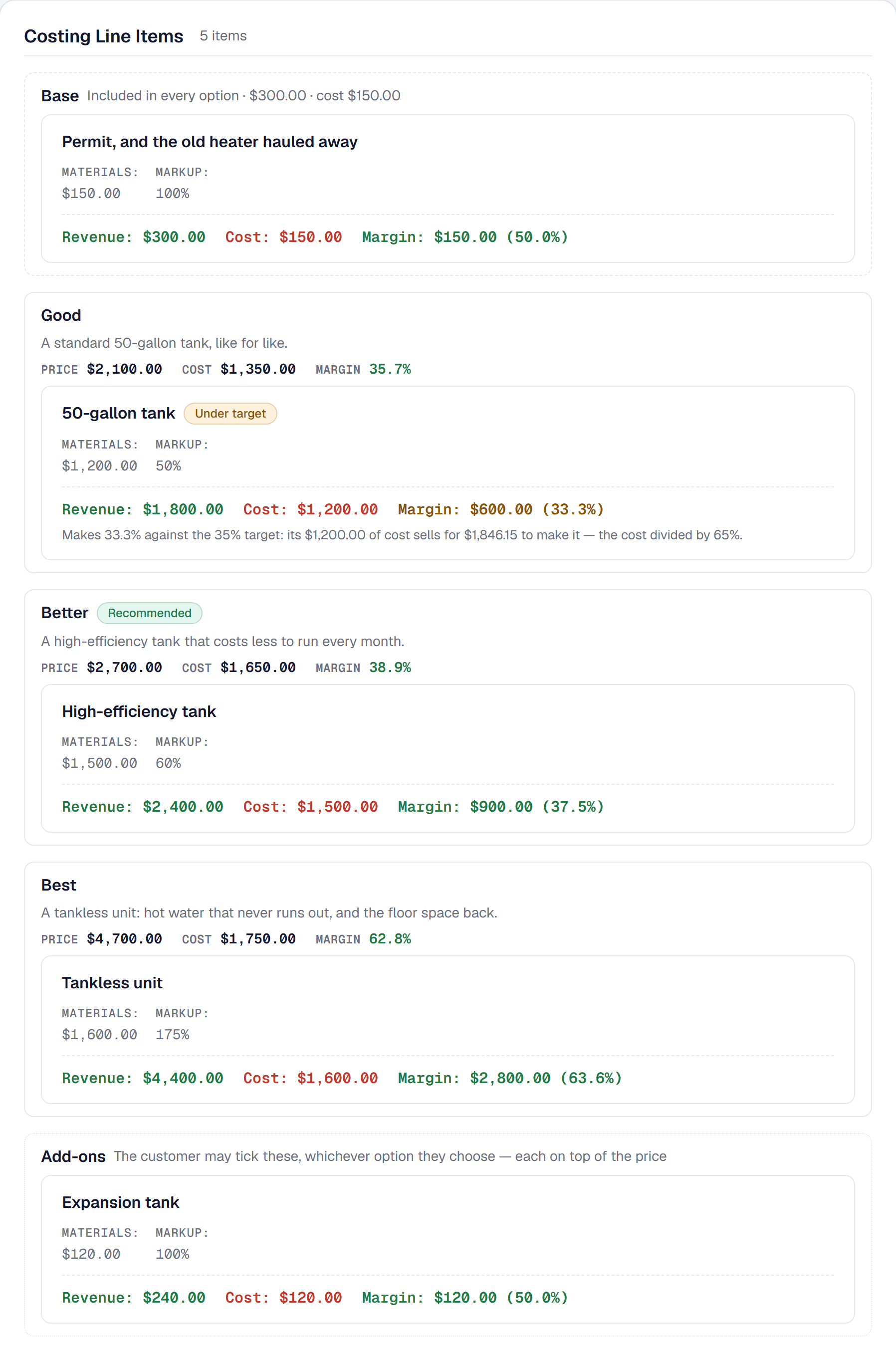
Proposal options let you quote a job three ways — a standard tank, a high-efficiency tank, a tankless unit — so your customer is choosing which, not whether. They pick one on the proposal link, tick any extras they want, and sign for exactly that; the job is made from what they chose and nothing else.
Add Proposal options
Proposal options is a tool: add it on the Tools page, under Getting work. It is on every plan. Until you add it, proposals look exactly as they always have.
Removing it takes away Add options and the add-on choices on new work. A proposal that already has options or add-ons keeps them, and can still be sent, accepted and revised.
Offer good, better and best
On a draft proposal’s Costing tab, choose Add options. The lines already there become the Base — the work every option includes, such as taking out the old unit and the permit — and three options appear beneath it: Good, Better and Best, each with lines of its own. The base is priced once, and each option’s price is the base plus its own lines.
The options are alternatives, not layers: your customer takes exactly one. So a replacement is just a different line in a different option — the tankless unit in Best instead of the tank in Good.
- Add lines with each group’s + Add — a line you cost yourself, or an item From Price Book, a bundle included. They work in an option exactly as they do on any proposal.
- Move or copy a line with its Move or copy menu, or drag it into another group. A bundle’s lines move and copy together. A moved line stays exactly as quoted; a copied line you costed yourself is costed again at today’s rates, and a copied Price Book line keeps the price it was quoted at.
- Edit an option from its Option menu: its Name, What the customer reads about it, a Package price, and Recommended, which marks it for your customer as the one to choose.
- Add option takes you up to four; Remove option takes one away, with its lines, down to two. If the option has contract sections of its own, you are asked whether they move to the whole proposal or go with it.
- Remove options goes back to one set of lines: the base, plus the option you choose to keep.
A proposal has two to four options, each named — up to 60 characters, no two alike — with a description of up to 500 characters. Only one can be recommended. Options are built while the proposal is a draft; once it is sent, a revision is how they change.
See what each option makes
Every option shows its Price, its Cost and its Margin, colored against your target margin — the kind of work’s target where it has one, otherwise your business’s. An option priced under target is marked Under target, with what its cost needs it to sell for. It never stops you sending the proposal.
A package price sells an option at one round number instead of what its lines add up to, and the option says how far that is above or below its lines. When the proposal is accepted, the package price is spread across the lines the customer bought, so the job’s lines still add up to exactly what was sold. A package price moves the price, never the cost.
A proposal with options is priced by its options, so there is no Target price to pick; your target stays on the proposal, as the figure each option is measured against. Until your customer chooses, the proposal counts on the Pipeline and in the forecast at its recommended option’s price, or its lowest when none is recommended, and its card reads from $2,100 · 3 options.
Fill Better and Best in one step
Fill from ladders builds the other options from the first. In the Price Book, an item’s Next step up names the better item of the same kind — a standard tank’s might be a high-efficiency tank, and that one’s a tankless unit. Filling copies the first option’s lines into the others, each Price Book item swapped one step up for the second option and two for the third; a fourth option takes the third’s. A line you costed yourself, an item with no step up and a bundle’s lines are copied as they are, and listed above the lines so you can change them. If an option already has lines, you are asked before they are replaced.
Fill from ladders is on every plan, and is offered while you have the Price Book, since ladders live on its items.
Suggest asks the assistant for the lines the ladders do not cover. It proposes lines for each option that still needs them — your own Price Book items at your own prices where it can — and nothing is added until you choose Add on a line; Discard drops it. The assistant is never shown what anything costs you. Suggest needs Professional, because it spends your monthly AI allowance; on Starter the button says which plan includes it, and filling by hand or from ladders works just the same.
Offer extras your customer can tick
An add-on is an extra your customer may take or leave — an expansion tank, a surge protector — whichever option they choose. Add the first from the base’s + Add menu, Add-on the customer may tick (or Add-on from Price Book); after that the add-ons have their own group, and a line moves in or out of it like any other. A proposal can offer add-ons with or without options.
Add-ons are never ticked for your customer, and an add-on is not in the proposal’s price until it is taken. Each one shows its margin while you build it, as every line does.
Put a longer warranty with the better option
On the Contract tab, a section’s Comes with says whether it belongs to The whole proposal or to one option — a ten-year warranty that comes only with Best, say. You can also drag a section into an option’s group. Your customer reads each option’s sections under that option.
Only the whole proposal’s sections and the chosen option’s go into the signed contract, and only the chosen option’s warranty sections become warranties on the job.
What your customer sees
On the proposal link, Every option includes lists the base once. Then the options: side by side on a wide screen, stacked on a phone, each with its name, its description, what it includes, its price and how it would be paid, and the recommended one marked. Your customer sees what each option includes and the quantities — never a line’s own price, cost or margin. The one line price they do see is an add-on’s, because they are the one choosing it.
Nothing is picked for them. Until they choose, the top of the page reads Options from the lowest price, and Accept Proposal waits with a line asking them to choose. Choosing an option moves the total and the payment schedule to that option’s; ticking an add-on adds its price and re-cuts the schedule. Before they sign, the page says exactly what they are agreeing to — You are accepting Better with Expansion tank for $2,940.00, plus applicable tax.
Declining declines the whole proposal. The proposal email says how many options there are and where they start — three options, from $2,100.00 — and the proposal’s PDF shows every option, as the page does.
When your customer chooses
Their choice is recorded with their signature: the option, its price, its schedule and the add-ons taken. The signed PDF shows the chosen option in full, the others named and priced as not chosen, and each add-on as Added or Not taken.
The job is made from the choice and nothing else: the base’s lines, the chosen option’s and the add-ons taken. Its costing is theirs, its Agreed price is the option’s price plus the add-ons, and its Overview shows the Option Chosen. The deposit and the payment schedule are cut from that same price — see Say how your client pays.
When your customer says yes some other way, They already accepted on the proposal — or Mark accepted and a drop on Won on the pipeline — asks Which option did they choose? and Which add-ons did they take?, with nothing picked until you pick it.
The Price Book counts an item the customer bought — in the base, the chosen option or an add-on taken — as won. An item offered only in an option they passed over, or as an add-on they left, is counted as not chosen: you won the job with something else, so it is kept out of that item’s win rate and shown beside it.
See which option sells
Reports → Which Option Sells reads your last twelve months of decided proposals, for all work or for one kind of work:
- Accepted with options against Accepted without — a rate once five have been decided.
- Which option is chosen — the lowest-priced, the middle or the highest-priced — with each one’s share, average price and average margin, and By name.
- Expected profit — how often an option is chosen times what it makes on average. The most chosen option is not always the one worth recommending: a Best chosen one time in five can make more per proposal than a Better chosen three.
- Add-ons — how often each one offered was taken.
A margin is as quoted until the job is finished, and as the job actually came in after that. Below five accepted proposals with options, the report says to read the figures as a start, not a pattern.
While you build options, a note above them says what your own history suggests for that kind of work — which option is chosen most, and which makes the most — once five proposals with options have been accepted. It is advice: nothing is recommended for you.
The report is on the Reports page while Proposal options is on.
This page describes Proposal Options, Deposits & the Agreed Price. It is written from that feature’s record and covers what has shipped, never what is planned.