Reports you build yourself
Build a report of your own records by hand, or describe it in a sentence — a chart, every figure's records, the period before, a PDF, and a notice when it has run.
Watch it

The reports SMG Tools ships each answer one question. When yours is slightly different — revenue by month for the last year, only water heater jobs; hours by client last quarter — you build the report yourself, from the same figures the standard reports use, and keep it for the business.
Build one by hand
On Reports, Your reports comes first. Press New report: the report is at the top of the page and What to report below it.
- Report on — jobs, invoices, payments, expenses, time, leads or clients. A report reads one kind of record, and what that kind reaches: a job’s client and lead source, an invoice’s job.
- Period — this or last month, quarter or year, the last 90 days, the last 12 months, or Between two dates. A named period moves with the calendar: last month is always last month. Where a kind of record has more than one date, Counted by says which one — an invoice by when it was sent, when it is due, or when it was paid in full.
- Add a filter, up to four: a word field is or is not one of the values you type; a figure or a date is at least or at most the one you give.
- Add a grouping, up to two. A date is grouped by week, month, quarter or year.
- Columns, up to sixteen. In a list, each is a field of the record. Grouped, each is a figure for the group: the number of records, a total or an average of a field, or a percent such as margin %, which is worked out for the group from its parts and never averaged. Days late, days to be paid and days to become a client are only ever averaged.
- Order by a column, and Show only the first so many rows.
Every field has a line beside it saying what it means — Margin: revenue less labor, materials and equipment, as the job costing report counts it — and the report runs again each time you change something. Under it, What this counts says in a sentence exactly what the report is: the records, the dates, the filters and what each figure means. An empty report says which filter or period most likely emptied it.
Each kind of record needs the part of your role that opens those records elsewhere, as well as Reports: jobs need Jobs and the schedule, invoices and payments Invoices and payments, expenses Spending, time People and pay, and leads and clients Clients and leads. Anything with money in it needs Prices and costs. You only ever see the records your role reads.
A report shows its first 5,000 rows and counts them all in its total; group it to see it whole.
Describe it in a sentence
On Professional, with Ask about your business added and the assistant in your role, Describe a report sits beside New report. Type what you want in your own words — revenue by month for the last year, only water heater jobs — and press Build it. The report is built with its controls set, so you can see and change everything about it.
What SMG Tools does not record is said rather than guessed at: ask for customer satisfaction and you are told it is not recorded, with the rest of your report built. Ask for records your role does not read and you are told that too.
On a report already open, the same box is Describe a change: only the last six months, and add margin % changes the report in place and says what it changed. Your choice to hide the chart is kept.
Each description uses some of your monthly AI allowance, shown beside the box before you send it; it is spent on the asking, whether or not you keep the report. When the allowance is spent, the box says so and New report still builds any report by hand. On Starter, Describe a report shows the plan that includes it.
Ask the assistant for a report none of its answers covers, and it offers Describe a report with your words already filled in.
Start from a ready-made one
Two reports come ready under Ready-made:
- Gross margin, the last 90 days — the jobs finished in the last 90 days, week by week: how many, revenue, total cost, margin and margin %, drawn as a line.
- Estimates against what jobs took — the jobs finished this year that had an estimate, by kind of work: estimated against actual hours, labor and materials, and margin %, with the difference in each — so you read water heater labor runs 18% over.
Open one, change anything, and Save as keeps your version; the ready-made one itself stays as it is.
See it as a chart
A grouped report draws itself above its table, chosen from its shape:
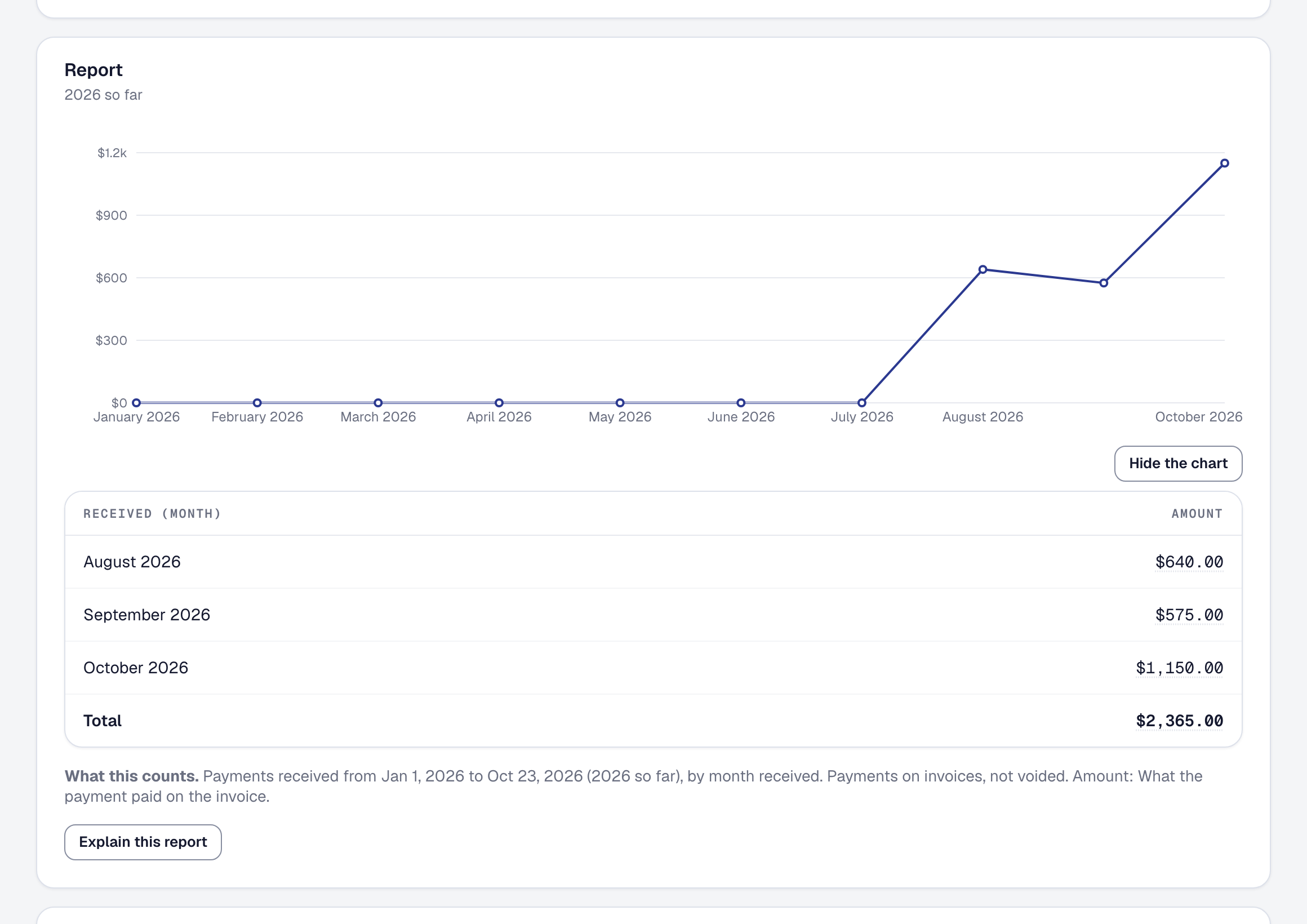
- Grouped by a date, it is a line over every period — a week with nothing in it drawn at nothing, not skipped.
- Grouped by anything else, or by a date with Show only the first, it is bars in the table’s order.
- Grouped twice, it is bars along the first grouping, a color for each value of the second.
It draws the first figure that is not a count, and the figures after it in the same unit — revenue, total cost and margin together, with margin % left to the table. A report with more than 30 bars, or more than six colors, stays a table and says so. Hide the chart keeps it a table, and a saved report remembers that.
Open the records behind a figure
Any figure in a grouped report — a group’s, or the total — opens the records that made it, and so does a figure in a list. Each record is listed with what it contributed and a link to its own page; for a percent, its two parts. The totals at the foot are the figure you opened, worked out again. A record’s own page opens or not as your role allows.
Compare with the period before
Tick Compare with the period before on a grouped report, and each figure is followed by the same figure before it and the change. The period before is the one a person would mean: last month against the month before, a month so far against the same days of last month, the last 90 days against the 90 days before. A kind of work is set beside itself; a date beside its place in the period, so the first week sits beside the first week. The chart draws the period before as a dashed line or a pale bar.
Save it for the business
Save names the report and keeps it under Your reports for everyone at the business — the report, never its figures, so it runs on your records as they are each time it is opened. Its maker and the Owner can Save over it, Rename it or Remove it; anyone who can read it can change it for themselves and Save as a report of their own. A removed report leaves the list and is kept with the business’s records. A report whose records your role does not read is listed by name as not yours to open.
Print it or take it to a spreadsheet
Download PDF prints the report with your business’s header: its name, its dates, what it counts, the chart and the table with its total, the table’s header on every page. Wider than six columns, the page turns to landscape. It prints the first 2,000 rows and says so when there are more.
Export CSV gives the table as shown, every row up to 25,000, with What this counts as its first line and the total last. A cell a spreadsheet would read as a formula is written as words.
Have it explained in a paragraph
On Professional, Explain this report under a grouped report writes a short paragraph: its largest figures, what changed from the period before when it is compared, and what stands out. Every figure in the paragraph is checked against the report; a paragraph that states one the report does not contain is not shown, and you are told why. It uses some of your AI allowance, even when the paragraph is not shown. A list of records is not explained — group it first.
Be told when it has run
Open a saved report and Scheduled, and who is told:
- When it runs — every Monday, or on the first of each month. The report’s maker or the Owner sets it.
- Tell me when it’s ready — a notice in SMG Tools, an email, or both. Stop telling me stops it.
- Add someone — the report’s maker or the Owner can add anyone at the business whose role reads the report. They are told they were added, by whom, and how to stop.
On its day, from seven in the morning your time, each person is told once: Revenue by kind of work for September 2026 is ready, with a link. The notice is in For you until you press Got it. The link opens the report for exactly that period, on your records as they are when you open it. A notice and an email never carry the report’s figures, and the email’s Stop telling me opens a page in SMG Tools with one button. Someone who leaves the business, or whose role no longer reads the report, is not told. Scheduling, being told and saving are on every plan.
What the assistant is sent
Describing sends the AI your words and the list of records and fields your role can build a report from — what each field means, never a value of one. It writes back which records, filters, groupings and columns to use; SMG Tools checks that against the list, leaves out and names anything not on it, and works out every figure itself from your records. Explaining sends the report as it is shown — its groups and their figures — and nothing more. Neither sends a client, a job or any other record. How the assistant and the AI provider handle what they are sent is in the Privacy Policy.
This page describes Reports Built from a Description. It is written from that feature’s record and covers what has shipped, never what is planned.