Roles: what each person can see and change
Give each person a role that fits their work — dispatcher, estimator, bookkeeper, crew lead — and on Scale, build your own from the same list.
A role decides what somebody in your business can see, what they can change, and whether they take an office seat. Give each person the role that matches their work, so the dispatcher runs the board without reading every job’s margin and the bookkeeper closes the books without dispatching anybody.
Choose a role for each person
Choose the role when you invite somebody (Team → + Invite someone), or later with Change role on their row. The choice says what the role reaches and whether it uses an office seat before you send anything. These are on Crew and Scale:
| Role | What they reach | Office seat |
|---|---|---|
| Owner | Everything, including what makes the business yours: the subscription, the team, the business details, payments setup, connecting a bank or a card, tools, keys, the accounting connection, and exporting or deleting it all. | Yes |
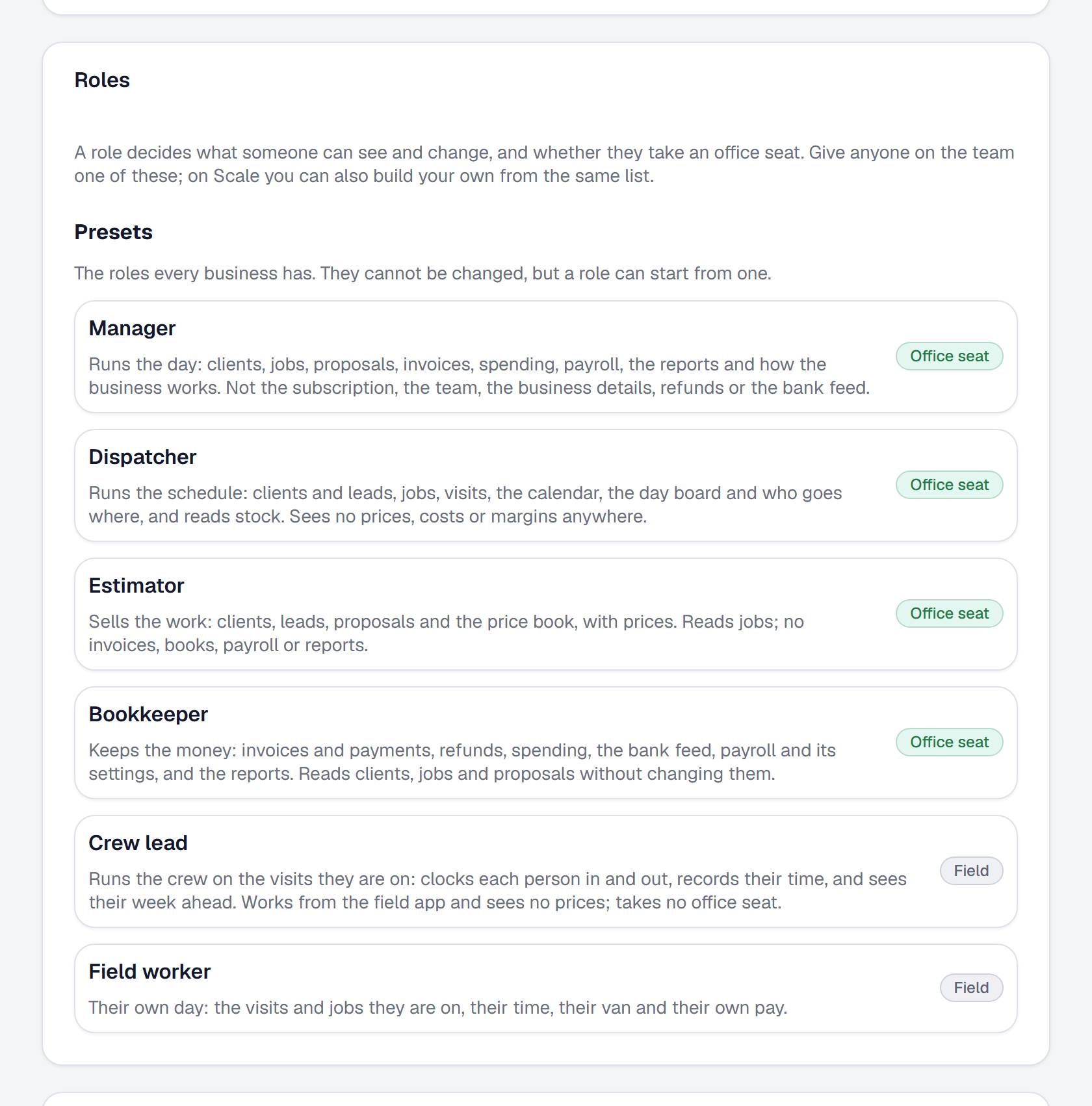
| Manager | Runs the day: clients, jobs, proposals, invoices, spending, payroll, the reports and how the business works. Not refunds, the bank feed, or the settings for pay and the books. | Yes |
| Dispatcher | Runs the schedule: clients and leads, jobs, visits, the calendar, the Day Board and who goes where, and reads stock. Sees no prices, costs or margins anywhere. | Yes |
| Estimator | Sells the work: clients, leads, proposals and the Price Book, with prices. Reads jobs; no invoices, payroll or reports. | Yes |
| Bookkeeper | Keeps the money: invoices and payments, refunds, spending, the bank feed, payroll and its settings, and the reports. Reads clients, jobs and proposals without changing them. | Yes |
| Crew lead | Runs the crew on the visits they are on — their clocks and their time — and sees where the crew is going next. Works from the phone and sees no prices. | No |
| Field worker | Their own day: the visits and jobs they are on, their time, their van and their own pay. | No |
Each person opens on the first page their role is for: a dispatcher on the Day Board, an estimator on Proposals. Only the owner manages the team and its roles, and nobody but the owner can be given what is the owner’s.
Know who takes an office seat
A role takes an office seat when it holds anything of the office’s — so the manager, dispatcher, estimator and bookkeeper do, and the crew lead and field worker never do, on any plan. Office seats go to the owner first, then to the others in the order they joined; an invitation still open counts. See Your team for what seats cost and adding an office user when they are full.
Keep prices and costs from a role
The dispatcher, the crew lead and the field worker have no Prices and costs. Everything they open — jobs, clients, the calendar, the Day Board, stock — comes to them with every price, cost, margin, rate, balance and amount left out, not blanked: there is no “$0.00” where a figure was. They are never offered a sort by price or the job’s Financials tab, and a link to it says their role does not include prices and costs.
What is their own stays theirs: a person’s own earnings, what they spent on the company card and the slip from a counter order they placed.
When somebody without prices saves a job, the price it was agreed at is kept, because the form they saw never showed it.
See a page without changing it
A role can reach an area to see it, or to see and change it. A bookkeeper sees jobs and clients; an estimator sees jobs. On a page a role only sees, no button that changes anything is drawn — no Edit, no Archive, no + New — so nobody is offered a change the business would refuse.
Run the crew on a visit
A crew lead opens a visit from My Day and finds Your crew under their own clock: everybody on the visit, each one’s clock, and the hours recorded for them on the job today. For anybody but themselves, the lead can Clock in, Clock out, or Record time — hours and a note, then Record it.
The time is that person’s own, at their own rate, as if they had clocked it themselves, and the office’s timesheet says who recorded it. A crew lead cannot record time for somebody who is not on the visit, add to a week the office has approved, or approve a timesheet.
Their crew is whoever the office puts on the visits they are on — there is no list to keep. Your crew in the menu shows each of them and where they will be over the next seven days: the day, the time, the visit, the client and the address.
A crew lead reaches the whole job of every visit they are on — its notes, photos, checklists and parts — as a field worker reaches a job they are assigned to. Like a field worker, a crew lead needs a worker record: link one from their row on Team with Link worker.
Build a role of your own
On Scale, when nobody’s work fits a preset, build a role for it. Open Team, then + Build a role in the Roles section — or Start from this beside a preset to begin with what it holds.
Give the role a name, at most 60 characters and never a preset’s name, and one sentence saying what it is for. Then set each area to None, Sees, or Sees and changes; each offers only the levels it has. Everybody’s own work — their day, visits, time and pay — is in every role, and what is the owner’s is not on the list.
While you build it, the page says whether the role takes an office seat, naming the area that makes it one, and whether its people will use the office or their phone.
An area that is money through and through — invoices and payments, refunds, spending, the bank feed, the settings for pay and the books, payroll, or the reports — brings Prices and costs with it, and the page says which area did.
Press Build the role, and it is offered beside the presets wherever you choose a role: inviting somebody, or Change role on their row.
Change or end a role you built
Open the role from the Roles section, change it, and Save changes. Everybody who holds it has the change on their next step, and so does an invitation not yet accepted.
If the change would put more people in the office than you have free office seats, it is not saved: you are told how many people hold the role and how many more seats it needs, with a link to add office users.
End this role when nobody holds it. While somebody does — or an open invitation offers it — you are told who; give them another role first. An ended role is offered to nobody again.
Keep the roles you built if you leave Scale
The roles you built keep working for the people who hold them. Until the business is back on Scale they cannot be changed or given to anybody else, and the Roles section says so.
This page describes Roles for a Bigger Company. It is written from that feature’s record and covers what has shipped, never what is planned.