Passkeys
Sign in with your face or your fingerprint instead of a password — faster on a phone, and impossible to phish.
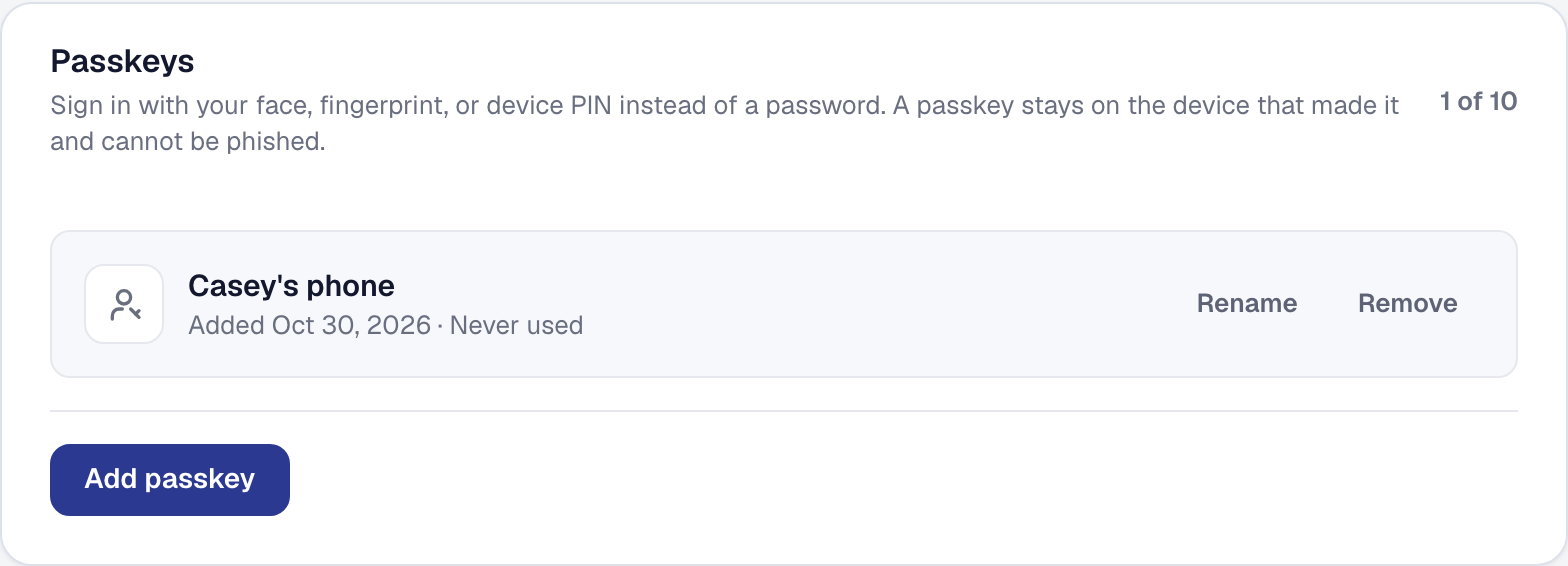
A passkey is the sign-in your device already does — Windows Hello, Face ID, Touch ID, Android biometrics. It is faster than a password, and it cannot be phished.
It is additive: adding a passkey does not take your password away, and password sign-in with a second factor keeps working exactly as before.
Add a passkey
On your Security page, add a passkey. Your device asks you to confirm with whatever it normally uses, and that is the setup.
You can add more than one — a phone and a laptop, say — so losing one device does not lock you out.
Sign in with a passkey
On the sign-in page, press Sign in with a passkey, or — where your browser offers it — pick your passkey from the email field’s own suggestions. Your device asks for your face, your fingerprint or your PIN, and you are in.
A device with no way to hold a passkey is not offered the button at all. A browser that cannot use one here says so, and your password works exactly as it always did.
Where it earns its keep
On the crew’s phone. A technician standing on a driveway signs in with their face rather than typing a password and then reading a code out of an email with cold hands.
That is also why somebody invited to join a business can finish joining with a passkey and never set a password at all. The office created the account, and a password nobody chose is a password somebody writes on a sticky note.
Why it cannot be phished
A passkey is bound to this website. Presented with a convincing look-alike domain, your device will not offer the passkey, because the address does not match the one it was created for.
A password can be typed into anything. That is the entire difference, and it is why a passkey is stronger than a password and a code together.
Where your fingerprint goes
Nowhere. A passkey is a key pair, and the private half never leaves your device.
Your fingerprint and your face never reach us, never travel over the network, and are not something this product could hand over if it were asked. What we hold is the public half, which is useless on its own.
If you lose the device
Sign in with your password and your second factor, then remove the lost device’s passkey from your Security page — and check Keeping the account secure, where you can also sign that device out of everything.
If you joined with a passkey and never set a password, ask the owner: the lock on your row of the Team page, Send a new invitation, sends you a link, and accepting it with a passkey on the new device signs you in and retires the old device’s passkey.
This page describes Passkey Authentication. It is written from that feature’s record and covers what has shipped, never what is planned.