Scheduling and dispatch
Write down what each person can do, then ask who should take a job and when it could be done — ranked with reasons, by profit if you like, and assigned on its own if you want.
Scheduling & dispatch writes down what you otherwise keep in your head — who does tankless installs, who is gas certified, who covers the north side — and puts one engine behind every choice of who and when. It suggests, with its reasons, and the office decides; it assigns on its own only if the owner switches that on.
Add the tool
Add Scheduling & dispatch from the Tools page. It is on every plan. The office — the owner and managers — uses it; a field worker sees their own skills on their profile and nothing else of it.
It reads each person’s working hours and time away, which every business keeps on the person’s page whether or not it has the tool — see Set each person’s hours and time away. A person with no hours of their own works the business’s.
Write down what your people can do
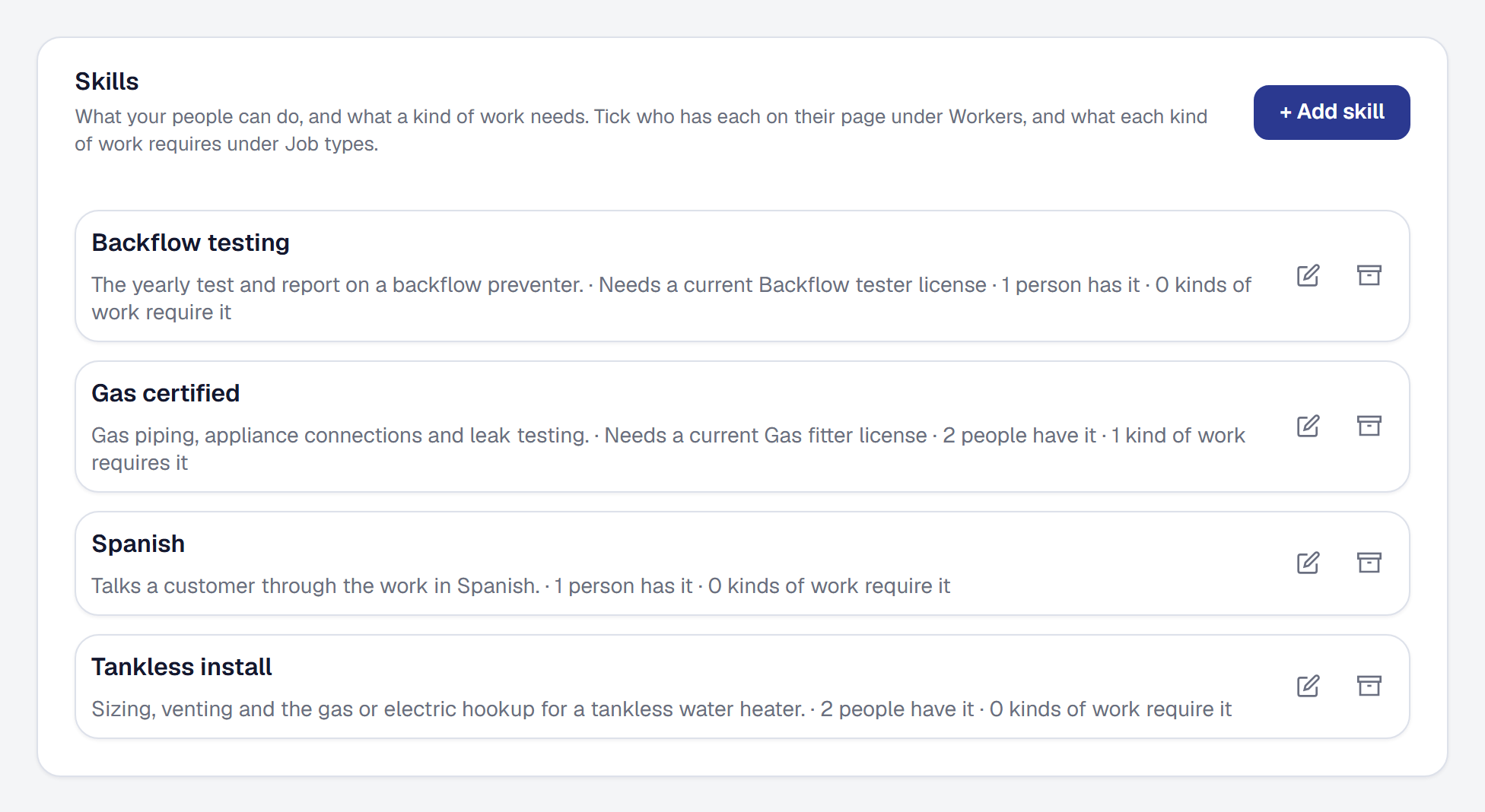
Tools → Scheduling & dispatch → Skills is the business’s own list. Press + Add skill and give it a Name — Tankless install, Gas certified, Spanish — and, if you like, a description.
Where the business uses Compliance, a skill can need a license: pick it under License it needs (optional). A person then has that skill only while they hold a current license of that category, so an expired license takes them off that work on its own and nobody has to remember to untick it.
A skill you no longer use can be archived, and restored as it was. An archived skill is neither offered nor required.
Give each person their skills and their territory
On a person’s page under Workers, Skills sits under their hours and time away. Press Edit skills and tick what they can do. A skill that needs a license says Does not count today while theirs is not current.
Where the business has drawn service zones, Territory sits beneath it: Edit territory, and tick the zones they cover. Territory is a preference, never a requirement — work inside a person’s zones is suggested to them before people about as close who do not cover it, and somebody outside is still suggested, after them.
Say what a kind of work, or one job, needs
On Job types, each kind of work has a Skills button once the business has a skill. What you tick there is required by every open job of that kind from now on.
A job can need more of its own. On the job’s Overview, Skills needed lists what it requires — from its kind of work, and for this job alone — and Add skills for this job adds to it. Suggestions offer a job only to people with every skill it needs.
Ask who should do it
Wherever you put people on work, the person picker suggests who should do it: Suggest on an Unassigned card on the Day Board, the job’s Assigned, the job form and the visit form.
The people who can do it come first, under Suggested — nearest by straight-line distance (or by drive time on Professional), each with why:
has Tankless install · free 8:00 AM–5:00 PM · 1.4 miles from where their day starts, in a straight line · nothing else that day · covers North
Somebody is suggested only when they have every skill the work needs, work then, are not away and are not already booked over it. Everybody else is listed beneath with what stops them — doesn’t have Tankless install, away all day, booked 1:00 PM–3:00 PM — so you can still choose them.
The order is nearest first, from their last stop that day or where their day starts. People about as close — within five minutes’ drive, or three miles in a straight line — are put in order by how full their day is, then by territory. An address the product cannot place makes the distance unknown, never zero, and puts that person after the ones it can measure.
When nobody can do it, the picker says why — Nobody has every skill this work needs, Everybody who can do it is booked then — and lists everybody. Choosing anybody assigns them exactly as the picker always has.
Find a time for a job
On a job’s Overview, Find a time looks over the next two weeks, across everybody who can do the work, for the best open times: each a start, who would do it and why — 8:00 AM–10:00 AM · Sam Okafor. Narrow it by Length, Day, Person or Part of the day.
Each time leaves room for the travel in and out around what is already booked. Book opens the ordinary visit form with the day, the time, the job and the person filled in; nothing is booked until you save it.
When nothing is open, it says so and when the next open time is, with Book it.
Rank by what the job keeps
Tools → Scheduling & dispatch → Settings decides how the people who can do a piece of work are put in order:
- Best fit — nearest first, then the emptiest day, then whoever covers the area. Where everybody starts.
- Most profit — what the job keeps with each person first: its price less their time and their drive at their cost rate. Best fit decides between equals.
With Most profit, each suggested person shows what the job keeps with them — keeps $730 — in the picker and in Find a time. The price and the hours are the job’s estimate, as job costing reads them; the cost rate is the one their time entries use. It is the difference between people, not the job’s whole profit: materials cost the same whoever goes.
A job with no price yet is always ranked by best fit, and says so; somebody with no cost rate comes last. The picker’s Rank by switch changes the order for the look in front of you and saves nothing. Profit only ever orders the people who can do the work — it never puts somebody without the skill, or not free, first.
Let new work assign itself
Under Assigning on the same tab, Assign new work automatically is off until the owner turns it on; a manager sees whether it is on. With it on, two kinds of new work that arrive with nobody on them go to the top suggestion, by your ranking, as they arrive:
- a new job’s first visit, booked at a time, and
- an online booking.
The person is put on the visit, and on its job while nobody is on that, and is told as for any assignment. It happens once: work is not re-judged later, a visit added to a job already under way is yours to place, and nothing somebody has assigned is ever moved. The engine only counts a person who is free for the whole of the visit, so nothing it assigns breaks a time a customer was promised.
When nobody can take it, it stays in Unassigned and For you tells the owner and managers — Nobody to send, with the customer, the time and why — until somebody is put on it.
See who assigned a job
Assignment history, on a job’s Overview right under who is assigned, lists every change to who is on the job and its visits, newest first: who was put on or taken off, which visit, when, and by whom. What the office did is named by the person who did it; what the product did says SMG Tools, marked Automatic, with the reasons it gave.
How online booking uses it
Where online booking counts one visit per bookable person, the engine narrows it: a service’s times are only those a bookable person who performs it, and who has every skill its kind of work requires, can make, and a booking goes to the person the engine would suggest. Booked online, the visit is placed by the same reasoning as the office’s. See Online booking and availability.
What each plan gets
Everything here is on every plan. On Professional, closeness is Google’s drive time, said in minutes, and Find a time leaves room for the real drive. On every other plan, closeness is the straight-line distance between places the product already knows, said as such, and Find a time uses your travel buffer from Online Booking. A drive that cannot be measured falls back to the straight line, and says so.
What the crew sees
A field worker never sees suggestions, other people’s skills or the ranking. On their profile, Your skills lists what the office recorded that they can do, and Your hours and time away lists theirs; My Day says their hours for the day.
This page describes Scheduling and Dispatch. It is written from that feature’s record and covers what has shipped, never what is planned.