The crew's phone
What a field member gets instead of the console — one day at a time, sized for a thumb, three taps to record what happened.
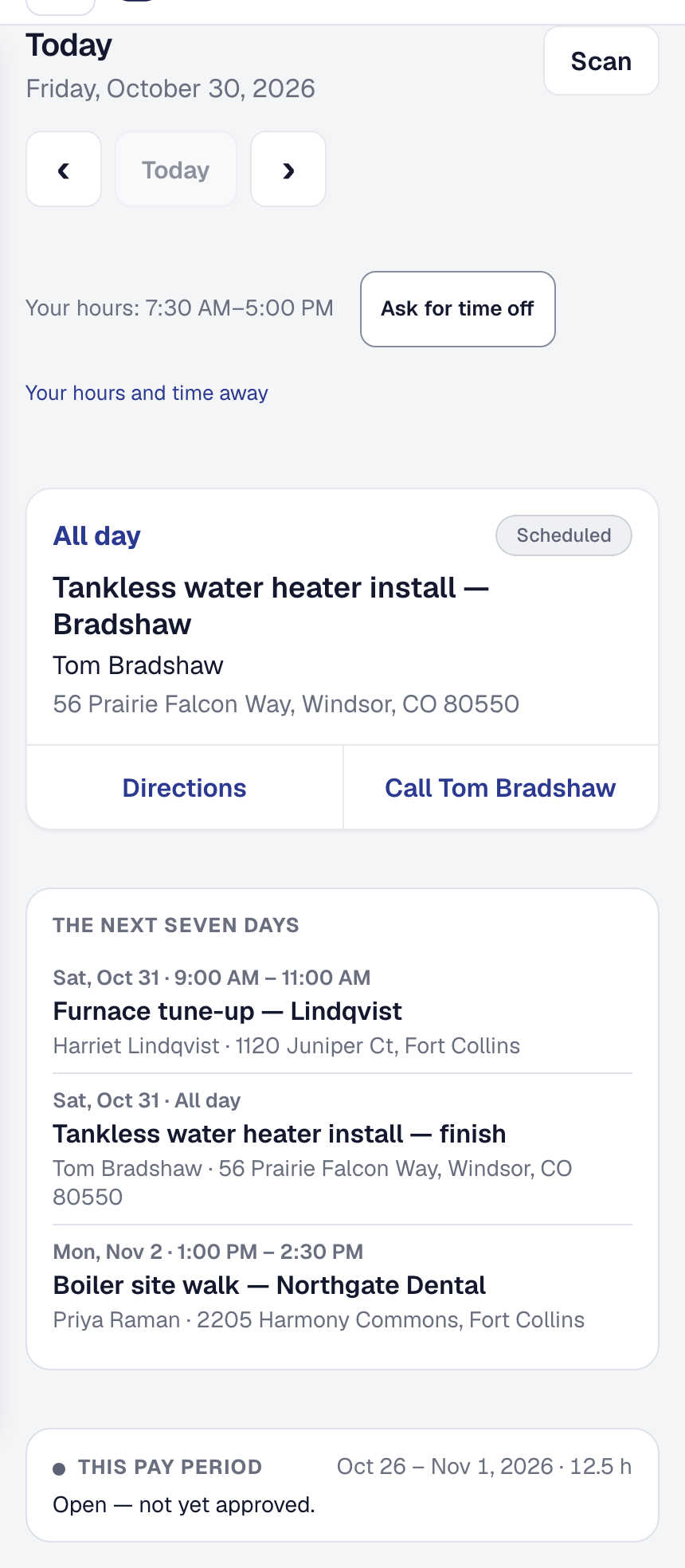
A field member does not get a smaller console. They get a different product, built for somebody standing in a yard with one hand free, possibly wearing gloves, on a phone with two bars.
They have exactly one question: what am I on, and how do I tell the office what just happened? These screens answer that and nothing else.
Open My Day
My Day is the whole thing: today’s visits, in order, one at a time. Tap one and you get what you need for that visit — first the address and how to get in (the gate code, the pets, Call first), then the controls to say what happened, the client and what the work is. For a client with several buildings, the visit names its building, and how to get in is that building’s — never another building’s codes. A job shows here on the days it has a visit for you, not across its dates.
Under the day, The next seven days lists your own visits for the week ahead — the day, the time, the client and where — so tomorrow’s first stop is never a surprise. Tap one to open it.
Targets are sized for a thumb. Recording a fact takes three or four taps.
If your business counts its parts with Inventory and you drive one of its vans, from noon My Day also shows tomorrow’s load: what tomorrow’s visits still need, what is on your van for them, what to pick up at the shop, and what is missing. Ask the office for what is missing sends them one request for it.
Open your day with no signal
Each time My Day opens with a signal, your phone keeps a copy of today: the visits in order, and for each one the client, the address, the phone number, the work, how to get in, the times and the checklist’s steps. In a basement or down a rural lane, My Day shows that copy and says Offline — your day as of 7:42 AM. Tap a visit for its details; Directions and Call still work, because your phone dials and your map app has its own maps.
Nothing can be recorded without a signal. Marking arrived, your hours, the visit’s status, notes and photos and the tools wait for it, and the page says so rather than take a tap that would be lost. When the signal comes back, My Day loads your day fresh and says Back online; Try again asks at once. With nothing kept — the first time on a phone, or a new day — it says your day could not be loaded with no signal.
In a browser, SMG Tools opens with no signal once it has been opened there with one.
The copy is only ever today’s, and only yours. It is replaced each time My Day opens with a signal, and deleted when you sign out, when your sign-in is ended from elsewhere — your phone removed from your account under Profile → Security → Devices, or the account deleted — the next time the phone has a signal, and once the day is over. Somebody else signing in on the same phone never sees it.
Say where the work is
Move the visit along as you go — On my way, then I have arrived, then This visit is done. Arriving puts the visit on site in the same tap, so there is no second button to find. Come back to the same job later that day, already marked arrived, and the tap is I’m on site. I have arrived is only on today’s visits — an arrival is the moment you got there. The button for your next step is the filled one. The office sees each move on the Day Board the next time they look at it, so nobody has to ring to ask. Where your business sends the on my way text, your client gets it when you set off on today’s visit. Each visit of a long job starts its own day at Scheduled, so every morning has its own On my way.
Each move says what the visit is now — Marked on the way., Marked on site. A tap that does not save says why and leaves the visit where it was. This visit is done asks first, Mark this visit done?, because it is the one move the phone cannot take back: a visit done, missed or called off is the office’s to change. A job the office has put on hold, or finished, takes no taps — the phone says so, and to check with the office.
Marking the job’s last open visit done offers to finish the job too — The job is finished, or Done for today — we’re coming back. If the job carries a checklist with required steps outstanding, finishing is not offered and the reason is shown — the visit can still be marked done, and an owner or manager can close the job anyway, with a reason. A visit that has a checklist of its own is marked done once that list’s required steps are answered. See Job checklists.
Record what happened
From the job you can:
- Work the checklist — tick, type, choose, judge, photograph, sign.
- Take a reading on a unit or a piece of equipment — see Measurements.
- Log your hours. A crew lead can start and stop the whole crew’s clocks from the visit — see Clock a crew in at once.
- Add a note for the office, and type @ to tell a teammate. A note from the phone is internal; your office can share it with the client afterwards.
- Take photos. Each keeps the time you took it. Under You added today, Add a note on a photo says what it shows while you still know, and Mark up circles or points at it with your finger — or, on Professional, describe what to point at and Mark it for me; the office sees both on the photo.
See the stages of the job
Under the visit, Stages of the work lists the job’s milestones in order — demolition, rough-in, trim — each with where it has got to: Not Started, In Progress or Completed. It shows no money; a milestone carries none, and what the client pays is the office’s. The office marks a stage done — or, on a job’s plan, it finishes itself as its tasks and visits do. See Milestones and the payment schedule.
Work the plan
Where your business plans big jobs with Projects, a visit for a stage of the plan shows Today’s work: the stage, and the tasks the visit covers, each with its hours and who is on it. Tick a task when it is done — you can if you are on it, on the visit, or lead a crew that is. Your name goes on it, and a tick can be taken back the same day; after that, ask the office.
A task with a due date and no visit shows at the top of your day under Due today, and one still waiting from an earlier day shows there as was due. Being on a task, or on one of a stage’s visits, puts you on its job, as being on the job does. The phone shows hours and names, never a price.
See what is at the property
The job lists the units at that property with their model, serial, age and the last few things done to them — so you know what is in the attic before you climb into it. See Units at a client’s property.
What a field member cannot reach
A Field member is blocked from the console entirely, apart from their own profile and For you, where what is addressed to them collects. That is deliberate rather than a limitation: the console answers questions about many jobs, and this answers one.
Nothing about help is restricted, though. A field member reaches these pages exactly as the office does.
If you are the owner and do the work
You need a worker record before My Day has anything to show you — see Putting yourself on the roster.
This page describes Field Experience — The Crew's Phone. It is written from that feature’s record and covers what has shipped, never what is planned.