Jobs
The record every other part of the product hangs off — the work, who it is for, what was done, what it cost and what it made.
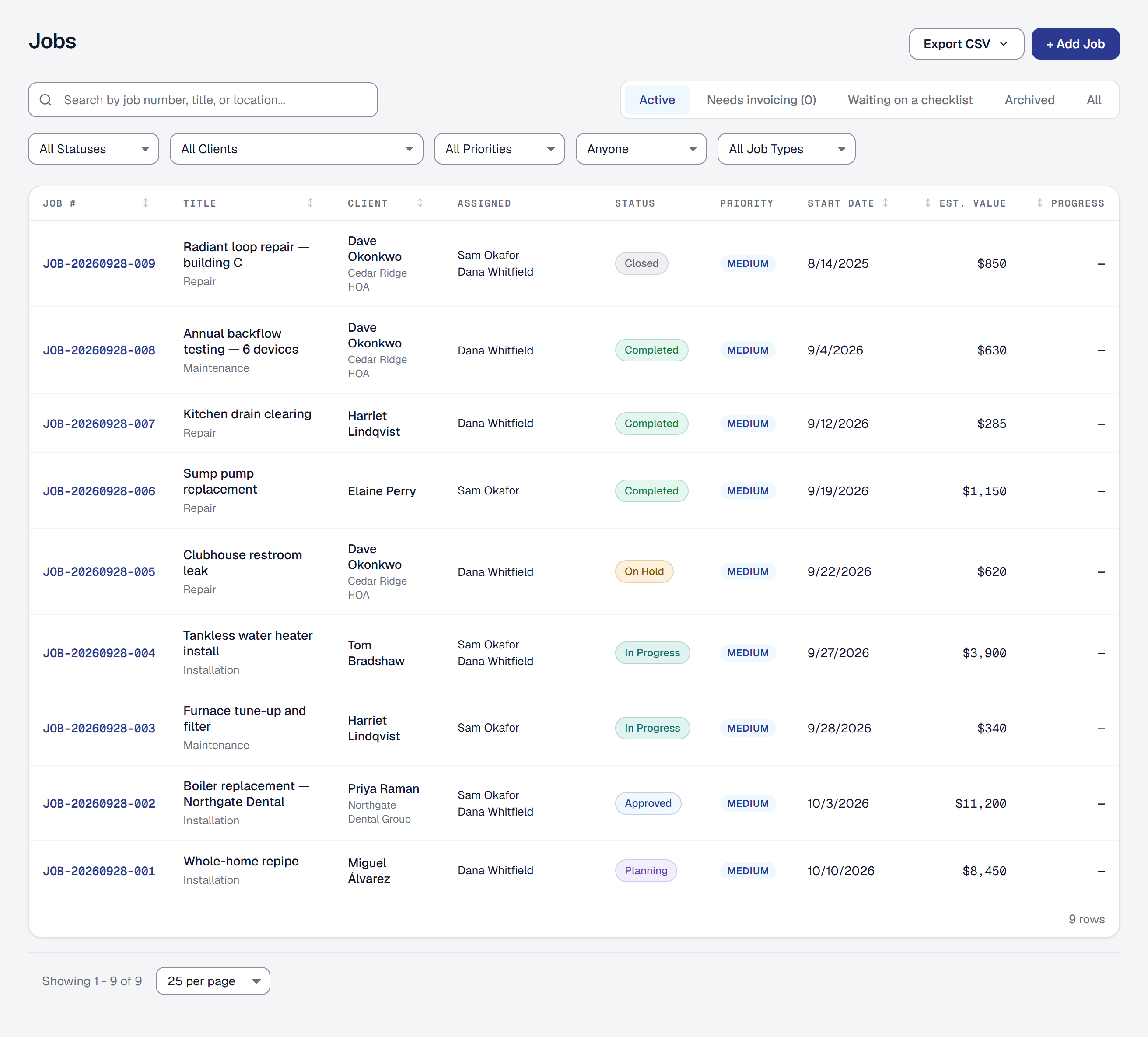
A job is the piece of work you are doing for a client, and it is the record everything else attaches to: the proposal that won it, the time and materials that went into it, the invoice that billed it and the profit left at the end. If you only ever learn one part of this product, learn this one.
Create a job
Open Jobs and add one. Two things are required and the rest can be filled in as you learn it:
- Title — what the work is, up to 200 characters.
- Client — who it is for. You can add a new client without leaving the form.
- Kind of work — see Sort jobs by the kind of work. You can add a new one inline if none fits.
Optionally: a start date and a target completion date, how it’s billed — to an agreed price you enter, or as it goes from its time, materials and expenses — the scope of work, the address if it is not the client’s usual one, a priority of Low, Medium, High or Urgent, and internal notes your client never sees.
A visit puts a job on the calendar, and from then on its visits set its dates. Until a job has a visit, its start and target are the dates you typed. Once it has one, the start is its first visit’s day and the target its last’s, and moving a visit moves them; the job’s form shows them rather than asking for them, and the Visits panel’s header says which — Oct 19 – Nov 8, from its visits, or, before any visit is booked, the dates you typed and As typed: no visit is booked yet. If every visit is called off, the dates you typed come back.
To book the first visit as you create the job, tick Create a linked appointment with this job: its date starts at the job’s start date and follows it until you change it. A job with a start date and no visit says Not on the calendar at the top of its page, with Book a visit, which opens the visit form with the job, its client and its start date filled in. It says so to whoever changes the schedule, while the job is open.
The job’s Visits panel is its schedule in one place. It lists every visit, upcoming and past, each with its day, time, who is on it, where it has got to, who arrived and when, and, where the forecast reaches, the weather. Add a visit opens the visit form filled with the job, its client, its address and its people. Find a time opens inside the panel and looks for the best open times, where your business has Scheduling & dispatch. An arrival is shown on the visit its person was on that day; one on a day they had no visit is listed at the panel’s foot. An archived job lists its visits and changes none of them.
Who is on the job is the People panel: who is assigned, changed in place, the skills the job needs, and who assigned it, closed until you open it. Job details holds the job’s own facts — the client, the job’s number and type, its price, its scope and notes.
A job’s page has three tabs, each the answer to one question — and a fourth, Plan, after Overview wherever Projects is on:
- Overview — when the work is and who is on it: Job details, Visits, People and the milestones.
- Work — what was done, in groups: the time; one Equipment panel, what is on the site and the hours the machines did; one Parts and materials panel, what the job Needed, what is Ordered and what it Used; expenses and mileage; notes and photos; the checklist and measurements; the property — the units touched, the units at the property, the site’s measurements and warranties; and the paperwork — the documents you shared, the documents you asked for, and compliance. A group whose tools you have removed, or that your role does not read, is not there.
- Financials — all of the job’s money, in this order: the payment schedule, with the agreed price it adds up to; the invoices, with what is left to bill; What was sold, the accepted proposal’s lines at the prices agreed — a line priced from the site’s measurements says what it was measured from, as the proposal did; change orders; other income; the diagnostic fee; the costing summary and, with Margin Intelligence, where the job is heading, who worked it, the labor forecast and expenses against the estimate; the estimates; what the job earned its people; parts bought and returns; and the tax view. Each panel shows to whoever’s role reads it — a dispatcher sees the payment schedule’s names, dates and statuses and no amount.
A job made from a proposal is agreed at the proposal’s price — with options, the option your client chose and the add-ons they took — and a change order they accept raises it, or lowers it for a credit; it is not typed over by hand. The Invoices panel on its Financials tab says what has been invoiced and what is left — see Invoices. Its estimate is the proposal’s too, so its Job estimates panel takes none typed by hand, and Create proposal under Actions is greyed out on it: what was agreed changes by a revision or a change order — see Revise a proposal you have already sent. A job you made by hand can be quoted, and the proposal, once accepted, updates that job rather than making a second one.
Every job gets a job number in the form JOB-20260921-001, generated for you. You can type your
own instead as long as it is not already in use.
Move a job through its stages
A job has six stages, and the status is how everybody knows where it stands:
| Stage | What it means |
|---|---|
| Planning | You are scoping the work or preparing a proposal. |
| Approved | The client has accepted. |
| In Progress | The work is happening. |
| On Hold | Paused for now. |
| Completed | The work is finished; payment or closeout may still be outstanding. |
| Closed | Finished and fully paid. |
Change the status on the job’s page: Edit details, then Status, then Save changes. Moving a job to Completed or Closed records today as the day the work finished — the date the reports and a warranty’s cover count from. Where the crew is — on the way, on site, done — is each visit’s own status, from their taps on their phone, never from here: a job worked over several days is In Progress, and its first arrival puts it there. The crew can finish a job only on its last visit still to come, and only by saying so. When the crew could not set a visit’s status, you can — see See where a visit has got to.
A status you change is a change like any other: an automation waiting for a job to finish runs, a warranty’s cover starts, and a webhook for a job’s status is sent, whichever way the status moved.
If the kind of work carries a checklist, the job will not move to Completed until the required steps are answered — see Job checklists.
Visits still to come are asked about, never dropped. Finishing or closing a job that still has visits booked — today’s not yet done, or any later one — lists them and asks: Cancel them, and each is called off as any cancellation is, the client told where they were told of the booking; Keep them, and they stay on the calendar and the crew’s days; or Go back, and nothing changes. Archiving asks the same.
The job’s Schedule history, closed at the foot of its Visits panel, records every change to its visits: booked, moved, who is on them, called off, put back, done and missed — who did it and when, and a move for the weather with its reason. Each is one line; open it for the whole entry.
A job’s estimated hours are one figure everywhere it is shown or used — costing, the margin, Find a time and the labor forecast. For a job made from a proposal it is its lines’ hours, the proposal’s and those of any change order accepted since; for a job made by hand, the hours you estimated, plus its accepted change orders’. A visit’s length is its own, never the job’s estimate.
Find the job you are looking for
The Jobs page searches as you type, and filters to:
- Active — the default, everything not archived.
- Needs invoicing — finished jobs with something left to bill, for whoever bills; see Find the jobs nobody has billed.
- Waiting on a checklist — jobs that cannot be finished until somebody answers the remaining required steps.
- Archived.
- All.
Sort jobs by the kind of work
Every job carries one job type — Plumbing, HVAC, Roofing, whatever your trade actually does. It is required, and it is what makes the reporting worth reading: without it, which kinds of work make money is a question nothing can answer.
Manage them under Organization → Job types, where you can add, rename, reorder by dragging, archive and set the one that should be picked by default. A new business starts with a single type, General work, so writing the handful that match your trade is one of the first things worth doing — it is what makes the reporting worth reading later.
A job type that jobs are already using cannot be deleted, only archived, so no job is ever left pointing at nothing.
With Client Reminders on, a job type can say how often the work usually comes back — every so many weeks or months. Clients who had it are then due again that long after it was last done; see See who is due again. Leave it blank for work that does not come back.
When a proposal is accepted and becomes a job, the kind of work comes across with it, and the job’s Overview names the proposal it came from — and, with options, the Option chosen.
Write down what happened on the job
The Notes on a job are the running record of the work. Each note has a type — General, Work Performed, Client Communication, Issue or Decision — so you can tell at a glance whether you are reading a decision somebody made or a problem they hit.
Notes cannot be edited or deleted. A correction is another note. That is deliberate: the value of a work record is that it says what was actually thought at the time, and a record anybody can quietly revise afterwards is worth very little in a dispute.
Two things a note can also do:
- Mention a teammate with
@, if they can see the job, so it reaches them. - Go to the client, and their reply comes back into the same thread as a note from them.
Keep a to-do on the job
Something somebody still has to do — order the gasket, book the return visit, call the supplier Friday — goes in the job’s To-dos, on its Overview after the stages. Add a to-do takes the words (up to 200 characters), Due if it has a day, and For: Me, The office — whoever runs the schedule — or, for whoever runs the schedule, a person who can see the job. The list puts the soonest due first and the undated after, each saying when it is due (Due Fri, Nov 6, Overdue since Mon) and who it is for.
- Tick it when it is done, wherever it shows; Undo takes the tick back. Done ones stay below, saying who ticked them and when.
- Edit and Remove are for whoever wrote it and whoever runs the schedule. A removed to-do leaves every list but is kept, with who removed it and when.
- It comes to you in For you on its day — at once when it has none — with Done beside it, and the office’s to-dos come to whoever runs the schedule. A phone with notifications on is told it is there, never what it says; nothing about a to-do is emailed or texted.
- On My Day, a person’s to-dos due that day are listed after their visits, and a visit shows its job’s to-dos. The crew write them on a job they are on, for themselves or for the office.
You can say one to the assistant, too: “Remind me to call the supplier Friday.” A client’s own to-dos are on their page, and theirs are listed there with the to-dos on their jobs.
Send your client a summary of the job
Actions → Send job summary on a job’s page sends your client where the job stands: its progress, its milestones and its payment schedule — each payment, when it falls due, and whether it is paid — with the agreed price, what is paid and what is still to pay. It never shows your expenses, your costs or your margin: those are your figures, not your client’s.
It goes the way your other messages to the client go. The email comes from SMG Tools with your business’s name and logo on it, and a reply reaches your contact address. It carries a button to the client’s hub, and a text with the same link goes too when the client takes texts. When the client has other contacts with an email, Send to offers them; one chosen gets it alone, with a text only to their own phone (see Choose who a document goes to). A client with no email address gets the text alone. A message of your own, up to 1,000 characters, can open it. Where your business has removed the Client Hub, the summary goes by email alone, with no hub link and no text.
Only someone who sees prices and costs sends the amounts. Anyone else who can change the job can still send the summary, and the dialog says first that it goes without them: the payments are named with when each is due and where it stands, and no figure is shown. Actions → Download summary, the same summary as a PDF, is offered only to someone who sees prices and costs.
A send that reaches nobody — no email address, and no text the client takes — says why, and nothing is shown as sent. The job’s history and the client’s communication history both record it either way: sent, or not sent and why.
Attach photos and files
A job holds photos and documents — before and after shots, a picture of the damage, the signed change order, the permit. They are labeled by what they are. The ones you share appear on your client’s page, a checklist step’s photo is on the checklist’s Work completed report, and any of them can go into a photo report you make for whoever needs one.
A checklist step’s photo goes to your client with its checklist, when the checklist is one they see, so its pill says Shared with its checklist or Internal, like its checklist rather than offering to share it on its own.
Open Notes and photos → Media on the job’s Work tab and choose Add Media. In the phone app, Photograph beside it opens the camera.
A job can have as many photos as the work needs, each up to 5 MB. What they take counts against your plan’s storage — 1 GB on Starter, more on each plan above it — and Billing and Organization → Storage show how much is used. A photo removed there to free space keeps its place on the job, saying who removed it and when.
When it was taken, and by whom
A photo keeps the time it was taken, read from the picture itself, so a photo added at the end of the week still says the moment it was taken. Open it and it reads Taken Oct 30, 2026, 2:05 PM by Sam Okafor, its card shows that day, and the time it reached the job is beside it. A picture that records no time — a screenshot, a photo sent through an app that strips it — says Added … instead; SMG Tools never guesses one.
Where a photo was taken is never kept. The position a phone writes into a photo is removed on your device before the photo is uploaded; the job’s address says where.
Correct a photo’s details
Open the photo and choose Edit details to change its type, the milestone it is of, or its description. The picture itself is untouched, and the change is in the job’s history. A checklist step’s photo keeps its type, because the step’s answer is that picture. Your crew can add a note to a photo they took, from the visit — see The crew’s phone.
Pair a before with its after
Open a Before photo and choose Pair with an after. The job’s photos are offered with the likely ones first — an After of the same milestone, taken the same day or later — each marked Likely. Choose one and Pair: the two are shown side by side, the before first, whichever you open, and one above the other on a phone. Change the after picks another, and Unpair takes them apart. A photo is in one pair at most, and deleting either half frees the other.
When you share both photos with your client, their page shows the pair side by side too.
Mark up a photo
Open the photo and choose Mark up to point at what matters: an Arrow, a Circle, a Box, a line drawn with the Pen, or Text — tap where the words go, type them and choose Place. Pick red, yellow or white for whatever reads on the photo, and Undo takes the last mark off. On a phone or a tablet you draw with your finger. Save keeps the marks; Cancel keeps nothing.
The photo itself is never changed: the marks are drawn over it, everywhere it is shown — the job’s photos, your client’s page and invoice when you share it, and a checklist’s Work completed report. Show original shows the photo without them, Mark up again changes them, and Remove marks takes them all off. Each change is in the job’s history, with who made it. Your crew can mark up a photo they took, from the visit.
On Professional, it can mark the photo for you. In Mark up, type what to point at under Describe what to mark — circle the water stain, arrow to the cracked joist — and choose Mark it for me. It says first about how many AI tokens it uses and how many are left this month; asking spends them whether or not you keep the marks. The marks come back drawn dashed and listed as Suggested: drag one with Move (or pull one of its ends), Keep it, or Delete it, and change the note it drafted for the photo. Anything it could not find is said — Couldn’t find “the cracked joist” in this photo — rather than marked somewhere. Nothing is saved until you choose Save, and once saved a mark is yours like any other. When the month’s allowance is used, you mark it up by hand.
Make a photo report
When an adjuster, an inspector or a head office needs the job’s photos as one document to file, choose Photo report above the job’s photos.
- Photos. Every photo starts chosen. Tap a photo to leave it out or put it back, or press a group — All, Shared with the client, a kind such as Before or Damage, or a milestone — to choose all of its photos; press it again to leave them all out.
- Order. By stage puts the photos under their milestones, in the job’s order; By kind puts the pairs first, then each kind; By time taken runs earliest first.
- With their photos. Tick a checklist to add its steps, each beside its photo — the copy your client would get, without the steps you keep internal — or a change order you have sent, with its photos. Change orders are offered to roles that see them.
- At the top. A Title and a Note for the first page, such as a claim number.
Show the pages draws the pages as they will print, and Download saves the PDF.
The report is your business’s own document, with your name and details at the head of every page. Its first page names the property, the job and its dates, and lists what the report holds. The photos follow two to a row, each with its marks, its note, and when it was taken or added and by whom, and a before beside its after when both are chosen. A change order shows where it stands and what it says, never its price.
Send asks who it goes to: your client’s email, ticked — or another of their contacts, chosen under Send to — and any other addresses you type — an adjuster, an inspector, a property manager’s office — with a message for above the link. Each address gets an email of its own from your business, so nobody sees anyone else’s address, and its link opens the report for 30 days. Replies come to your business’s email.
Every report sent is kept exactly as it went, under Photo reports sent below the job’s photos, with who sent it, to whom and when; Open shows the PDF that was sent, whatever has changed on the job since. One sent to your client is also on their page, under the job, and in their communication history.
If a photo can’t be read when the report is made, it is named under the pages before you download, and Send names it before anything goes; in the report it keeps its place as a box saying so. A photo removed to free space can’t be chosen.
Archive a job you are finished with
Jobs are archived, never deleted. Archiving takes the job out of the active list and keeps everything attached to it — the time, the expenses, the invoices, the notes, the photos. The Archived filter on the Jobs page brings them back into view, and Restore job, at the foot of the job’s page, puts one back at any time. A job with visits still to come asks what to do with them first, as finishing one does.
Nothing in this product hard-deletes a job, because the one time somebody needs a three-year-old job record is the one time it would be gone.
This page describes Job Management & Job Types. It is written from that feature’s record and covers what has shipped, never what is planned.