Weather: the forecast against every visit
See Google's forecast for each visit's hours where you already look, know which visits the weather puts at risk and why, and move one to a clearer day in a few clicks.
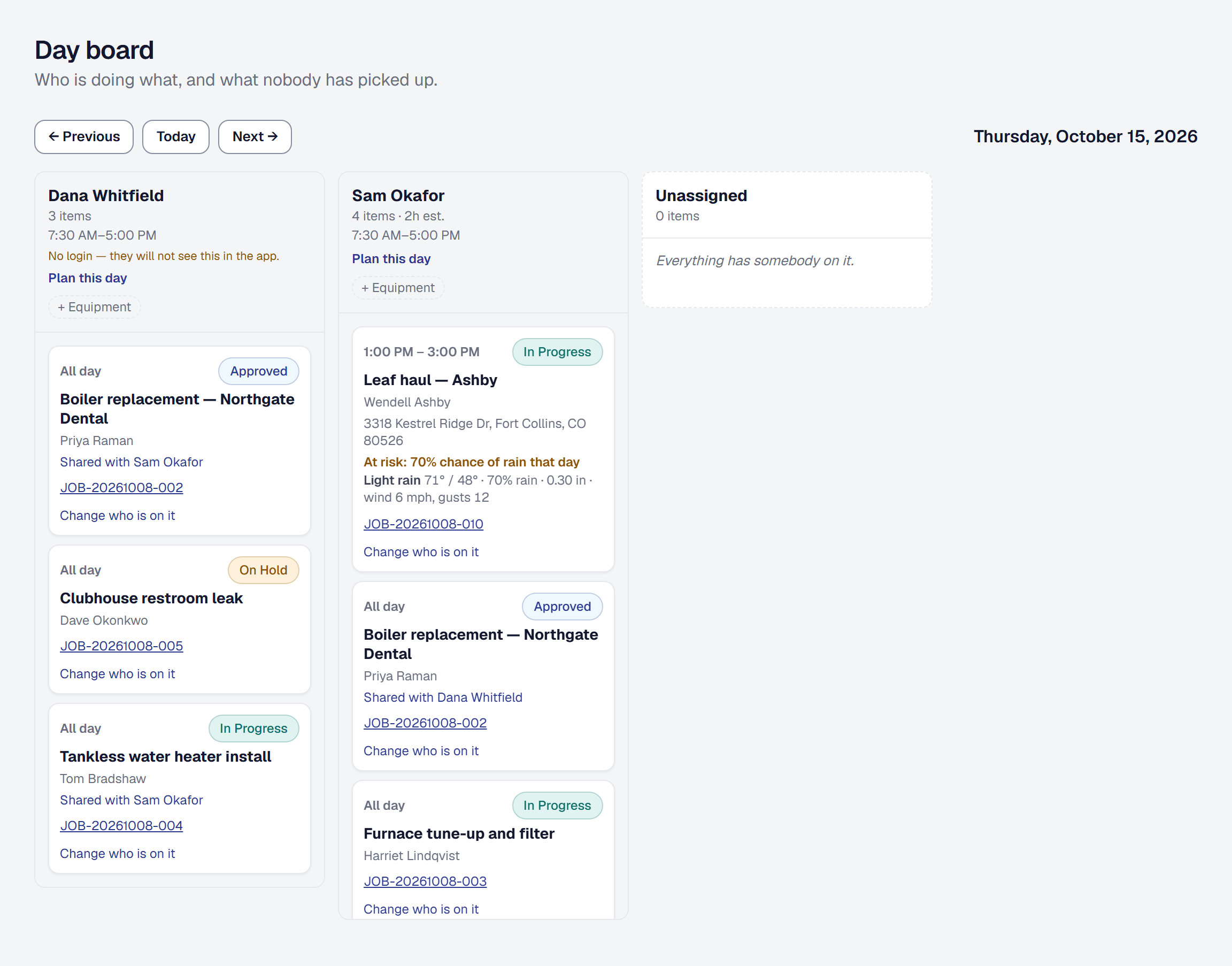
Weather puts Google’s forecast for each visit’s own hours on the visit, wherever you already look at it, and reads it against what each kind of work can stand. A visit the forecast puts at risk says so with the reason, and you can go ahead anyway or move it to a clearer day with the client told why.
Add Weather
Weather is a tool on Professional: the owner adds it on the Tools page, under Doing the work — see Your tools. The landscaping, pest control and cleaning trade kits bring it, and give their outdoor kinds of work their weather rules — see Trade kits.
See a visit’s forecast
Each visit in the next ten days shows the forecast at its place for its hours: the high and low, the chance and amount of rain, the wind and gusts, and the conditions.
- On a card — the visit’s card on the Day Board, its event in the calendar’s list, and the technician’s card on My Day — it is one line. A card shows a forecast only where there is one.
- Opened — from the calendar or from My Day — it is in full, under Forecast, with when Google gave it.
- On the job, the Overview lists its upcoming visits, each with its forecast.
Within the next 48 hours a visit reads Google’s forecast hour by hour, from its start to its end; further out, the day’s. A visit with no times reads the business’s hours that day. Visits close together share one forecast.
When there is no forecast, opening the visit says why: a visit further out than Google’s ten days says the day its forecast appears; a visit whose address could not be placed on the map says so; and when Google cannot be reached, the last forecast shows with its time, or none — never one made up. A technician sees the forecast on the visits they are on.
Say what weather each kind of work can stand
Under Organization → Job Types, each kind of work has a Weather button while Weather is on, with how many rules it has. Each rule is optional:
- Chance of rain during the visit — a percentage or more.
- Rain during the visit — inches or more.
- Wind — miles an hour or more.
- Colder than or Hotter than — during the visit.
- Colder than, the night after — until 8 AM the next morning.
- Must stay dry for — the hours after the visit ends. Rain in those hours, at the chance of rain above or 50% where there is none, puts the visit at risk.
Clear rules takes them away. A kind of work with no rules — every indoor kind — is never flagged, and its visits still show their forecast. The owner and managers set rules.
See which visits are at risk
A visit whose forecast breaks its kind of work’s rules is marked At risk, with each reason in plain words — 70% chance of rain 2–4 PM, Wind up to 18 mph 3–4 PM, Down to 28° overnight — first on its card, on the job’s row, and in full on the opened visit. The flag clears by itself when the forecast clears.
The office’s For you gathers the week’s at-risk visits as one item, At risk from the weather, under their days. When nothing this week is at risk, the foot of For you says so.
Go ahead anyway
Go ahead anyway, on an at-risk visit or in For you, marks it as going ahead despite the forecast; it then says Going ahead. If the forecast gets clearly worse than it was — a rule broken that was not, or ten more points of rain, five more miles an hour of wind, three more degrees — the visit is flagged again. A flag is advice: nothing moves, is canceled or tells a client anything on its own.
Move a visit to a clearer day
Find a clearer day, beside Go ahead anyway, lists the days in the forecast whose weather passes the visit’s rules at its hours, with the times its people are free — or, with Scheduling & dispatch, anybody qualified, ranked as Find a time ranks them. Choose a time, and before you move it you see what it does (below). If the job has later visits, you are asked whether they move too by the same number of days.
Move to … moves the visit as any reschedule does. The job’s Schedule History records it as Moved for the weather, with the reasons. The client’s text says the visit Moved for the weather, where they agreed to texts, and their email gives the day it was, the new day and time, and what the forecast said.
When no day in the next ten passes, it says so; when days pass and nobody is free, it says that.
See what weather costs
Before a move, Find a clearer day says the hours it leaves with no work on each person’s day, at the rate your job costing uses for them, and the revenue — the visit’s share of the job’s price — moving to the new day.
Reports → What Weather Costs lists each month’s visits moved for the weather, the hours they left with no work and what that cost, and the revenue pushed later, as each move was recorded. The owner and managers see it.
Hear about it on your phone, by email or in your own tools
- On your phone: when the forecast refresh finds a visit newly at risk, the office is told — once for each new reason. The switch is Visits at risk from the weather, on your notification settings — see Notifications on your phone.
- By email: the automation Tell me when the weather puts a visit at risk emails you, or the manager you choose — see Automations.
- In your own tools: it is the
appointment.at_riskwebhook event, and Zapier’s Appointment At Risk trigger.
When forecasts are fetched, and what it costs
Forecasts refresh at about 5 AM, noon and 5 PM in your business’s time — the next 48 hours by the hour, and at 5 AM the days after by the day — for the visits whose kind of work has weather rules, never overnight. Any other visit’s forecast is fetched when somebody opens it, and opening a visit whose forecast is more than three hours old fetches it again.
Each forecast fetched counts toward your business’s Google use, as a map and a route do; boards and calendars read the forecasts already fetched and cost nothing.
Remove Weather
Removing Weather from the Tools page stops the three refreshes a day and the at-risk notices. Each kind of work’s rules stay, for if you add it again.
This page describes Weather Forecast. It is written from that feature’s record and covers what has shipped, never what is planned.