Site Intelligence: measure the job, price the job
Keep a site's areas, lengths and counts at the client's address, measured once — typed, traced on imagery or from roof data — and price every proposal there from them.
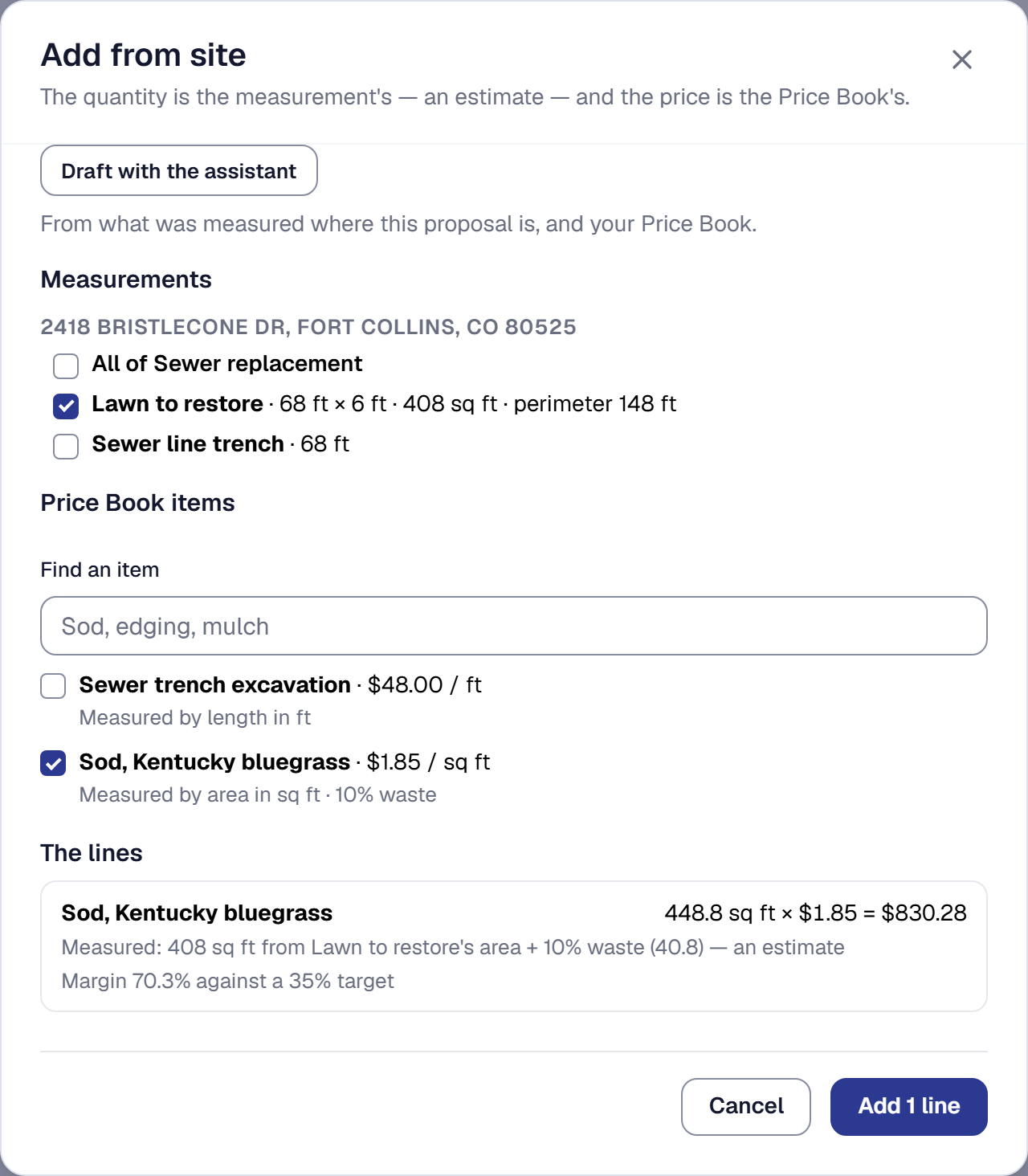
Site Intelligence keeps what you measured at a house — the lawn’s square feet, the fence’s length, the shutters counted — at that client’s address, so every proposal and job there starts from it. A measurement becomes a priced proposal line in a few clicks: the quantity is the measurement, the price and the margin are your Price Book’s.
Add Site Intelligence
Site Intelligence is a tool: the owner adds it on the Tools page, under Getting work. It needs the Price Book, which is added with it — see Your tools. The landscaping, pest control and cleaning trade kits bring it, with Price Book items already measured — see Trade kits.
It has no menu entry of its own. It appears where the work is: Site measurements on a client’s page and a lead’s, Add from site on a proposal, and the site’s measurements on the job. The owner and managers measure and price; a field technician reads what was measured on a job they are on.
Type a measurement on a client’s or a lead’s page
Site measurements, on a client’s page, lists each of the client’s addresses with what was measured there. Press Add a measurement, say where it was measured — the client’s own address, or another of theirs — name it (Front lawn, Back fence), and give it a size:
- An area — a lawn, a driveway, a roof — as a size in square feet, square yards, acres or roofing squares, or as a length by a width. A pitch, the rise in 12 up to 24, keeps a roof’s sloped area beside its footprint.
- A length — a fence, a trench, a gutter — in feet or yards, or in feet and inches. A height makes it a face, the area to stain or paint.
- A count — stalls, trees, shutters — and, if you like, the size of each, which gives the area of them all.
A group (Back yard, Beds) keeps related measurements together, and a note holds anything else. Change fixes a measurement and Remove takes it off the list; a proposal line that used a removed measurement keeps the number it had. Every measurement says who took it and when.
A lead’s page has the same Site measurements, so a house can be measured before the lead is a client. When the lead is converted, what was measured at its address becomes the client’s. An address is matched however it is written — 123 Main Street and 123 Main St. are one site.
Measure on the map
On Professional, Measure on the map opens Google’s satellite view at the address:
- Trace an area: click each corner, then Close the area. Cut a hole takes out what is not part of it — the house inside the lawn — and an area’s perimeter, the lawn’s edging, comes with it.
- Trace a length: click along the fence or the trench, then Finish the line.
- Drop pins to count: click each stall, tree or post.
The total shows as you draw. Undo last point takes back a click, and a corner or a pin can be dragged. Name it, add a pitch to an area or a height to a length, and Save to the site. Reshape on a traced measurement moves its corners again; its name, group, note, pitch and height can also be changed on the client’s page, but its size changes only by its shape.
Street View opens beside the map where Google has a view of the house, for the walls a satellite cannot see — count the windows there and type them on the client’s page. If the map puts the house in the wrong place, Pin is wrong? Move it and click where it is; where Google cannot place the address at all, a click drops the pin.
Opening the map counts toward your business’s Google use.
Measure a roof from Google’s roof data
On the map, Measure the roof, then click the middle of the building. Google’s roof data answers with each face of the roof — its footprint in roofing squares, its pitch in 12 and its sloped area — named for the way it faces: Roof, south face, Roof, north face. Rename a face, untick one to leave it out, or change its footprint or pitch; the roof’s total sloped area follows. Save puts the faces kept on the site together, in the group Roof.
Each face says where it came from — Google’s roof data · April 2023 imagery · high quality — and adjusted once its numbers were changed. Roof data is an estimate for quoting, not a roof report: ridges, hips, valleys, eaves and rakes are traced as lengths. Where Google has no roof data for a building, it says so; trace the roof as an area and type its pitch instead. Each roof lookup Google answers counts toward your business’s Google use.
Say what a Price Book item is measured by
With Site Intelligence on, a Price Book item has Measured by: area, length or count, in which unit, and Waste %,
from 0 to 100 — added to every line measured for it. Sod measured by area in square feet with 10% waste takes a 408
square foot lawn as 448.8. An item’s own unit can say anything (pallet, sq ft); measured by is what makes the
conversion sure. The Price Book’s import and export carry it as measured_by, measured_unit and waste_percent.
Price a proposal from the site
On a draft proposal’s Costing tab, Add from site lists the client’s measurements and your Price Book items:
- Tick the measurements — All of a group ticks every bed at once.
- Tick the items. Those measured by something come first.
- Where the proposal has options, choose where the lines go: the base, in every option, or any options at once.
Each item’s line shows its quantity — the measurements converted to the item’s unit, summed, along the slope where a roof has a pitch, with the waste on top — times its price, with its margin against your target and the Price Book’s Under target flag. Several measurements make one line (every mulch bed onto one mulch line); one measurement can price several items (the lawn’s aeration and its overseeding). An item measured by nothing takes the number you choose — an area, a perimeter, a length, a count. Add puts the lines on the proposal at the Price Book’s prices.
A line remembers what it was measured from. Typing over its quantity lets that go. A draft at a measured house that has no measured line yet says Measured at the address, with what was measured and Add from site — the next proposal there starts from it.
Let the assistant draft the lines
On Professional, Draft with the assistant in Add from site pairs what was measured where the proposal is with items from your Price Book — sod for the lawn, edging for its perimeter, mulch for the beds. Every quantity is worked out from the measurements, as above, and every price is your Price Book’s; the assistant only chooses which item goes with which measurement, and never sees a price. Each drafted line comes ticked with its reason: untick what you do not want and Add the rest, or Choose by hand instead. Nothing is on the proposal until you add it. Drafting spends from the month’s AI allowance.
Update a line when a measurement changes
When a measurement a draft’s line was priced from is changed, the proposal says A measurement changed, with each line’s old and new quantity — 68 ft → 72 ft — and Update or Update all. A sent proposal is never changed on its own: it says what changed, and a revision takes the new numbers. A line whose measurement was removed keeps the number it had, and says so.
Show the customer a picture of the site
On Professional, a draft whose site has something traced on the map can Include the site picture: Google’s satellite view with each traced shape drawn on it, lettered, and a key naming each one — no sizes, since your proposal shows the customer prices, not quantities. You see it as the customer will before you send. The customer sees it on the proposal page and in its PDF. Typed measurements and roof faces have no shape to draw.
The picture is made each time it is shown, and each one made counts toward your business’s Google use. A sent proposal’s picture is what the customer was sent; a revision can change it.
See the measurements on the job
When the proposal is accepted, its measured lines reach the job with what they were measured from, and — with Inventory on — fill the job’s materials list by their quantities. The job’s Work tab shows Site measurements: what was measured where the job is, read here and changed on the client’s page.
A technician on the job sees Measured here on their visit — only when something was measured there — and never a site of a job they are not on.
What it costs
Sites, typed measurements, measured items and pricing a proposal from them are on every plan, Starter included. On Professional: measuring on the map with Street View, roof data and the site picture, each counted toward your Google use, and the assistant’s draft, which spends the month’s AI allowance.
Remove Site Intelligence
The owner removes Site Intelligence on the Tools page — see Remove a tool. Its places go: Site measurements on client and lead pages, the map, Add from site, the measurements on the job and the visit, and Measured by on Price Book items. Nothing is deleted: add it back and every site and measurement is where you left it, and a proposal’s lines keep the quantities they were priced at.
This page describes SMG Site Intelligence. It is written from that feature’s record and covers what has shipped, never what is planned.