Job checklists
Write down the steps a kind of work always needs, have the crew work them in order, and stop a job closing until the required ones are answered.
Watch it

A checklist is the plan for a job and the proof it happened. You write the steps once for a kind of work, every job of that kind gets them, and the job will not be marked done until the required ones are answered — so the record is complete before anybody has left the property.
Write a checklist for a kind of work
Go to Tools → Checklists → Settings and choose + Add checklist. A checklist needs a name, and can have a description if the name is not enough on its own.
Then add the steps, in the order the work is actually done. Each step has:
- The text — what you want done. Check the gas pressure, Photograph the panel before you close it.
- What it asks for — see Choose what each step asks for.
- Required, if the job should not be marked done until it is answered.
- Internal, if your customer should never read about it. An internal step is worked and required exactly like any other; what changes is that it is left off the copy your customer gets.
- A note to the crew, if there is something useful to say — where the valve is, what to watch for.
Drag a step by its handle to move it, the same way you reorder proposal line items.
Tick Customers see the completed list if you want the finished list on your customer’s own page and available to send them. Leave it off and the list stays inside your business.
A checklist has to have at least one step, every step needs text, and a Choice step needs at least two options. If something is missing, the refusal names the step it is about — you will not be left guessing which of twenty is wrong.
Retiring a checklist
Checklists are archived, not deleted. Archiving stops a checklist being given to new jobs and changes nothing about jobs that already have it — their list stays exactly as it is, and so does everything already answered on it. Show archived on the Checklists page brings them back into view.
Choose what each step asks for
Every step is one of eight kinds:
| Kind | What the crew does |
|---|---|
| Tick | Marks it done. The plainest step, and what most lists are made of. |
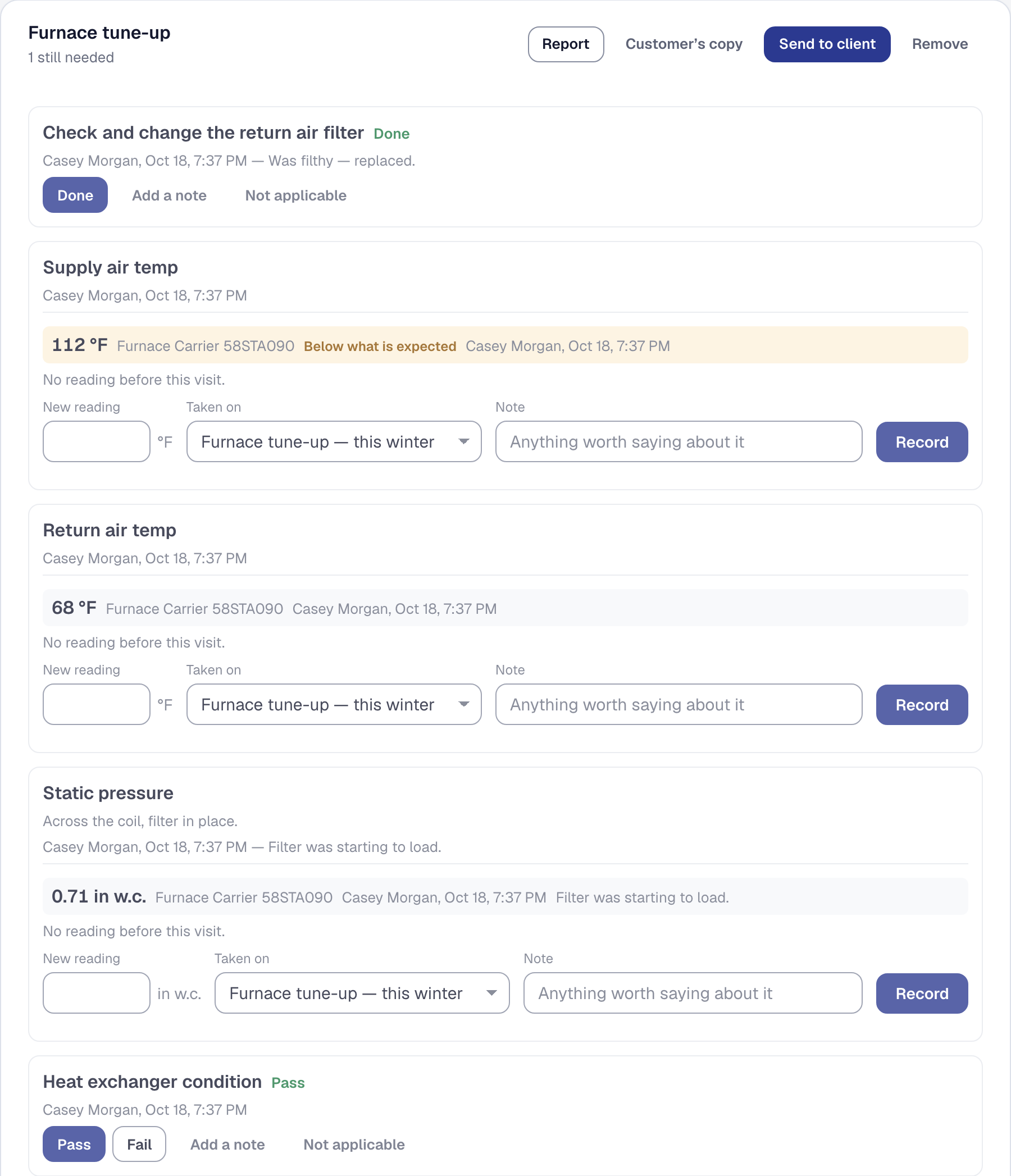
| Measurement | Takes a reading you track over time — see Take a reading from a step. |
| Number | Types a figure that is only about this visit. |
| Text | Writes something down in words. |
| Choice | Picks one of a list you wrote. |
| Condition | Judges it pass, fail or not applicable. |
| Photo | Takes a picture. |
| Signature | Signs on the screen. |
A number and a measurement are both numbers, and the difference is whether the number has a life after this job. A measurement is something you track — a temperature, a pressure, a resistance — with a unit, an expected range, and a history against the thing it was read off. A number is a figure about this visit only: how many filters you left, what the customer’s own meter said, how many feet of cable you pulled. If you would ever want to compare it with last time, make it a measurement.
A Signature step is always required. There is no useful sense in which a checklist asks for a signature optionally, so the box is set for you — if you do not want a signature, remove the step.
A Photo step keeps the picture with the step, on every plan. Each picture counts against your business’s storage; when storage is full, the step says so instead of offering the camera, and the step is still required. The picture goes to your client with the checklist when the checklist is one they see, whatever its own sharing on the job’s photos says — its pill there reads Shared with its checklist or Internal, like its checklist.
Attach a checklist to the kinds of work that use it
A checklist reaches a job through the job’s kind of work. On Organization → Job types, open a job type and choose its checklists. A job type can carry any number of checklists, and a checklist can be on any number of job types.
From then on, a new job of that kind gets those checklists when it is created, as a copy of each one as it stood at that moment. Editing a checklist afterwards changes what new jobs get and leaves jobs in progress alone, which is what you want — a list somebody is halfway through should not change under them.
Two things follow from that, and both are deliberate:
- A job created before you added a checklist to its job type does not get it, and is not held up by it.
- Making a step required later does not go back and hold up jobs that already exist.
Work the list on a job
The office sees the whole list on the job’s page. The crew sees it on My Day, on the job they are working, and their card shows how many required steps are still needed before they tap in.
Each step is answered where it is: ticked, typed, chosen, judged, photographed or signed. Any step takes a note — press Add a note under it — whether it asks for one or not, because the useful thing somebody has to say is usually not on the form.
Every answer records who gave it and when, and changing an answer records the change. Nothing is overwritten quietly.
Not applicable counts as answered, and every kind of step offers it — a measurement’s beside its reading, for the gauge you cannot reach. If the step was required, pressing it opens the note and asks you to say why — not applicable with no reason is the answer that means nothing.
If an answer fails to save — no signal in a basement, a dropped connection — you are told it did not save and what you entered is kept.
A job whose kind of work carries no checklist shows a Checklist panel saying so, with Add a step — and, for the office, an offer to suggest one for this job.
Add a step the list did not have
On site you find more than the list asks — a crack worth a photograph, a part you replaced that nobody planned for. Every list on a job ends with Add a step, on the job’s page and on My Day. Say what the step is and what it asks for — a tick, pass or fail, a number, words, a choice or a photo — and add a note to the crew if it needs one. It joins the end of that job’s list and is answered like any other step.
- It belongs to that job only. The checklist itself and every other job carrying it are unchanged.
- It is never required, and it never holds up finishing the job.
- It is marked Added on site with who added it and when, on the job and in the report.
- A job with no list takes a step too: the first one starts a list called Added on site.
- An archived job takes nothing more — no step, no checklist put on it or suggested — from the office or the crew. Its lists still read, and their reports still download.
- A reading is not added here but from the job’s Measurements section, where it keeps its unit and what it read last time — see Take a reading the job did not ask for. A signature is not offered, because a signature is always required and an added step never is.
The office can take back a step added on site with Take it off — only before anybody has answered it, because an answer is part of the record, and never a step that came with the list.
A step added to a list your customers see is on their copy of the report too, marked Added on site, because it is work done at their property. From the office, tick Keep off the customer’s copy to keep one to yourself, as you would on a checklist. The crew is not offered that: what a customer is told is the office’s decision. A list called Added on site is on this job alone and never reaches a customer.
Make a step standard for that kind of work
When the same thing keeps turning up, make it part of how the work is done, from the job where you saw it. Beside a step added on site, an owner or manager sees Ask this on every kind of work.
- If the step was added to a checklist that kind of work carries, one press adds it to the end of that checklist.
- Otherwise — always for a step on an Added on site list — you choose where: one of the checklists that kind of work carries, or A new checklist you name, which is created with the step and put on that kind of work.
The step goes in as it was added: not required, and kept off the customer’s copy if you kept it off. Make it required on the Checklists page if it should be. What you are told says which checklist it went into and every kind of work that carries that checklist — a checklist shared by two kinds of work asks the step on both.
Only jobs made from now on are asked it. A job’s list is the checklist as it was when the job was made, so jobs already on the calendar keep the list they started with. The step on the job where you found it is marked now in the checklist, and is not offered again.
Take a reading from a step
A measurement step does not hold the number itself. It says take this reading, here, in this order, and the reading is kept against the thing it was read off — a unit at your customer’s property, a piece of your own equipment, or the job. That way the history belongs to the thing measured, so removing a checklist or archiving a template never loses a number.
When somebody answers a measurement step they choose what it was read on, from what the job already touches. A job that touches only itself asks nothing and shows no choice.
The step also shows what that thing read last time, and when — the figure the new number is compared against — or says there is none.
A reading outside its expected range is marked as outside. It is not an error and it does not hold anything up: finding a problem is why somebody looked.
The job’s own Measurements section and a checklist’s measurement step are the same number in two places. Record it in either one and the step reads as answered. The two sections load separately, so after recording in one you may need to reload the page for the other to catch up — the record is right, the screen is a moment behind.
A note on a measurement step goes on the reading, so one number has one note wherever you read it. Every other kind of step keeps its note on the step.
What a required step stops
A job with an unanswered required step cannot be marked Completed or Closed. That holds from every direction — the crew’s control, the office’s job form, and anything else that moves a job.
The refusal names what is left: up to three steps, then and N more. On a phone, marking the job’s last visit done does not offer The job is finished while the list holds the job — the reason is shown in its place, so a button never promises something the server will refuse. The visit itself is still marked done.
A required measurement step with no reading counts as unanswered. A reading that fell outside its expected range counts as answered.
A choice step can name answers that don’t count as done: in the checklist editor, tick them under Doesn’t count as done beneath its options — an inspection’s Failed, say. Answered that way, the step is recorded and shown, and still holds the job, the stage or the visit it is on — and a payment due when that stage is done — until it is answered otherwise; the refusal names it, Inspection result (answered Failed). At least one answer always counts. The remodeling kit’s rough-in inspection comes with Failed marked.
Required means required to close, and nothing else. No step of any kind stops a job being created, scheduled or worked. A job carrying no checklist is not held up at all.
To see what is being held up, the Jobs list has a Waiting on a checklist tab: every job not archived and not finished with a required step still unanswered on its own lists.
If you remove Checklists under Tools, new jobs get no lists and nothing is held; the lists already on jobs stay, to read.
Finish a job anyway
Sometimes the work genuinely cannot be finished: the customer sent the crew away, the part did not arrive, the unit was inaccessible.
Whoever changes your jobs in the office — an owner, a manager or a dispatcher — can finish the job anyway from the job’s page. Saving it as Completed brings up Finish this job anyway?, which asks why. The reason is required, up to 500 characters, and a blank one is refused exactly as no reason would be.
What happens then:
- The job is marked Completed.
- The checklist is not ticked. The unanswered steps stay unanswered and stay visible, because what was actually done is the point of having asked.
- The job’s page gains Finished with the checklist unfinished, showing the reason and the steps that were outstanding at the time. Who gave it, and when, are in the job’s Change history.
The crew have no override. Where The job is finished is missing, the page tells them the office can close it, with a reason.
Put a checklist on a stage or a visit
Where your business plans big jobs with Projects, a checklist can go on a stage of a job’s plan, or on one of its visits, as well as on the job — at any time, not only when the job is made. On the job’s Plan tab, a stage’s Checklists part and each visit offer Add a checklist: choose one of your checklists.
- On a stage, it holds that stage: the stage is not done until the list is, and a stage that finishes itself as its tasks and visits do waits for its list too. Or tick Give each of the stage’s visits its own copy instead — a daily site-safety list — and every visit of the stage still to come gets its own, as does every visit booked for the stage afterwards. Stop ends that; the copies already given stay.
- On a visit, it holds that visit: it cannot be marked Done until its required steps are answered, and the refusal names them. The office can mark it done anyway by saying why; the crew cannot.
- The job’s own gate is unchanged: it holds the job for the lists on the job, and not for a stage’s or a visit’s, which hold those instead.
On My Day, a visit shows the job’s lists, its own, and its stage’s. The Plan tab says what each still waits on — checklist: 2 of 5 left.
Removing a checklist from a job
Whoever changes your jobs in the office — an owner, a manager or a dispatcher — can remove a checklist from a job, and the reason is required. Removing it lifts the hold. What was already answered stays answered, and any reading a step prompted stays on the job — what goes is the requirement.
Send the finished list to your client
On the job’s page, a checklist offers Report: the finished list as a PDF with your business’s name and logo, the job, the date, who did the work, every step with its answer and note, and the photos. It is the first document in SMG Tools to carry a photograph.
Where you marked the checklist Customers see the completed list, two more options appear:
- Customer’s copy — the same document with your internal steps left out. It downloads so you can read what your customer will get before you send it.
- Send to client — emails the customer’s copy as an attachment, with an optional message, to the client or another of their contacts chosen under Send to (see Choose who a document goes to). The send is recorded on that client’s communication history like any other.
The customer’s copy drops internal steps silently: no gap, no count, no line saying something was left out. A step added on site is on both copies, marked Added on site by whoever added it, and the day — unless the office kept it off the customer’s copy, in which case it is dropped the same silent way.
Both options are on the job’s page and are for the office only. The crew are offered neither, because what a customer is told about a visit is not a decision for a driveway.
A measurement step reads on the report as the measurement’s name, its value and unit, the range it was judged against, and a mark if it fell outside — all four taken from the reading as it stood when it was recorded, so a report reprinted next year says what was true at the time.
A step nobody answered still appears, saying so. A half-finished visit should not read as a complete one.
A few things the report will not do:
- A list nobody has answered is refused rather than produced empty: Nothing on this checklist has been answered yet, so there is no report to send.
- Sending a list where everything answered is internal is refused in its own words: Everything answered on this checklist is marked internal, so the customer’s copy would be empty. The work was done and the record exists — it is all the part you keep to yourself.
- A picture that cannot be fetched is left out rather than failing the report. The words are the part that matters.
The report records what a person answered and what a person wrote down. It does not certify anything, and a reading inside its range is not a finding that anything is serviceable.
On your customer’s own page
Where the checklist is marked customers see it, the finished list also appears on that client’s page, under What was done — what was asked, what was answered, the numbers with the range each was judged against, and the pictures.
Turning a checklist’s visibility off means today, including for work that finished last year. The page reads the setting as it stands, so a customer who had a link to a visit stops seeing it once you turn it off.
Let the product draft the steps for you
Rather than writing twenty steps from a blank page, describe the kind of work in a sentence and let the product propose the list.
On Tools → Checklists → Settings, choose to suggest a checklist and describe the work — a seasonal furnace tune-up on a residential gas system. What comes back is ordered steps with a kind and a suggested required flag on each, which you then edit, reorder, remove from and save through the ordinary editor.
Nothing is saved until you save it. A suggestion is a draft and the panel says so. There is no path that creates a checklist you have not seen.
Some suggested steps carry a line to the crew — what to look for, or what to write — which you keep or change like the rest of the step.
Where a suggested step wants a measurement you already have, it names it. Where it wants one you do not, it proposes one — a name, a quantity, a unit and sometimes an expected range — and creates it only when you press Create it on it. A suggested range is a proposal and is labeled as one; the product does not hold itself out as knowing what a correct reading is for your trade.
A suggestion will never mark a step internal. That flag decides whether your customer reads about work they paid for, so you tick it or it stays off.
You can also ask for one on a job that carries no checklist, from that job’s own description and kind of work. Use these steps opens the same editor, holding the suggestion, and Put this on the job puts it onto that job alone. It holds up that job, reaches no other, and no customer sees it — because nobody has decided one may. If you want it every time, save it on Tools → Checklists → Settings. Asking on a job is for whoever changes the job’s schedule — an owner, a manager or a dispatcher — while creating a measurement a suggestion proposes stays with whoever defines your measurements.
Suggesting steps needs Professional, because it spends against your monthly AI allowance. The remaining allowance is shown before you ask, and asking spends it whether or not you keep the answer. On Starter the panel says so and offers nothing that would fail — writing the steps yourself produces a checklist that behaves identically.
Who can do what
| Owner | Manager | Field member | |
|---|---|---|---|
| Write and edit checklists | Yes | Yes | No |
| Attach them to job types | Yes | Yes | No |
| Answer steps on a job | Yes | Yes | On a job assigned to them |
| Add a step on a job | Yes | Yes | On a job assigned to them |
| Keep an added step off the customer’s copy | Yes | Yes | No |
| Take back an added step nobody answered | Yes | Yes | No |
| Make an added step or reading standard | Yes | Yes | No |
| Download or send the report | Yes | Yes | No |
| Finish a job over an unfinished list | Yes | Yes | No |
| Remove a checklist from a job | Yes | Yes | No |
A field member who asks for the Checklists page is refused, and so is one who tries to answer steps on a job that is not theirs.
What each plan includes
Checklists themselves are on every plan — writing them, attaching them, working them, the gate, the override, the report and your customer’s page. None of that is metered and none of it is gated.
One part needs a paid plan, and says so where you meet it:
- Suggesting the steps needs Professional, because it spends your AI allowance.
A photo step’s pictures are kept on every plan, against your business’s storage.
One part needs Crew: the crew’s own view of the list on My Day, because inviting field members at all is a Crew capability. On any plan the office works the list from the job’s page, and an owner on the roster works it on their own My Day.
This page describes Job Checklists and Forms. It is written from that feature’s record and covers what has shipped, never what is planned.