Inventory: stock in the shop and on every van
Count the shop and every van on a phone, record every part a job used, keep the vans restocked, and know what your stock is worth at average cost.
Inventory keeps track of the parts you carry: what is in the shop and on each van, what each job used, and what needs restocking. Every part is valued at its average cost, so a job’s cost counts the parts that came off the van, and the Price Book’s margins see what your parts really cost.
Add Inventory
Inventory is a tool: the owner adds it on the Tools page, under Doing the work, and it appears in the menu under Operations. It needs the Price Book, which is added with it — see Your tools. Answering yes to Do you supply parts or materials? when you set the business up adds it too.
The owner and managers run it. A field technician meets it on My Day: their own van, the parts a job used, and tomorrow’s load. A technician never sees what a part costs or sells for.
Make a material a part you count
Your parts list is the Price Book. Open a Material item and, in its Stock section, tick Track stock. Then:
- Bought in and Pack size, when it comes by the box, case or roll — a box of 25, say. You give both or neither. Stock is held, used and counted one at a time; a receipt in packs is converted for you.
- Barcodes, one per line: the codes on its packaging, so a scan finds it. Up to 20 per item, and a barcode belongs to one item.
- How it is kept: By quantity (a fitting, a filter, a valve), Consumable (tape, solder, rags — counted and restocked, never recorded on a job) or By serial number (each unit followed from the day it arrives to the day it is fitted).
While an item is counted, its Materials cost reads Materials (average cost) and is the average cost of what you have received, not a figure you type. The cost on the form when you first tick Track stock is the average it starts from. Untick it and the field comes back, holding the last average. An item cannot stop being counted while any place holds some of it; move it or adjust it out first.
Services, fees and bundles are never counted, but a bundle’s counted materials are used when the bundle is. On the Price Book list, Counted in stock only shows just your parts, with On hand — every place added up — and what it is worth. The Price Book’s import carries all of this; see Bring your price list in from a spreadsheet.
Set up the shop and the vans
A place is where stock is kept. On the Inventory page choose + Add place, name it, and say What it is:
- A shop or warehouse. You can have as many as you need.
- A van or truck. If you use Equipment, choose its Vehicle in Equipment, and the van’s stock follows whoever holds that vehicle. Otherwise choose Whose van it is. A person holds one van at a time.
A place’s name is up to 100 characters and unique among your places. What it is, and which Equipment vehicle, are fixed once it is made; its name, and a named van’s person, change under Edit.
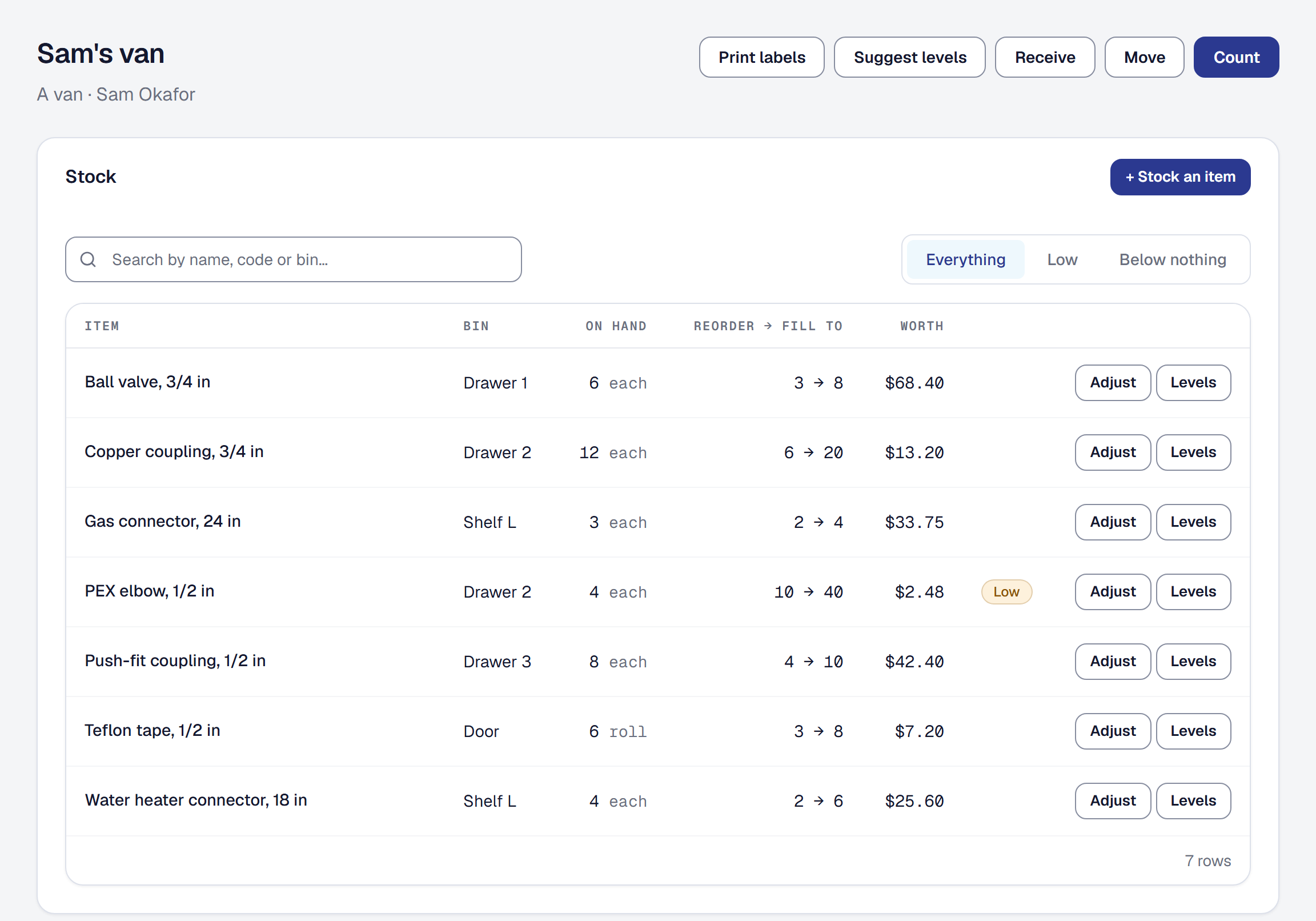
Open a place to see each part with its Bin, On hand, Reorder → fill to and Worth, marked Low at or below its reorder point and Below nothing when more was recorded as used than was known to be there. Search by name, code or bin, filter by category, or choose Everything, Low or Below nothing. + Stock an item adds a part to the place with a bin (up to 50 characters), a reorder point and a fill-to level; Levels on a line changes them. Choose a part to see every place that has it.
The Inventory page lists every place with what it holds, what needs a look and what it is worth. What it is worth gives the total at average cost today, or at the end of any past day you choose. A quantity below nothing counts as nothing there, and the next count or receipt puts it right.
Every change to a place — received, used, moved, counted, adjusted — is under History, with who, when and why. A place is archived from its Danger Zone only once it holds nothing and nothing is on the way to or from it.
On a visit, What’s on my van shows a technician each part on their van, how many and its bin, and where else it is — Also: Shop 24 · Dana’s van 5 — so they can ask the right person before driving to the supply house.
Count a place on your phone
On a place, press Count — or Carry on counting when a count is under way. Choose What to count: Everything here, What nobody has counted in thirty days, One category or Items I choose (up to 500), then Begin the count.
Walk the shelves and type how many of each part you find. Find a part by name, code or bin; Scan a barcode and Open the camera (where the browser cannot read barcodes, type the number under it); or Add an item found here… for something the count did not expect. Each number is kept the moment you type it, so a count can be finished later or on another phone, and nothing at the place changes until you save.
Before you save shows each part’s expected and counted quantity and the difference — and, for the office, what the differences are worth. Save and carry on later saves what is counted so far; Save and finish closes the count, leaving anything it never reached as it was. Set the count aside keeps what it saved and drops the rest. One count is open at a place at a time, and the place’s page says who began it.
Starting is counting. A new place is empty, and its first count is its starting stock: scan or add each part as you find it, valued at the item’s cost in the Price Book that day.
A technician counts their own van with Count my van in What’s on my van, and never sees what a difference is worth. Every part counted lands in the place’s history — Counted 4, 6 expected — one that matched included.
Print shelf labels
Print labels on a place makes a sheet of QR labels, one per part it stocks, in bin order, thirty to a page on 2⅝ × 1 inch label stock. Everything is ticked to start; untick what you do not need and press Make the sheet. Each label shows the part’s name, its bin, the place and its Price Book code.
Scanning a label with a phone’s camera opens that part at that place. The office lands on the place’s stock showing that part; a technician sees how many are there and in which bin, and on their own van, Count my van. A count’s scanner reads labels too. A label holds nothing but where it points, and opens only for somebody signed in to your business.
Count every van once a month
Under Tools → Inventory → Settings, choose Count each van on the 1st to the 28th of the month. From that day, each van’s person finds Count due in For you, which opens their count, and Inventory’s list marks the van Count due today, then Count overdue from the day after, until a count of everything on the van is finished. A count of chosen parts, a category or what nobody has counted does not answer it.
Receive stock, and adjust a quantity
Receive on a place records stock that arrived: each part, How many, and Cost each. For a part bought in packs, tick the box beside it to give the number of packs and Cost a pack instead. + Another item adds a line, up to 100. Where it came from, up to 200 characters, goes in the history: Received from Ferguson. The cost is averaged with everything you hold of that part across every place, and that average is the cost the Price Book reads.
Adjust on a line puts a quantity right: More or Fewer, How many, and Why — Found, Damaged, Lost, Used elsewhere or Correction — with an optional Note of up to 500 characters. An adjustment moves the quantity at the average cost and never changes the average.
Move parts between places
Move on a place: choose Where to, how many of each part and an optional Note, then send them — the button says how many parts are going. The parts leave now, and arrive when the receiving place confirms them — the van’s person or the office for a van, the office for a shop. Until then both places list them under On the way, and neither counts them. The receiving place’s page has Arrived, the sending place’s Mark arrived, and both have Call it off, which puts them back. A move cannot carry more than the place holds.
A technician moves parts from their van to another van with Move parts to another van in What’s on my van. The other van’s person confirms them with Arrived; the sender can Call it off until then. Moves to and from the shop are the office’s.
Where your business uses Purchasing, Return to a supplier on a place sends parts back: the supplier, why — Wrong part, Overstock, Damaged or Other — and how many of each. The return is ready, and the parts stay counted at the place until it is marked sent, when they leave its stock. A unit kept by serial goes with them, and its serial reads Sent back to its supplier.
Fill requests and restock the vans
A technician asks for parts from What’s on my van: Ask for parts for this job on a visit, or Ask for a restock. They type how many of each part, add a note if they like, and send it — Ask for 3 parts. Your requests shows each one and how it was answered, and Take it back withdraws one the office has not answered.
Owners and managers find open requests under Requests on the Inventory page, in For you, and as a Parts asked for notification. Each part shows where it is now. Choose where to fill it from and press Fill — a move to the van, on the way until its person confirms it — or Decline with a reason, up to 500 characters, which the technician reads.
Restock lists, on the Inventory page, shows each van with every part at or below its reorder point, how many bring it back to its fill-to level less what is already on the way, and what the shop has. Move from, followed by your shop’s name, sends what that shop has as one move; what no shop has stays on the list. A van at or below its levels is in the office’s For you and its driver’s.
A technician who buys parts on their own card can answer the purchase with Restock my van, and the parts go on their van at what they paid, on no job — see Confirm a purchase from your phone.
Record the parts a job used
A part is recorded as used on a job in several ways, all landing in one list:
- On the technician’s phone. Parts used on a visit with a job: choose the part, find it by name or code, or Scan a barcode; say how many; and Record the part. It comes from their own van unless they choose another place under From. A technician with no van says where it came from.
- In the office. Parts used on the job’s Work tab, from any place, which you must choose. The office sees what each part cost the job.
- From the invoice. When an invoice is sent, each counted part it sells counts as used, up to what the job has not already recorded, from the van of the one person on the job who drives one, or the place chosen in the send dialog. When it cannot tell, nothing is taken and For you says Not taken from stock until the parts are recorded by hand. Voiding the invoice gives back only what it took.
- From a purchase order. With Purchasing, a counted part ordered for the job is recorded as used on it when it is received. It is recorded at the shop it was delivered to, or the van of whoever picked it up, at the price it was ordered at. It reads Bought for the job, arrived at the place, and never moves the part’s average cost.
A compliance application record that names a counted material takes it from the applicator’s van on its own — see Capture the work in the field.
Nobody is ever stopped. Using more than the van holds is saved, and the line shows Below nothing until the next count or receipt. Consumables are never offered: they are counted, not recorded per job.
Whoever recorded a part can Change how many or Remove it the same day; the office can any time. Leftovers back returns what was not used to a van or the shop, and takes it off the job’s cost. Each part costs the job its average cost when it was recorded, and keeps that cost; a part bought for the job costs what it was ordered at. Those parts are the job’s Parts from Stock line in job costing — see Watch a running job against its estimate.
Catch the parts nobody billed
When you send an invoice for a job, or mark it sent, the dialog lists the job’s parts that no invoice of the job sells yet. Add to this invoice adds one at its price; Not billable… records why it is not — Warranty, Included in the price or Goodwill — and the job keeps that answer. A part sold inside a bundle counts as billed. Sending is never held up: a part left unanswered stays not billed.
The same dialog says which parts sending will record as used, and Taken from where, when there is a choice to make. On the job’s Parts used, the office sees each part as Billed, 2 of 3 billed, Not billed or Not billable, and Billable again undoes a not-billable answer. More on the dialog in Send it to your client.
Plan the parts a job needs
The job’s Work tab has Materials: what the job needs and where it is. Accepting a proposal or a change order lists the counted parts it quotes, a bundle’s included, at the quantities quoted. Add one by hand with Add a part, how many are Needed, and Add to the list.
Each line shows what is needed, used and reserved where, marked Covered or 2 short:
- Reserve holds stock at a place for the job, out of what the place has free. The place still holds it, shows it as reserved, and its restock list treats it as spoken for.
- Move to the van sends a shortfall from a place to the job’s van, on the way until the van’s person confirms it, and reserved there for the job. When more than one person on the job drives a van, you choose which.
- Change and Remove change what the line needs, or take it off with whatever it held.
Parts used fill the lines; a part used that was never listed is shown as Used and not listed. Once parts are used, the list compares estimated against used, per part and in all. Completing, closing or archiving the job gives back everything it held.
Draft it for me is on Professional. On a job whose list is empty — one sold as a service, say — the assistant suggests parts from the ones you count and what your recent jobs of the same kind used, never a consumable and never a part you do not count, up to fifteen lines. Nothing is on the list until you Keep a line or Keep all. It spends from the month’s AI allowance; without Professional, the button’s place names the plan that has it.
Load the van for tomorrow
From noon, a technician’s My Day shows Tomorrow’s load for their van: each part tomorrow’s visits still need, how many are on the van for them, what to pick up at the shop — reserved there for those jobs — and what is missing, with the jobs it is for. Ask the office for what is missing sends one request; the list then says it is waiting on the office. A day with nothing to load says so.
On the Day Board, each lane whose person drives a van shows that day’s load — Sam’s van: 2 parts to load, or loaded for the day — and anything they asked for. Choose where it comes from and press Fill to send it.
Follow a unit by its serial number
For an item kept By serial number, each unit has its serial from the day it arrives. Serials ignore case and the spaces around them: wh-1001 is WH-1001. A serial is up to 100 characters.
- Receiving takes a serial for each unit, one to a line, and how many follows. A serial already in stock is refused, with where it is.
- Counting is by serial: the serials found are the count. A unit expected and not found is marked missing.
- A place lists the serials it holds under each part.
- Moving and Leftovers back ask which units, pressed one by one.
- Parts used offers the units at the place to press, and takes a serial typed for one nobody received. Change shows the units the part fitted, to keep or let go. When an invoice or an application record takes one from a van, it takes the van’s longest-held units, which the office can change.
Find a serial, on the Inventory page, finds any unit from part of its serial: At Shop, On its way to Sam’s van, Not found when Sam’s van was counted, or fitted on a job — which job, for which customer, and when.
With Client Equipment on, give the item a Customer equipment category and Warranty (months). Each unit of it fitted on a job is then offered under the job’s Parts used, for the office, as the customer’s unit: its category, make and model, serial, the day it was fitted, and the maker’s warranty end. Add to their equipment records it for the job’s client, installed by that job, and the warranty reminders watch it — see Add a unit to a client. A part with no category, such as a compressor, is fitted without an offer.
See where the stock goes
Reports → Where the Stock Goes, for the owner and managers, reads the last twelve months at cost:
- Missing at counts: what each count found missing, by month and place, and for a van, who held it — whoever had it for most of the time since the count before — with the totals By person.
- Adjustments by reason.
- Used against billed: by month and person, the parts used and those no invoice sells, at cost and at today’s price, with what was Marked not billable and why.
- Dead stock: parts held and not received, used, moved or returned in 180 days, with what they are worth.
- Turns: each part’s year of use at cost, over the average of what was held a year ago and now. Consumables have none.
Set reorder levels from real use
Suggest levels on a place works out each part’s reorder point and fill-to level from what left the place over the last ninety days and what booked work needs in the next thirty: scheduled jobs’ materials lists, and agreement visits coming due for the parts their customers’ units take. A van’s reorder point covers a week waiting for a restock from the shop, and its fill-to two weeks between restocks; the shop’s covers two weeks waiting on a supplier, and a month. Each suggestion shows today’s levels and why. Accept one, or accept them all at once; nothing changes until you do.
A customer’s unit names the parts it takes with Parts it takes, on a unit in service, while Inventory is on: the parts you count and how many of each, up to twenty — the furnace’s 16x25x1 filter, a blower belt. That is how agreement visits count toward the levels, so the filters are on the shelf before the fall visits are.
Give your accountant the year’s inventory
With Inventory on, Reports → Tax summary shows Inventory: each place’s stock at average cost on the first day of the year and the last — or today, while the year is still going — with the totals, for this year or last. Those are the beginning and ending inventory Schedule C’s cost of goods sold asks for, on lines 35 and 41. They are figures for your accountant, not tax advice — see Get the tax summary.
Be told when a part runs low
- Automations: Tell me when a part falls to its reorder point and Tell me when a van’s count is overdue email the owner, or a manager you choose, with the part, the place and what to fill it to, or the van and the day it was due. A fall is found within the hour; an overdue count each morning. Both need Automations on too — see What they are good for.
- Phone notifications: Parts asked for to the office, Parts on the way to whoever confirms them, and a declined request to the technician — see What reaches you, and what it says.
- Webhooks and Zapier: a part falls to its reorder point and a stock count is saved — every save of a count, partway or finished — can be sent to a webhook, and are the Zapier triggers Stock Reorder Point Reached and Stock Count Saved. See Have other software told what happened and Start a Zap when something happens here.
- API keys: a key that may read Inventory sees what each shop and van holds of every part, with its bin and levels and whether it is low. It never changes stock; that happens in the console, with who and why — see Choose what a key may do.
The whole-account archive under Your data includes your places, your stock, every change to it and the parts each job used — see Download everything.
Say what a job used, or hear what a van holds
With Inventory on, the assistant knows your stock. It answers “How many 16x25 filters are on Sam’s van?”, “What parts were used on the Smith job?” and “What needs restocking?”, and records “Two ball valves used on this job, from the shop” or a technician’s request for their own van once you confirm its card. A part kept by serial needs its serial, which the job’s Parts used takes. Counting, moving and adjusting stay on the place’s page — see What it will and will not do.
What it costs
Inventory is on every plan, Starter included. Draft it for me, and the assistant, need Professional, and spend from the month’s AI allowance.
Remove Inventory
The owner removes Inventory on the Tools page — see Remove a tool. Its screens go: the Inventory page, What’s on my van, Parts used, the job’s Materials, the load lists, the check before an invoice is sent, Where the Stock Goes and the tax summary’s inventory. Its two automations stop, and sending an invoice takes nothing from stock. Nothing is deleted: add it back and every place, count and part used is where you left it. Removing the Price Book removes Inventory with it.
This page describes Inventory. It is written from that feature’s record and covers what has shipped, never what is planned.