Purchasing: suppliers, purchase orders and what they charge you
Keep your suppliers and their prices, send purchase orders for stock or a job, receive what arrives, and check every supplier's bill against what you ordered before you pay it.
Purchasing keeps what you buy in one place: who you buy from and at what price, the orders you send, what arrived, and the bill that follows. Each supplier’s bill is checked against what you ordered and what came before you pay it, and every part reaches the job it was bought for at the price you were actually charged.
Add Purchasing
Purchasing is a tool: the owner adds it on the Tools page, under Money, and it appears in the menu under Money, after Expenses. It needs the Price Book, which is added with it, because your Price Book’s materials are what you order — see Your tools.
It works without Inventory, for jobs: orders for a job, receiving to the job, bills, payments, returns and warranty claims. With Inventory on as well, you can order stock for the shop or a van, have Inventory’s lists draft the orders, and have the schedule wait for parts on order.
The owner and managers run it. A field technician meets it only on My Day: an order to pick up at a supplier’s counter and, where the owner allows it, ordering at the counter themselves. A technician never sees what a part costs.
Keep your suppliers and what each sells you
Purchasing → Suppliers → + Add supplier: the Name, up to 200 characters; Your account number; Email orders go to, where a purchase order is sent; Phone and Website; the Address of the branch you buy from, where a pick-up is; a Contact with their phone and email; Payment terms in the supplier’s own words (Net 30); and Notes. Names are compared by their letters and digits alone, so Front Range Supply and FRONT-RANGE SUPPLY. are one supplier, and two active suppliers cannot share a name.
What a supplier sells you is kept on the Price Book’s item, because the Price Book is your parts list. Open a Material item and, under Suppliers, choose + Add a supplier: Their part number; the Last cost, for one of what you buy it in; what it is Sold in — a box, a bag — and how many of the item’s own unit that holds; and a Core charge where the supplier refunds a deposit when the old part goes back. Tick Preferred on the one you order from first; with none ticked, it is the first listed. A supplier is listed once on an item, and a supplier’s part number belongs to one item. Only materials have suppliers.
A supplier’s page shows its open orders, its bills not yet paid, what it owes you back, what it sells you — each item with its part number, what it is bought in, its last cost and whether it is preferred — and what you spent with it this year: the expenses dated this calendar year whose vendor is the supplier. + New order begins an order from there.
Where an expense’s vendor or a bank transaction’s payee is a supplier’s name — or begins with it, for a name of five letters or more, so FRONT RANGE SUPPLY #12 FORT COLLINS CO is Front Range Supply — it is shown with a link to the supplier. The expense form offers your suppliers’ names as you type a vendor.
A supplier is archived from its Danger Zone. It is offered for nothing new; its history and its rows on your items are kept, and Restore brings it back while no active supplier has its name.
Bring in a supplier’s price list
On a supplier’s page, choose Import a price list, then Download the template and put the supplier’s list in its columns: a row per part, with its part number and what one purchase unit costs, and — where you have them — its name, barcode, purchase unit and how many one holds. The cost is the one column every row needs.
Each row finds its item by the supplier’s part number, then by a barcode on the item’s packaging, then by its name, and sets that supplier’s part number and cost on the item. You see what every row would change before anything is saved. A row no item matches is skipped, and the preview says how many; tick Add the parts no item matches as new items in my Price Book to add them as materials at no price, for you to price. Two rows naming the same item stop the file.
A price list never changes what an item sells for, or the item’s own cost. It records what the supplier quotes. A supplier’s bill is what moves a cost — see Keep your costs in step with what suppliers charge.
Write and send a purchase order
Purchasing opens on your orders not yet in, under Open, beside Drafts, Sent, Received, Canceled and All, with a supplier to narrow them to. Choose + New order:
- Supplier.
- For: A place’s stock or A job, with Inventory on. Without it, every order is for a job.
- How it arrives: Delivered to a place, Delivered to the job’s site, or Picked up at the counter by the person you choose. A pick-up is on that person’s My Day once the order is sent.
- Expected: the day the supplier gives you.
- Notes to the supplier, printed on the order, and Notes for the office, never on it — up to 2,000 characters each.
Start the order, then add its lines under What to order. Add an item from the Price Book… fills in the supplier’s part number, what it sells the item in and its last cost from the item’s row; + Type a line takes words, a quantity and a cost for anything else. Save lines. A line is ordered in what the supplier sells: two boxes of ten at so much a box. Orders are numbered by your business’s day — PO-20261008-001, then -002. A job’s Work tab lists its orders not yet in, with + Order for this job.
Send to Front Range Supply emails the supplier the order as a PDF, from your business: your name and logo, with replies going to your contact address. The PDF says how the order arrives, the job it is for, each line with the supplier’s part number, the total and your notes to the supplier. If the email does not go, the order stays as it was and says so, for you to try again or mark it sent.
Mark as sent is for an order placed another way — by phone, online or at the counter — with Their confirmation number if you have one. A supplier with no email for orders is always ordered from this way. Download PDF works at any time; a draft’s says DRAFT across it.
An order reads Draft, Waiting for approval, Sent, Partly received, Received or Canceled, and its History lists every change, who made it and when.
Let Inventory draft the order
With Inventory on, Order the rest is on a van’s restock list, a job’s Materials and a technician’s open request when the shops cannot fill it. It drafts what the list still needs — what the shops do not have, or the job’s shortfall — less what orders not yet received or canceled already bring, drafts included, so nothing is ordered twice. Each part goes to its preferred supplier, one draft per supplier, rounded up to whole packs: seven elbows sold in bags of fifty is one bag. A part no supplier sells is named, so you can add one on the item.
A job’s draft is delivered to the job’s site; a van’s is picked up by whoever has the van. Each line says where it came from — the van, the job’s number, whose request. One draft opens on its own; several open the list of drafts. Nothing goes to a supplier until you check each one and send it.
A job’s materials list then shows what is on order and what is in a draft order, in the part’s own units — see Plan the parts a job needs.
Change or cancel an order
A draft, an order waiting for approval and a sent order can be changed until anything arrives on it: its lines under What to order, its details under Edit. A sent order keeps its supplier; to order from another, cancel it and begin one there.
Changed after it was sent, the supplier no longer has it as it is. The order says so, and saving asks Send the new version? — the email says it replaces the one before. Or mark it as sent once they have it.
Cancel, in the order’s Danger Zone, needs a reason, up to 500 characters. A canceled order is kept, changes no more, and nothing on it can be received; if it was sent, tell the supplier too. An order that has partly arrived is closed short instead — see Receive what arrives.
Decide who may order
On Tools → Purchasing → Settings, the owner sets:
- Orders over this amount need my approval, with the Approval amount. A Manager’s order over it does not go when they send it or mark it sent: it waits for you, and the order’s page tells them so before they press the button. The amount is compared with the order’s lines, since tax and freight are not known until the bill. Your own orders never wait.
- Technicians can order at the counter, with the Limit per counter order — see Order at a supplier’s counter.
- Bills are expenses in: the expense category a ready bill’s expenses go in, Supplies until you choose.
The approval amount and the counter are off until set. A Manager can read these settings but not change them, and switching the counter off keeps its limit for next time.
An order waiting is in the owner’s For you — PO-20261008-004 to Front Range Supply, $1,240.00 — waiting for your approval — with Approve and Decline, and on the order’s page. Approved, it goes as it was going to: emailed, or marked sent with the confirmation number the Manager typed. It can still be changed while it waits, and you approve it as it stands. An edit that keeps an approved order within the total you approved goes without asking again; one that takes it over asks again.
Decline needs a reason, up to 500 characters. The order goes back to how it was — a draft, or a sent order with its change unsent — and the Manager reads why on the order and in their For you.
Order at a supplier’s counter
Where the owner has switched it on, a technician’s My Day has At the counter, with Order at a counter:
- Supplier: the one they are at.
- For: their own van, with Inventory, or a job they are on.
- What they are buying: the parts you count in stock, found with Find a part, and — for a job — anything else with Add something not on the list. A van’s counter order never takes a part kept by serial number.
- Total on the slip: what the counter charges, tax included.
Place the order. Within the limit, the order’s number is the largest thing on the screen — Give the counter this number — and it is received at once: onto their van, each part at its share of the slip, or counted against the job. Over the limit, it is still numbered but waits for the office, and they are told to call before they buy. The owner or a manager approves it, and it is placed and received the same way, or declines it, which calls it off with the reason on the technician’s day.
Every counter order is in the office’s For you the same day. The technician’s day lists today’s counter orders, each with its number and what became of it: On your van, Counted against the job, Waiting for the office — call them, or declined with why. The total from the slip is the one cost a technician ever types, and they are never shown a Price Book cost.
Receive what arrives
Once an order has gone, Receive on its page lists each line still to come, starting at what is still to come in what the supplier sells it in. For each, say how many Arrived — in packs or single units — and, where it applies:
- What came: Instead: another part, when something else arrived in its place. It is received as itself, at the ordered line’s cost until the bill says otherwise.
- Serials, one to a line, for a part kept by serial number.
- The rest expected, for what did not come. It is optional, and can be changed on the order later.
+ Something that was not ordered adds an extra — a part or typed words, How many and the Cost of each — marked as arriving without being ordered. Scan a barcode finds a part’s line. More than is still to come of a line is refused; the rest is an extra.
Where it goes:
- A stock order puts its parts into its place at the ordered cost of one — a box’s cost over the ten it holds — moving each part’s average cost.
- A job’s order counts its parts against the job at once, at the price ordered, Not yet billed until the supplier’s bill corrects it. With Inventory on, a part you count in stock that was delivered to your shop, or picked up into a van, is recorded as used on the job from there — Bought for the job in its Parts used — and never moves the part’s average cost. A leftover given back to stock comes off the job’s cost. See Record the parts a job used.
The job’s Financials show Parts bought for this job, order by order, with what is not yet billed.
Once something has arrived, What has arrived on the order shows each line ordered, arrived and backordered, with when the rest is due, and Change the date moves it. Every list of orders shows how many lines are backordered and the soonest due. An order is Partly received until every line is in, or until you Close short with why, up to 500 characters: nothing more arrives on it, and what arrived stays received. An order nothing has arrived on is canceled instead.
Collect a pick-up from your day
Once an order to be picked up is sent, it is on its person’s My Day: Pick up at Front Range Supply, the order’s number to give the counter, when it is ready, the job it is for, the branch’s address and phone, and what to ask for — never a cost.
At the counter, Picked up asks how many of each they got, starting at what is still to come, and each serial of a part kept by serial. Picked up again saves it; Not yet leaves it. What they did not get stays on order for the office. Substitutes, extras, costs and dates are the office’s, on the order’s page.
Enter a supplier’s bill
Purchasing → Bills → + Add a bill: the Supplier, the Bill number as the supplier wrote it, the Bill date, and Due, which is optional. Under The orders it covers, tick the supplier’s sent orders. Each fills in what arrived on it that no bill has billed yet, in what the supplier sells it in and at the order’s price, for you to put right to the paper. + A line on no order adds anything else. Then Tax, Freight and Total: the lines, tax and freight must come to the total, to the cent, and a total left empty is what they come to. Enter the bill.
A bill can cover several orders, part of one, or none. A bill number is used once per supplier, compared by its letters and digits — INV-55120 and inv 55120 are the same — so one bill is not entered twice.
Bills lists those that need review first, then by due date, with Needs review, Ready, Paid and Voided, a supplier, and a due-by date to narrow them.
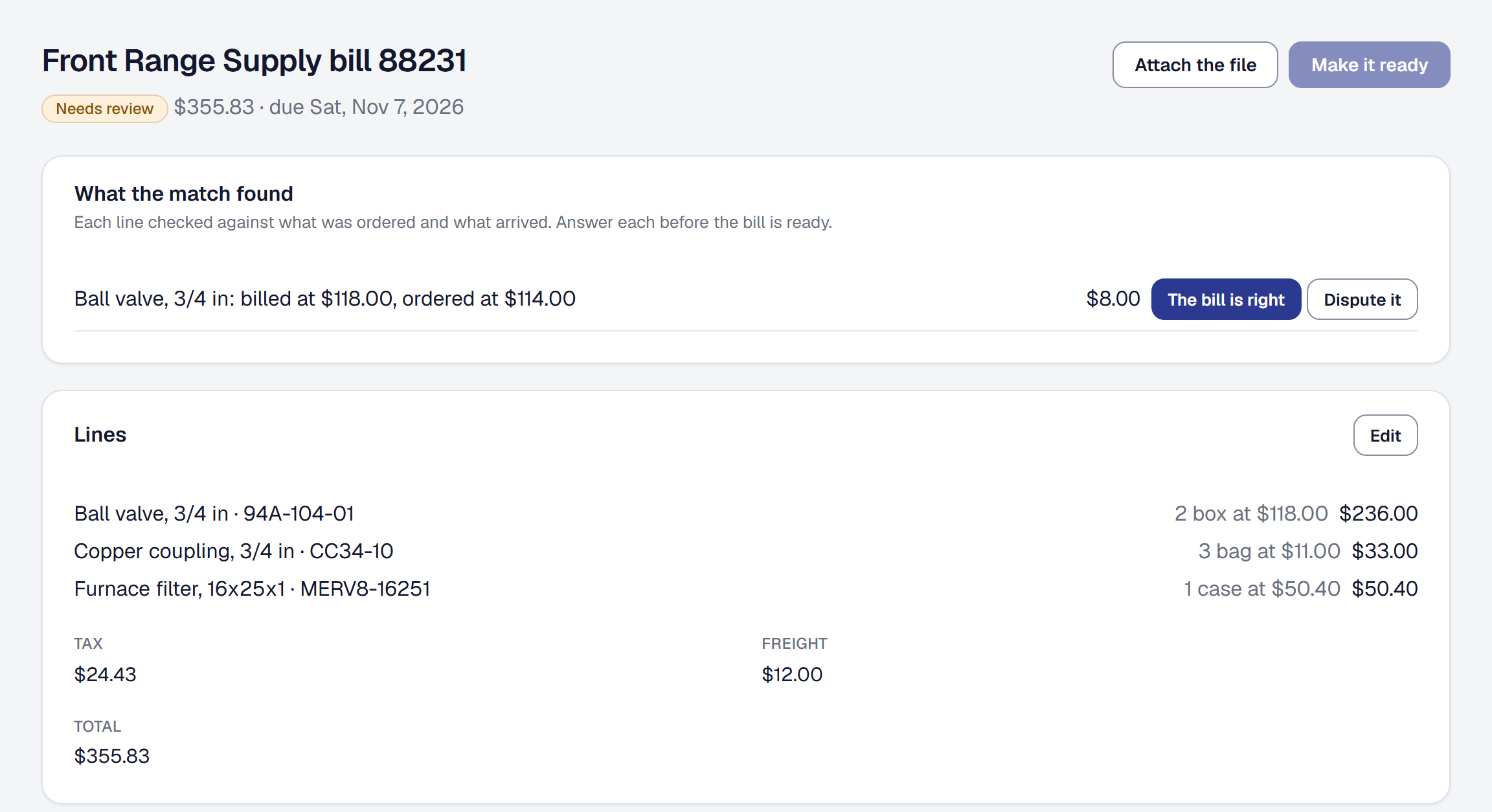
On Professional, keep the supplier’s paper with the bill: Attach the file on its page takes a PDF, PNG or JPEG up to 10 MB, and Open the file opens it. Keeping it spends on file storage, as an expense’s receipt does.
Read a bill from a photo or PDF
On Professional, Read a bill on Add a bill takes a photo or PDF of the supplier’s invoice and fills in the form: the supplier — the one you chose, or the one whose name it read — the bill and order numbers, the dates, each line, the tax and the total, with freight as whatever the total has beyond the lines and tax. The orders are the ones it quotes by number or, quoting none, the supplier’s sent orders.
Each line is marked with how it was matched to an order line: Read — matched by part number, Read — matched by barcode, Read — matched by its words; check it, or Read — on no order; check it. Nothing is saved until you check it against the paper and enter it, and the file is kept with the bill. A file that cannot be read says so and leaves the form as it was.
Reading spends from the month’s scanning allowance, which it shares with receipt scanning: a page read is counted whether or not it found anything. Without Professional, the place where the button would be names the plan that includes it.
Answer what the match found
A bill that needs review is checked three ways — each line against what was ordered and what arrived — every time you open it, counting every other bill. What the match found lists each difference with what it is worth:
- A price that is not the order’s, to the cent: Ball valve, 3/4 in: billed at $118.00, ordered at $114.00.
- More billed than arrived: 4 billed, 2 arrived.
- A line on no order.
- Arrived and not billed here: arrivals on an order line that no bill has billed.
Answer each one. The bill is right accepts it. Dispute it says a credit is expected: the difference is owed back to you until the supplier credits it — see Record a supplier’s credit. Where more was billed than arrived and that much is still to come on the order, It came — receive it receives it there and then, and the flag goes. An arrival not billed here is answered Billed another time. Each answer takes an optional note — who you spoke to, or why — and can be changed until the bill is ready.
Edit changes a bill’s lines while it needs review. A bill entered wrongly is voided, not deleted: Void this bill, in its Danger Zone, with why. A voided bill is kept, costs nothing, and its number is free to enter again.
Make a bill ready
With every flag answered, Make it ready. Nothing on a ready bill changes after, and on that one save:
- It becomes your expenses: one against each job for its parts and one for stock, dated the bill’s date, from the supplier, in the category chosen on Purchasing’s Settings, with the orders it covered in the notes. A line on no order goes to the bill’s job when the bill covers one job’s orders.
- Each job’s parts take the billed price, with their share of the bill’s tax and freight spread across its lines by value, in place of the price ordered. A disputed price keeps the order’s price on the job, and a disputed quantity or line is not charged to it, because the credit is expected.
- Costs move — see Keep your costs in step with what suppliers charge.
Those expenses are your books, not a second cost on the job: the job has carried its parts since they arrived, so a bill’s expense never counts on its margin twice. On Expenses, such an expense has no Edit or Void and opens its bill. Until a bill is ready it is no expense at all, and the job keeps its parts at the price ordered.
Record what you paid a supplier
A ready bill is unpaid until it is paid. Mark paid takes the Amount paid — all that is still owed, unless you paid part — Paid on, and How: Check, Bank transfer, Card, Cash or Other. A part payment leaves the rest unpaid and says how much. Each payment is listed on the bill, with Undo. SMG Tools records a payment you made; it never sends one.
From the bank feed, on Professional, money out that is not yet sorted offers Supplier Bill, on an account’s transactions and in the review queue. It names the supplier its payee does, and offers the bills it equals — each alone, or all of that supplier’s unpaid bills together, as a statement payment does — or you choose them. It pays them in turn, due soonest first, the last in part where the money runs out; a payment that is more than the chosen bills owe is refused. Record the payment, and the transaction is filed as paying those bills, never as an expense of its own: the bills already are. Put it back to Uncategorized, or undo it on a bill, and it comes off every bill it paid — see Sort each transaction.
On a card at the counter: when a card purchase is confirmed and it was a counter order — at that supplier, by the card’s person, within a day, at the slip’s total to the cent — it pays that order’s bill, Card, at the counter, instead of becoming an expense. See Confirm a purchase from your phone.
What you owe is at the top of Bills: the unpaid total on ready bills and how many bills are still to check; what is Overdue, Due in the next 7 days, Due later or has No due date; and each supplier’s share, which opens that supplier’s bills. A supplier’s page lists its bills not yet paid, with what is left on one paid in part.
Return parts, claim warranty parts and send back cores
Each of these is something a supplier owes you until it is credited, replaced or refused. Purchasing → Owed to you lists them together.
- A return. Return parts on a supplier’s page, on Owed to you or on a job’s Financials, or Return to a supplier on an Inventory place. From a place, its parts in stock; from a job, its parts used and what was bought for it. Choose the supplier, Why — Wrong part, Overstock, Damaged or Other — and how many of each, with the Credit for one you expect. A return from a place can name The order they came on, so its credit finds the bill that billed them. It is Ready to go back, and its parts stay counted where they are until Mark sent, when they leave the place’s stock or come off the job’s cost.
- A warranty claim. Warranty claim, for a failed part from a job: one of the job’s parts or typed words, how many and the credit for one, with the customer’s unit and its serial where your records have it. It is claimed From the supplier or From the manufacturer, by name. It is Open until Mark sent; the failed part was in nobody’s stock, so sending it moves nothing.
- A core. An item whose supplier row has a Core charge opens a core owed when an order of it from that supplier is received, for the job or the place it went to. It is Old part to send, then Old part sent back, then Refunded.
A return or a claim then ends credited (Record the credit), Replaced — the replacement received onto the job or into a place, a return’s at what the parts it replaces were worth and a warranty replacement at no cost — or Denied, with why. One made by mistake is canceled with Cancel it before it goes. Returns are numbered from RT-, claims from WC- and cores from CO-.
A job’s Financials list its returns and warranty claims, and a supplier’s page what it owes you.
Record a supplier’s credit
Record a credit — on a supplier’s page or on Owed to you — or Record its credit beside a disputed line on its bill, or Record the credit on a return, takes the Amount, Credited on, the Reference — the supplier’s credit memo number — and what it is for: the supplier’s open returns, claims, cores and disputed lines, each taking a share by what it was expected to bring. Naming nothing is fine too.
A credit lowers the expense of the one bill that billed what it settles — a disputed line’s own bill, or the ready bill for a return’s or a core’s order — never below nothing. With no such bill, it lowers the bill it is later applied to. While that bill is still owed, the credit is applied at once and shows among its payments as Credit. What is left waits under Credits to use, and Apply a credit on a later bill from the same supplier takes it off what is owed there. Undone, it comes off the bill and is free to use again.
A warranty claim’s or a core’s credit comes off the job’s parts cost. A return’s does not — its parts left the job when they were sent — and neither does a disputed line’s, which never reached the job. A manufacturer’s credit on a claim made to it is recorded on the claim, and comes off the job’s parts cost; the money arrives however the manufacturer pays.
Owed to you shows every open return, claim and core and every disputed line not yet credited, what each is worth and how many days it has waited, the longest first, with the total — one supplier’s when you choose one — and the credits still to use.
Keep your costs in step with what suppliers charge
When a bill is made ready, each billed line that names a Price Book item moves its costs:
- The supplier’s cost on the item becomes the billed price, for one of what it sells the item in, dated the bill’s day. A supplier the item did not list is added to it.
- A part you count in stock moves its average cost: what the bill charged for each, with its share of tax and freight, beyond what the order put it into stock at, carried by what you still hold.
- A material you do not count costs its preferred supplier’s latest billed price, without tax and freight. Pin this cost: a supplier’s bill does not change it, on the item, keeps the cost you typed; the supplier’s own cost still updates. A counted part is never pinned, because its cost is what the stock cost.
A disputed price moves nothing. What an item sells for never moves by itself. When a bill takes items under their target margin, the owner and managers find it in For you — 2 items fell under target after Front Range Supply’s bill INV-55120 — which opens the Price Book on just those items, each with what it should now sell for and a button to use that price. It goes once each is priced to meet it, or after thirty days. See See what an item should sell for.
Editing a material shows What suppliers have billed: each supplier’s price for one over the last year, the latest, how much it rose over ninety days and over the year, and Cheapest lately among those that billed it in the last ninety days. Reports → Price Creep lists the items whose billed price rose over a stretch — ninety days to today unless you choose From and To — for every supplier or one: each item billed at least twice in it, what it Was, what it is Now and how much it Rose, the largest rise by share first. Both read what bills actually charged, never a price list’s quote.
Plan visits around parts on order
With Inventory and Purchasing on, the schedule knows when a job’s parts arrive. A part the job is short of — needed, less what was used and what is held for it at a place or on a van — is expected the day the order bringing it is: a backorder’s own date once something has come, the order’s Expected until then. A draft is not on order.
- Find a time, with Scheduling & dispatch, offers nothing before the day the last such part is expected, and says which: No time before Mon Oct 26, when Ball valve, 3/4 in is expected. A part short and on no order, or on an order with no date, is named and holds nothing back, and neither does one whose date has passed. See Find a time for a job.
- The visit form warns, under its day, when the day you picked is before the parts are in — Booked before its parts are in — naming each part and when it is expected. It never stops you saving.
- For you holds one item for the office while any visit in the next ninety days is booked before its job’s parts: 2 visits are booked before their parts are expected, each with its job and day. It appears the moment an expected date moves later, and goes when the date moves back, the visit moves, or the parts come.
Order by asking the assistant
On Professional, the owner and managers can order by asking: “Order ten 16x25 filters from Front Range” drafts an order in the supplier’s own packs, from the supplier you name, else the part’s preferred one. Name a job and it is for the job; name none and it is for the shop’s stock. The draft says the assistant made it, and you check it and send it from the order. The assistant never sends, approves or receives an order.
It also answers “What is on order for the Smith job?” and “Did the Front Range order come in?” — and, where only some of it did, what is still to come and when. A field worker who asks is told to ask the owner or a manager. More in What it will and will not do.
Send supplier bills to QuickBooks Online or Xero
With the accounting push on, which is on Professional, a ready bill goes to QuickBooks Online or Xero as a bill from its supplier, a payment goes against each bill it paid, and a supplier’s credit goes as a credit, set against each bill you apply it to. A job’s lines are marked for the job where the books allow. Amounts only: what you hold in stock is never sent, and a bill’s expenses never go a second time as purchases. What each record becomes there is in Know what is sent, and when.
Be told when an order moves
- Automations email the owner, or a manager you choose: Tell the person who asked when an order is approved, Tell me when an order is emailed to its supplier, Tell me when an order is marked sent, Tell me when an order comes in (never a counter order), Tell me when a supplier bill needs checking and Tell me when a backorder’s date moves. Each reads the order or bill as it stands when it runs, so a bill checked since says nothing. They need Automations on too — see What they are good for.
- Phone notifications: Orders to approve, Orders declined and Counter orders, each saying who and the order’s number, never an amount — see Choose which kinds reach you.
- Webhooks: an order emailed to its supplier, an order marked sent, an order coming in — all of it or part — and a supplier’s bill made ready can each be sent to a webhook — see Have other software told what happened.
- API keys: a key that may read Purchasing sees your orders, each with its supplier, its lines in the supplier’s packs, how much of each has come and when the rest is expected. Nothing through a key sends, approves or receives an order — see Choose what a key may do.
The whole-account archive under Your data includes your suppliers, orders, receipts, bills, payments, returns, claims and cores — see Download everything.
What it costs
Purchasing is on every plan, Starter included: suppliers and their price lists, orders and approvals, counter orders, receiving, bills and the three-way match, payments marked by hand, returns, claims, cores and credits, costs that follow the bills, and the schedule waiting for parts. Professional adds the parts that run on somebody else’s meter: Read a bill, from the month’s scanning allowance; keeping a bill’s file, which is file storage; paying bills from the bank feed and card purchases, which need your bank connected; the assistant; and sending bills to QuickBooks Online or Xero.
Remove Purchasing
The owner removes Purchasing on the Tools page — see Remove a tool. Its screens go: Purchasing’s orders, suppliers, bills and Owed to you; a job’s orders, parts bought, returns and claims; pick-ups and At the counter on My Day; Order the rest on Inventory’s lists; an item’s Suppliers and What suppliers have billed; Price Creep; Supplier Bill on the bank feed; and its items in For you. Parts on order stop holding back Find a time and the visit form’s warning, and its six automations stop. Nothing is deleted: add it back and every supplier, order and bill is where you left it. Removing the Price Book removes Purchasing with it.
This page describes Purchasing. It is written from that feature’s record and covers what has shipped, never what is planned.