Find anything — a page, a setting or a record in one box
Press Ctrl+K or Search and type a few letters to go straight to a page, a tool's settings, or a client, job, proposal, invoice, lead or unit.
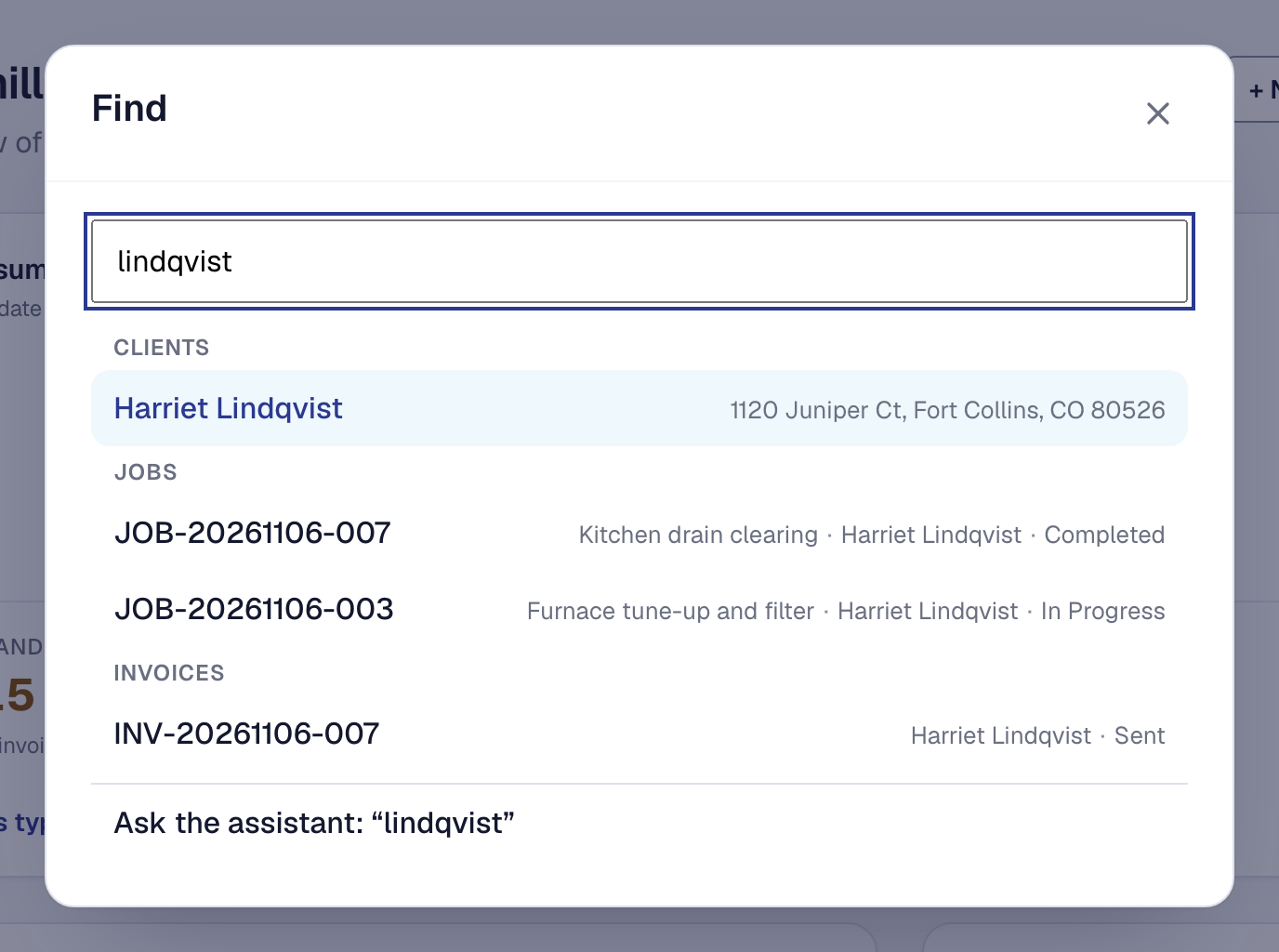
Find is one box that takes you anywhere in SMG Tools you can already go: a page, a tool’s settings, or one of your clients, jobs, proposals, invoices, leads or units. Type a few letters of what you want and press Enter, instead of walking through the menu.
Open Find
- Press Ctrl+K (⌘K on a Mac) on any page. It does nothing while you are typing in another box, so it never takes a letter you meant for a form. Press it again, or Escape, to close Find.
- Or choose Search at the top of the menu.
- On a phone, and in the app, tap the magnifier at the top right of the screen. Find fills the screen, with the box at the top.
Go to a page, a tool or a setting
Type part of a name. Find offers the pages your menu has — Clients, Calendar, Day Board — the pages under Organization and your own Profile pages, and, for owners and managers, every tool with whether it is on.
A tool’s settings tabs are found by their own names, so typing bookable offers Online booking › Bookable services and opens straight on that tab. A tool that is off is still found, and its page says why it is off and what turns it on.
Use the up and down arrows to move through what Find offers and Enter to open one, or click it. Each result is a link, so you can open it in a new tab too.
Find a client, a job or an invoice
Type two letters or more and Find looks through your records as well, a moment after you stop typing, and shows up to five of each kind:
- Clients, by name, business name, email, phone number however it is written — (970) 555-0117 finds 970-555-0117 — address, and the name or address of any of their buildings.
- Leads, by name, email, phone and the work they asked about.
- Jobs, by number or any part of it, title, address, your customer’s own reference, and whose job it is.
- Proposals, by number, title and whose they are.
- Invoices, by number, your customer’s own reference, and whose they are — so typing a client’s name finds their invoices.
- Units, by make, model, serial number, kind, where they are in the property, their label’s code, and whose they are.
Each result says which record it is — a job’s title, whose it is and its status — and never what it is worth. Archived clients and jobs, void proposals and invoices, leads that are no longer open and units that are no longer in service come last in their group, marked. Leads appear while you have the Leads tool, and units while you have Client equipment.
When a kind has more than five, its last row says See all, with how many, and opens that list already searched for what you typed.
If your records cannot be searched for a moment, Find says so and offers Try again; pages and tools still work.
Why someone else’s Find shows less
Find only offers what the person using it could already open. A dispatcher’s Find has no invoices or proposals, because their role has neither. A field worker’s has their day and For you, and none of the office’s pages or records. Tools and their settings are for owners and managers. A role you build on Scale gets exactly what its permissions reach.
Pick up where you left off
With nothing typed, Find shows the last five things you opened from it on this device, newest first. Opening one again moves it to the top. Something you can no longer open from your menu drops off the list. Signing out clears it, so the next person on a shared computer starts with their own.
When you want something done rather than found
On Professional, the last row of Find reads Ask the assistant with what you typed. Choosing it opens the assistant with your words already in its box; nothing is worked out until you press Work it out, so trying it costs nothing.
What you type into Find is not kept: it is not saved, counted or recorded anywhere, and it is only used to answer you.
This page describes Find Anything. It is written from that feature’s record and covers what has shipped, never what is planned.