Say it once — several steps and a job's wrap-up in one go
Say everything you mean in one go — a new customer, a phone call, the end of a job — and check a form for each step before anything is saved.
Nobody thinks in single steps: a new customer is a client, a job and a visit, and the end of a job is a note, the parts, a to-do and a quote for later. Say it all once, and the assistant lays out a form for every step — nothing is saved until you have checked them.
Say several things at once
In the assistant — Ask the assistant, or Ctrl+K (⌘K on a Mac) and Ask the assistant at the bottom of Find — type or say everything in one go: “Note on this job that I changed the furnace filter, and remind me to order the gasket.” Work it out lays out a form for each step, up to twelve, in the order they happen. A question asked in the same breath — what does she owe? — is answered above them.
Each form is the assistant’s own: every field filled in from what you said and every one editable, anything it needs asked for, and the client or job it found shown so you can see it found the right one. Untick what you do not want, correct what it misheard, and press Save — it stays at the foot of the panel while you scroll through them. Each step is saved in the order shown and says what it became, with Open it, or why it could not be saved — left open with what you typed. A step you cannot do on your plan or in your role is left out, and the assistant says so. Anything it could not place stays as words under the forms, to keep on a job as a note or copy.
Asked from a job, a client or a visit, this job means that one. Open the assistant on a job’s page and this job is that job, with no name to say; on a client’s page, her is that client. The assistant says which one it is asking about above the box.
Working it out is charged against your AI allowance once, however many forms it lays out; saving is free. The assistant never sends anything to a client: a proposal it drafts says send it from the proposal.
Add a customer, their job and a visit in one go
One step can be for something an earlier one makes. “Add Laura Chen, make a job for her bathroom remodel, and remind me to call her about the tile” lays out the client, then a job whose form says New client: Laura Chen (card 1), then a to-do on New job: Bathroom remodel (card 2). Saving fills each in with what the one before it made.
- Untick the client and the job and the to-do untick with it, each saying Needs card 1 or Needs card 2. Tick it again and they come back.
- If one is refused, only the steps that needed it stop — Not saved: card 1 was not — and the rest are saved. Save the one it needs and save them again.
- To use a client or job you already have instead of the new one, press Use an existing one instead on that form, name it, and press Use this.
Wrap up a job before you leave
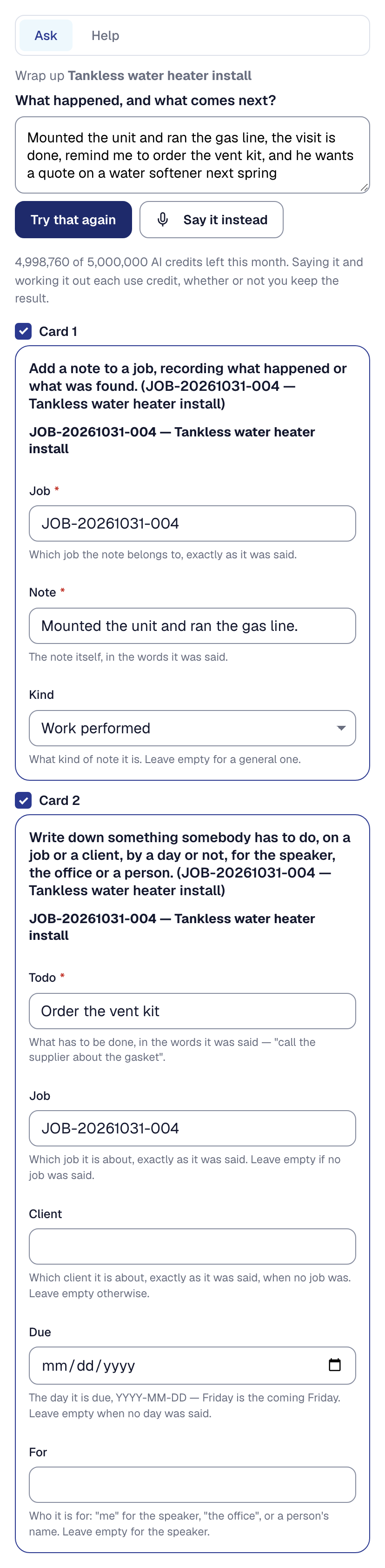
On a job’s page, Wrap up — beside Actions — opens the assistant on that job and asks What happened, and what comes next? It is there too on a visit of your own day. Say up to two minutes of it (the timer shows stops at 2:00), or type it, then press Work it out:
“Mounted the unit and ran the gas line, the visit is done, remind me to order the vent kit, and he wants a quote on a water softener next spring.”
The forms come in the order the paperwork goes, every one on that job whatever names you said: the work note, parts used, time, an expense, a draft invoice, a to-do, a return visit, future work for the client, then The visit is done and — only when you say the job is finished — The job is finished.
- The finish waits on the checklist. A job whose checklist has a required step left unanswered is not finished: its form says what is left, with Open the list. Nothing here can finish it anyway.
- The finish waits on everything before it. If a form before it was not saved, the job is not finished — Not finished: card 1 was not saved — though the visit is still marked done. Save it again once the rest are saved.
- Send the note to your client from the note. Once saved, the note’s form offers Send to client, which opens the note on the job where that button is. Nothing is sent from the assistant.
You can also wrap up from anywhere by saying so: “Wrap up the Henderson job: …”. Wrap up is offered to whoever changes jobs and the schedule, where the Assistant tool is on and there is AI allowance left. A recording for a wrap-up is charged for two minutes at most, and any other recording for sixty seconds at most.
Draft the invoice by saying so
“Bill the rest on the Henderson job” or “invoice this job 185 for the design visit” drafts an invoice — in a wrap-up too, after the expenses — and never sends it.
- On a job agreed at a price with something left to bill, it is exactly what Bill the rest writes, marked final.
- Otherwise it is one line in your words at the amount you said. With no amount, the form asks for one.
- A job that already has a draft is offered that draft rather than a second one.
The form shows each line and the total before you save; the result links the draft, which you send from the invoice. It is offered to whoever can change invoices.
Let the crew wrap up their own visits
On a visit of their own day, a crew member has Wrap up too: up to two minutes of what happened and what is still needed, laid out as only what their day already lets them do — a work note, parts from their own van, a to-do for themselves or the office, future work for the office, the visit done and, on the job’s last visit, the job finished. A return visit becomes a to-do for the office to book, and whatever goes to the office says Sent to the office. Never time, money, a visit or an invoice. Their visit is marked done only once they have arrived, as their own Done is. Their wrap-ups are in their own Assistant history.
A crew member’s wrap-up spends your AI allowance like any assistant turn, so it is yours to stop: The crew can wrap up their own jobs, on the Assistant tool’s Settings tab, is on until you turn it off. Off, the button is gone from everyone’s day.
This page describes Say It Once — Several Steps From One Request, the Job Wrapped Up From One Memo, and the To-Dos and Future Work They Leave. It is written from that feature’s record and covers what has shipped, never what is planned.