Projects — plan a big job in stages
Lay a remodel or any multi-week job out as stages that hold their tasks and visits, schedule a whole stage at once, and watch its progress and margin stage by stage.
Watch it

A bathroom remodel is not a service call: it runs for weeks, through demolition, rough-in, an inspection and finish, with different people on each and a payment due as each stage is done. Projects gives a job a plan — its stages in order, each holding the tasks and the visits for that part of the work — so the whole job is on one page, and each stage finishes itself when its work is done.
Turn Projects on
Projects is a tool. Add it on the Tools page; a business that only does one-visit calls can leave it off. It is on every plan. Drafting the plan with AI is on Professional.
Once it is on, every job has a Plan tab. Turning Projects off hides the plans and keeps every record, so turning it on again brings them back as they were.
Make a plan for a job
A job with no plan offers its ways in on the Plan tab, the job type’s templates first:
- From the template: {its name} — the job type’s saved plan, the job’s proposal lines landing on the tasks that name their items. See Save a plan as a template.
- Make it from the proposal — on a job made from a proposal, each of its lines becomes a task with its hours, a bundle’s lines one task, in the proposal’s first phase. A calculator’s lines go by its sections instead: each section’s in a stage named for it, in the calculator’s order, a stage of that name used where the job has one — see Take the calculation through the job. Every line lands once, and you move tasks between stages from there.
- Start a blank plan — the job’s milestones become its stages, in their order; a job with none is given one, The work, to put the first task in.
- Draft the plan — the assistant lays the whole plan out for you to review. See Draft the plan with AI.
Making a plan never changes what was sold: the lines, the price and the payment schedule stay the job’s. Making it from the proposal again, on a plan that has tasks, asks first. Its tasks not yet ticked are taken off and made again from the lines; its ticked tasks, its stages and every visit stay.
Draft the plan with AI
On Professional, Draft the plan asks the assistant to lay the job out from what it sold, the job type’s templates, your skills and checklists, and how your past jobs of the same type went. It drafts:
- the stages in order;
- the tasks, each covering lines the job sold, with the skills its work needs and how many people it takes;
- checklists from your own, on a stage or on every visit of it.
Every hour is counted, not guessed. A task’s hours are the hours of the lines it covers, or its template task’s for one that covers no line — never a figure from the assistant. Every line sold goes in exactly one task: a draft that leaves one out or puts one in two tasks is sent back and asked for again, and if it comes back wrong twice you are told and offered to try again. A skill or a checklist the business does not have is dropped before you see the draft.
The draft shows the plan’s hours against the hours sold, and, where your past jobs of the type ran over or under on a stage, says so from your own records — Rough-in ran 22% over on your last four Kitchen remodel jobs. That figure is worked out from the hours planned and the hours worked on those jobs’ visits, not by the assistant.
Nothing is saved until you save it. Rename a stage or a task, move a task to another stage, set its crew size, take a skill or a checklist off, or remove a task — the draft names the lines a removed task leaves off the plan. A task that covers no line takes the hours you give it. Then Save the plan, and it is the plan exactly as if you had built it by hand; or Draft it again, or Discard it.
The panel shows your AI allowance before you ask, because asking spends it whether or not you keep the draft. Drafting can take up to a minute; Stop drafting abandons it. A draft that fails says so and leaves the job as it was. On Starter the panel says drafting is on Professional; making a plan from the proposal, a template or by hand is the same.
Lay out the stages and their tasks
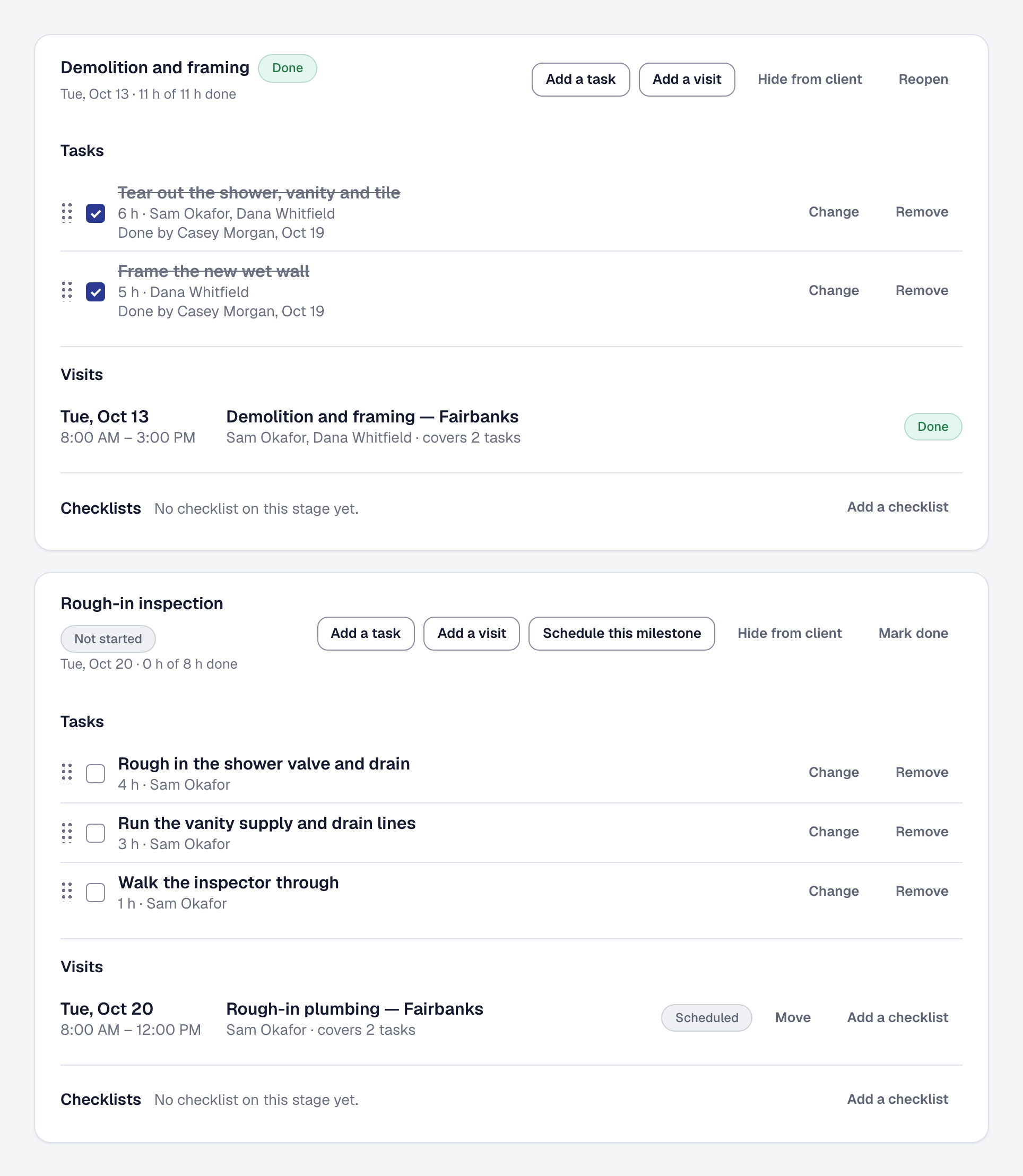
Each stage of the plan is a panel with its tasks, its visits and its checklists. Add a stage adds one after the rest. Add a task asks for:
- Task — what the work is;
- Hours — how long it takes;
- Who is on it — people, or one of your saved crews;
- Due — a day, for a task no visit covers;
- Notes;
- Skills it needs and People it takes (one to eight), which Schedule this milestone reads.
Drag a task to put a stage’s tasks in order or to move it to another stage. Tick it done, or untick it the same day; by the next morning the tick is the record of what happened.
The Plan panel at the top sets the plan’s hours beside the hours the job’s lines sold — 38 h planned of 36 h sold — 2 h over — and the job’s progress, the share of the planned hours that are done. The two are shown side by side and never quietly made equal.
Put an accepted change order on the plan. Its lines are listed under Change orders not on the plan until they are tasks: choose a stage, or a new stage named for the change order, and Add to the plan.
Book the visits for a stage
Only visits are on the calendar — a task is what a visit is for. A stage’s visits are the job’s schedule, on the board, the calendar and the crew’s day like any other visit.
- Add a visit books one for the stage, after you choose which of its open tasks it covers.
- Schedule this milestone asks the scheduling engine for every visit the stage’s open tasks need. Under Who goes, send the stage’s own people, or let the engine choose people with the skills the job needs between them, and how many go on each visit — the most any of its tasks takes, to start with. When that many cannot hold the skills between them — a stage needing a plumber and a carpenter, and nobody both — it sends as many more as it takes, and says so. It divides the tasks’ hours across the people, in working days, on days they are working, free and not away, up to ninety days ahead. Work longer than a day is a run of visits, one a day — day 2 of 3. Change a day or the hours, drop a line, then Book what is left. Nothing is booked until you do, and if it cannot fit the work it says how much did.
- Schedule it, on the plan once two or more stages have work on no visit, opens Schedule this milestone on each of them in order. Each stage’s visits come after the ones you just booked; closing one stops the rest.
- Move a stage’s visit, and you are offered to move its later visits after it, each keeping the working days between them, on days their people are free.
See Find a time for a job for how the engine chooses people by their skills.
Send a saved crew
The people you send together are a crew: a name, a lead and its people, kept under Crews on the Workers page. Wherever you choose people for a stage, a task or a visit, a crew can be chosen in one pick, which puts its people on. Change a crew’s people and you are asked whether its visits still to come should change too; a past visit never does. A crew lead’s Your crew on their phone is everybody in the crews they lead. Crews are kept by whoever manages your workers.
Put checklists on stages and visits
Add a checklist on a stage puts one of your checklists on the stage itself, or gives each of the stage’s visits its own copy — a daily site-safety list. A stage’s list holds the stage until it is complete, and a visit’s holds that visit. See Put a checklist on a stage or a visit.
Let a stage finish itself
A stage is done when its tasks are ticked, its visits are done and its own checklists are complete; it is in progress from the first ticked task or the first visit somebody set off for. Nobody has to remember to mark it, and a payment on the job’s schedule that falls due on the stage comes due when it finishes.
The Owner or a Manager can Mark done a stage whose work is not all done, or Reopen one, with the reason — it shows on the stage. Marked done early, it stays done until somebody reopens it.
Work the plan from the phone
On My Day, a visit for a stage shows Today’s work — the stage and the tasks the visit covers, with their hours, its checklists, and the plan’s other stages. Somebody on a task, or on the visit that covers it, ticks it done, and a crew lead ticks for the crew. Being on one of a stage’s visits puts somebody on the job, so the visit’s page shows them the job’s stages, checklist and the units at the property as well. A task with a due day and no visit shows under Due today. The phone shows the work and the people, never an amount. See Work the plan.
Somebody put on a stage or a task is told on their phone — New stage: Rough-in — Kitchen remodel.
Watch the money stage by stage
With your role’s Prices and costs, the job’s Financials tab shows By milestone: for each stage, what its tasks’ lines sold, what they were estimated to cost and take, what it has cost and taken so far, and the margin. Time counts against a stage through the visit it was worked at; an expense, a part used or a purchase order names its stage. What is tied to none is one row of its own, so the rows add up to the job. Margin Intelligence’s alert names the stage drifting. See Watch a running job against its estimate.
Payments coming in, under Reports, is every job’s payment schedule by week: what is overdue, what falls due, and what is expected when a stage is planned to finish.
Show your client how it is going
On a job with a plan, the client’s own page shows it stage by stage — each stage’s dates and where it is, its visits, what you have shared from the job, and their payments. Never the tasks, the hours or a cost.
- Hide from client on a stage leaves it, its visits and what was shared from it off their page.
- The automation Tell the client when a stage of their job is done emails them as each stage finishes, with a link to their page. See Turn one on.
Save a plan as a template
Save this plan as a template keeps the plan for its job type: its stages, its tasks with their hours, skills, crew size and the Price Book items their lines sold, the checklists on its stages and their visits, and its payment schedule as shares of the price — never an amount. Save as over one of the type’s templates replaces what it holds, which is how a template is changed.
A new job of that type is offered From the template on its Plan tab. It gets its own copy: its proposal’s lines land on the task naming their item, the rest in the last stage, a stage named like one of the job’s own is that stage, and the payment schedule’s shape is put on at the job’s own price, if it has no schedule yet. Changing a template later changes no job made from it.
A job type’s templates are under Plan templates on Organization → Job types, to Rename, Archive or Restore. The trade kits for project work bring templates of their own — see See what each trade’s kit brings.
Ask the assistant what is left
“What’s left on the Smith job?”, “Who’s on next at Smith?” — the assistant, and an AI app you have connected, answer from the plan: each stage not done with its tasks and hours left, and the next visit booked with who is on it. Hours and people, never money. See the assistant and AI connectors.
Who can do what
- The Owner, a Manager and a Dispatcher make and change plans and schedule their visits. A Dispatcher sees no amounts.
- Mark done and Reopen are the Owner’s and a Manager’s, because finishing a stage makes its payment due.
- The Estimator reads the plan, with nothing to change.
- The field sees the plan of a job they are on, with no amounts, and ticks their tasks.
This page describes Projects — a Plan for a Big Job. It is written from that feature’s record and covers what has shipped, never what is planned.