Sales tax
Your own sales tax rates, found by the ZIP code where the work is done; tax on the lines that are taxable; exempt clients; and what you owe each state, county and city.
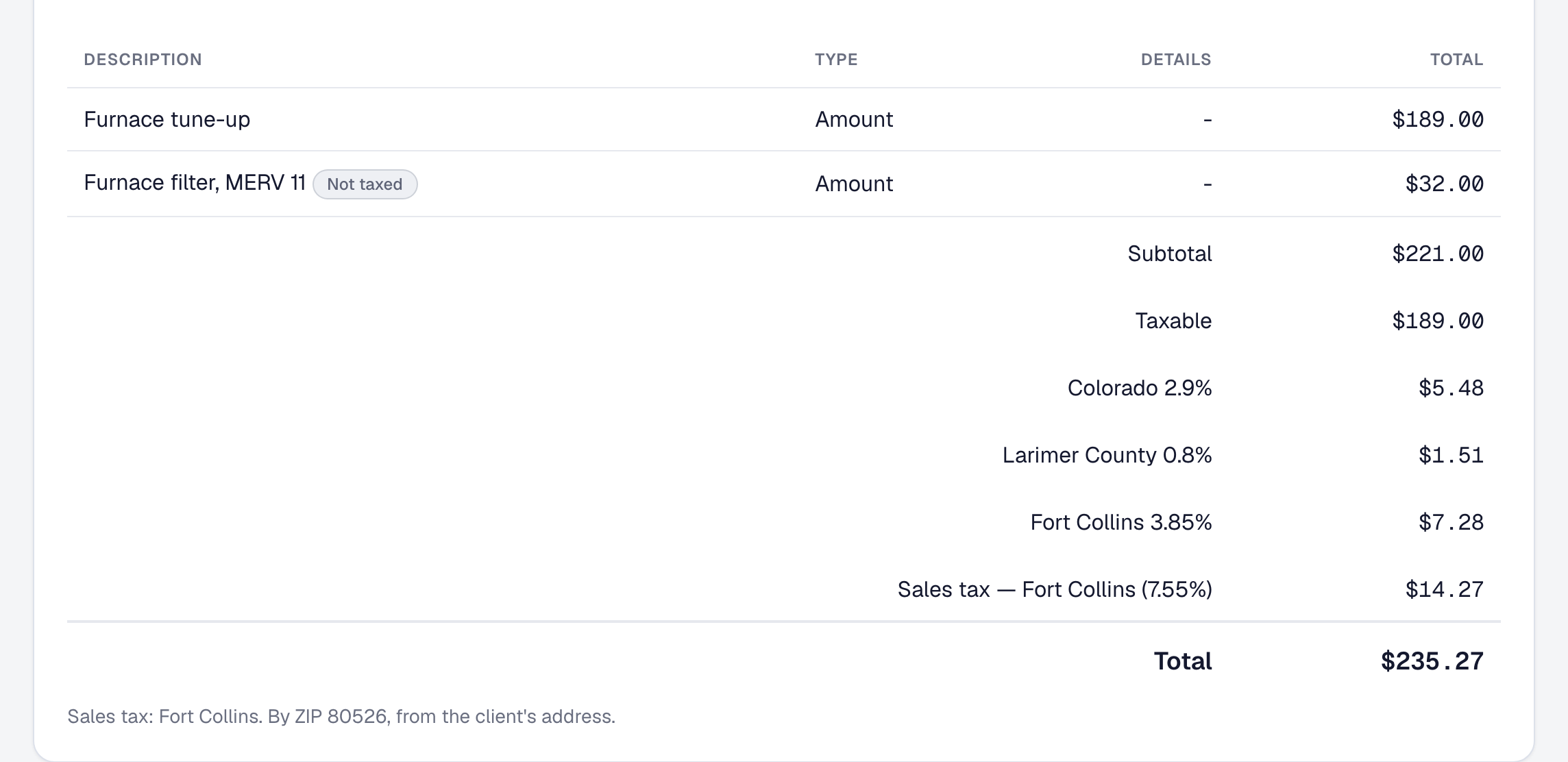
Sales tax here is the rates you registered to collect, found for each job by the ZIP code of the place the work is done, and charged only on the lines that are taxable. What you owe each state, county and city is a report you can file from.
Set up your rates
Open Invoices → Sales tax. Organization’s menu lists it too. Press + Add rate and give it:
- a name: what you call the place it applies, such as Pittsburgh or Allegheny County outside the city;
- its parts: each jurisdiction and its percentage, such as Pennsylvania 6% and Allegheny County 1%. Press Add a part for each one, up to ten. The rate is their sum, and neither a part nor a rate may be more than 25%, so a slip like 75 for 7.5 is caught;
- its ZIP codes: where it applies. A ZIP can be on only one rate at a time.
A rate with no ZIP codes is used as the default or chosen by hand. Press the star on a rate to make it the default, the rate a job takes when no rate lists its ZIP. A rate you no longer collect is archived rather than deleted: its ZIP codes stop finding it, and invoices already made keep it.
Two settings sit above your rates:
- Lines typed by hand are taxable unless switched off on the line. A Price Book line follows its item’s own Taxable setting.
- How you file: see what you owe.
Setting rates is for whoever handles your pay and accounting settings: you, a Bookkeeper, or a role of your own given them. Anyone who reads jobs or invoices can see the rates.
See which rate a job takes
A job’s Sales tax line, on its overview, says its rate and why. The rate is found in this order:
- The rate listing the ZIP of the job’s service address, then of its location, then of its client’s address.
- Your default, when no rate lists that ZIP or the job has no address with one.
- No sales tax, when there is no default either.
Where a ZIP crosses a city line, press Change and choose the right rate with a reason; the reason stays with the job. Go back to its address undoes the choice.
Tax an invoice
An invoice copies its job’s rate when it is made, or its client’s when it has no job, and keeps that copy: changing a rate later never changes an invoice you have made. Tax is charged only on the taxable lines, each jurisdiction’s part to the cent. A job billed in parts — a deposit, a progress payment, the rest — is taxed once on its whole. Invoices and getting paid has the rest: each line’s Taxable switch, discounts and diagnostic fees, and choosing another rate or no tax for one invoice. An agreement’s invoices take its client’s rate unless you choose one on its Billing panel.
Mark a client tax-exempt
A nonprofit, a government office or a business buying for resale gives you an exemption certificate. On the client’s page’s Financials tab, under Sales tax, press Mark tax-exempt and give:
- why they are exempt;
- the certificate’s number, up to 60 characters;
- when it expires. Leave the expiry empty for a certificate that does not expire.
While the certificate holds, their new invoices carry no sales tax and say Exempt — certificate and its number, on the invoice, its PDF and your client’s own page. The sale is still kept as exempt in each place it would have been taxed, for your report. A rate you choose by hand on one invoice still applies, and so does No tax. A rate chosen on the job or the agreement does not.
Once the expiry date has passed, their new invoices are taxed again, and your invoice form and the job say when the certificate expired. Invoices already made keep what they say. Change certificate records a renewed one, and Clear exemption takes it off.
Keep sales tax out of your revenue
What a client pays toward an invoice is split into the tax it carried and your part. Every revenue and margin figure counts only your part: the tax summary and its set-aside, a job’s costing, the dashboard, the reports and the revenue export.
See what sales tax you owe
Reports → Sales tax shows a period, a quarter to begin with. It has one row for each place you collect for: each state, county and city on your rates. Pennsylvania on two rates is one row. Each row has:
- the period’s taxable, non-taxable and exempt sales;
- the tax billed on the invoices dated in the period;
- the tax collected from the payments that came in during it, less refunds;
- what you recorded remitting;
- what is still owed.
How you file decides what is owed. Set it on Invoices → Sales tax, under How you file:
- Sales billed: a period owes the tax on the invoices dated in it, paid or not.
- Payments received: a period owes the tax its payments carried.
Your state says which you may use.
When you pay a return, press Record a remittance: say where it was paid, the period it was for, the amount, the day, and the return’s number if you keep one. It counts in the report of any period that holds the period it was for, so the third quarter’s return, paid in October, is in the third quarter’s report. A remittance recorded by mistake is voided, not deleted. Recording and voiding are for whoever sets your rates. Anyone with Reports can read the report, press Export CSV for one row per place, or ask the assistant how much sales tax do I owe?
Know what SMG Tools does not do
Your rates, which lines are taxable and your filing are yours to decide. SMG Tools does not:
- look rates up;
- decide what is taxable where;
- file returns;
- pay any state, county or city.
The figures are your own records: check each one against your return before you file it. Rates are a US state’s and its localities’; VAT and GST are not modelled.
What it costs
All of it is on every plan. Your rates and your report are records you already hold on our systems, and nothing here spends on anybody’s meter.
This page describes Sales Tax by Jurisdiction — The Right Rate on Every Line, and What Is Owed Where. It is written from that feature’s record and covers what has shipped, never what is planned.