Work at your own place
Say which kinds of work happen at your own shop, studio or bay, name its spaces, take bookings and drop-offs there with no address, and see the day by space.
Watch it

Every visit in SMG Tools starts out at the customer’s: it has their address, the Day Board and the route drive to it, and your crew taps On my way. For work done at your own place — a bike on the stand, a mower on the bench, a client in the chair — that is wrong at every step. Work at our place says where the work happens.
Add the tool
Add Work at our place from the Tools page. It is on every plan. Until you add it, every visit is at the customer’s, exactly as before.
Your business’s address, under Organization, is where the work happens, so add it first if it is not there.
Name your spaces
Open Work at our place on the Tools page and its Spaces tab, and press Add a space. A space is a bay, a room, a chair or a bench — Bay 1, Chair 2, the Paint booth — and holds one thing at a time. Rename one when it changes; Archive one you no longer use, and its past visits keep it; Bring back returns it.
Say which work is done at your place
On Organization → Job types, each kind of work has a button saying where it is done — At the customer’s until you change it. Choose At our place, then whether the customer stays for it or they drop it off and pick it up, and tick the spaces it can use. Visits already booked stay where they are; new visits of that kind are at your place.
Book a visit at your place
A new visit on a job of that kind starts At our place on the visit form, with no location to type: it is at your address. Choose its Space — each one says whether it is free then or what is already in it. Untick At our place to put that one visit at the customer’s instead; it gets back the address it had.
Take bookings at your place
With online booking on, a service whose kind of work is done at your place asks the customer for no address. The booking page says where to come — your business’s name and address — and so do the confirmation and the reminders. Your service area never turns anyone away for it, because the customer comes to you.
A time is offered only when one of the kind’s spaces is free as well as somebody to do the work, for the visit and its turnover. Every visit in a space holds it, whoever booked it. The booking takes the first free space, in the order the kind of work lists them; you see which one, the customer never does. When a customer moves their own visit, it keeps its space if that is free at the new time.
Customers booking on their own link or from their client page, and callers to your phone assistant, are offered the same times and never asked where they live. Field work and work at your place never take each other’s room: when you count visits per window, the count is of field visits, and visits at your place count against their spaces.
Archive a space and online booking stops offering it; visits already in it keep it. A kind of work whose spaces are all archived is not offered online until you give it a space, or untick them all so it needs none.
Take drop-offs
For work the customer drops off and picks up, set the kind of work’s How to They drop it off and pick it up, and say how long it takes: Ready in, in working days (the days you are open after the day it comes in) or hours (counted only while you are open). Tick Keeps its space until it is picked up for an item that holds its bay — a car on a lift — and set Drop-offs a day if you take only so many.
Online, the customer picks when to bring it in, from your booking hours, and every time says when it will be ready — Ready by Thu, Oct 22. Nobody’s time is held for the drop-off itself. A day that already has its drop-offs is not offered, and an item that keeps its space is offered only when one of its spaces is free from then until it is ready. The confirmation and the reminders say where to bring it, when, and when it will be ready.
On a job of such a kind, the Drop-off panel under the visits lets you Record a drop-off with its time. When the customer brings it in, press Dropped off: the job waits on the Day Board under Dropped off, earliest ready-by first and an overdue one marked, until you book a visit for the work.
When the work is done, press Ready for pickup on the job — or your crew answers Ready for pickup? on My Day as they mark the last visit done. The customer is told once: by text where you send texts and they agreed to them, by email otherwise, with your address and hours and never a price. Pressed again after Not ready after all, nothing is sent twice. When they collect it, press Picked up; until then the job says how many days it has waited, and a space it keeps stays taken however late.
A customer cannot move a drop-off from their own visit page — the time it is ready depends on when it comes in — so the page asks them to call you.
Ask for a yes before the work
For repairs where the price depends on what you find, tick Quote before work on the kind of work. Its customers are told We’ll send you a price before we start when they book, and no ready-by is given yet.
When it is brought in, the job waits on the Day Board as Waiting for a quote. Book the diagnosis as any visit. Then write the price as a change order on the job and send it: the job waits as Waiting on approval, with how many days it has waited, and no more visits can be booked on it until the customer answers.
On the change order’s page the customer can Accept and sign, or answer No thanks with a reason if they want to give one. You are emailed either way. Accepted, the job waits for its work, and the ready-by is counted from that day — the customer sees it on the page as soon as they say yes. Declined, the change order says Declined with their reason, the item is marked ready for pickup with no work done and the customer is told once, and the job’s diagnostic fee, if it has one, is put on a draft invoice for you to send.
To change the price before they answer, void the change order — its link stops working — and send a new one.
Leave time after each visit
On Organization → Job types, edit a kind of work and choose its Turnover after each visit — the time a visit leaves its person after it ends, cleaning the room or resetting the chair, in quarter hours up to four hours. Online booking, Find a time and the suggestions keep the person busy for it, and the Day Board says Turnover until 3:15 PM on the visit’s card and asks before you drop other work into it. Visits already booked keep their times.
Turnover works for every business, with or without this tool: a visit at the customer’s has its turnover before the travel buffer, not instead of it.
See the day by space
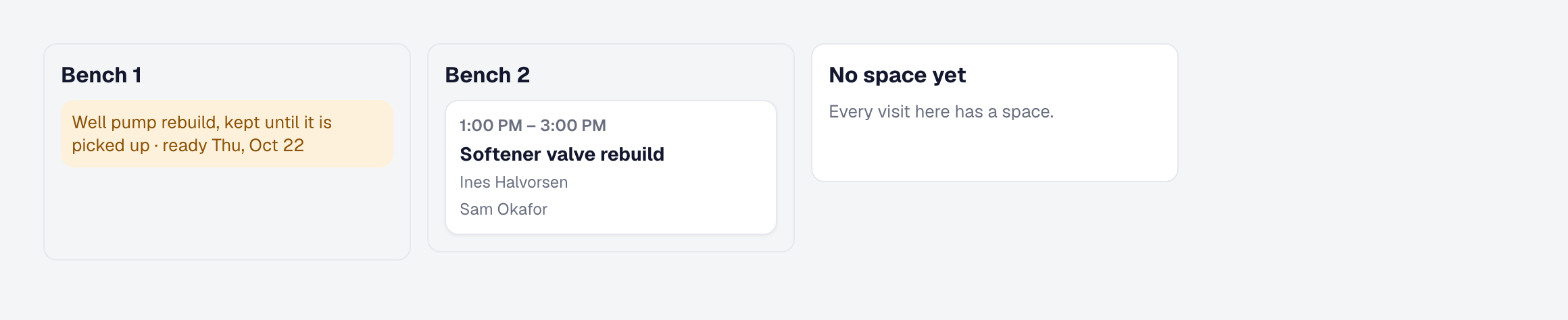
On the Day Board, choose By space beside the lanes per person. Each space is a lane with the day’s visits in it — who is on each and the turnover after it — and any item kept there since it was dropped off. Visits at your place with no space yet are listed under No space yet. Drag a visit to another lane to change its space; if that space already holds something then, the board says what and asks first. The board remembers your choice on this device.
What changes for a visit at your place
- The Day Board, My Day and the job say At our place · Bay 2 instead of an address.
- Your crew sees no Directions and no On my way: they start the visit on site.
- No on-my-way text and no running-behind text is ever sent for it, and the weather never marks it at risk.
- Routes and suggestions count no drive to it, and measure the drive out from your place to the next customer’s.
Remove the tool
Removing Work at our place deletes nothing. Nothing new is put at your place, and the job types page and the visit form stop asking; a visit already booked there stays there, at your address.
This page describes Work at Our Place — Spaces, Drop-Off and Pick-Up, and Turnover. It is written from that feature’s record and covers what has shipped, never what is planned.