How a plumbing business runs on SMG Tools
One plumbing and heating business set up and run in SMG Tools, from the first call to what the job made, in pictures from the product.
This is one plumbing business set up and run in SMG Tools, in the order the work happens: what it does at each step, why it matters to a plumber, and a picture of it in the product. The business is Sawmill Creek Plumbing & Heating — a sample, with made-up clients — and every figure on the page is one the product worked out from its records.
Setting up
Start from your website
The first screen asks for the business’s website. Sawmill Creek types its address and chooses Read my website: SMG Tools reads the homepage and the pages behind it and lays out what it found — the details that go on quotes and invoices, the services, the trade — to check before anything is saved. A business with no website chooses I’ll describe it and writes a sentence or two, or Answer the questions myself.
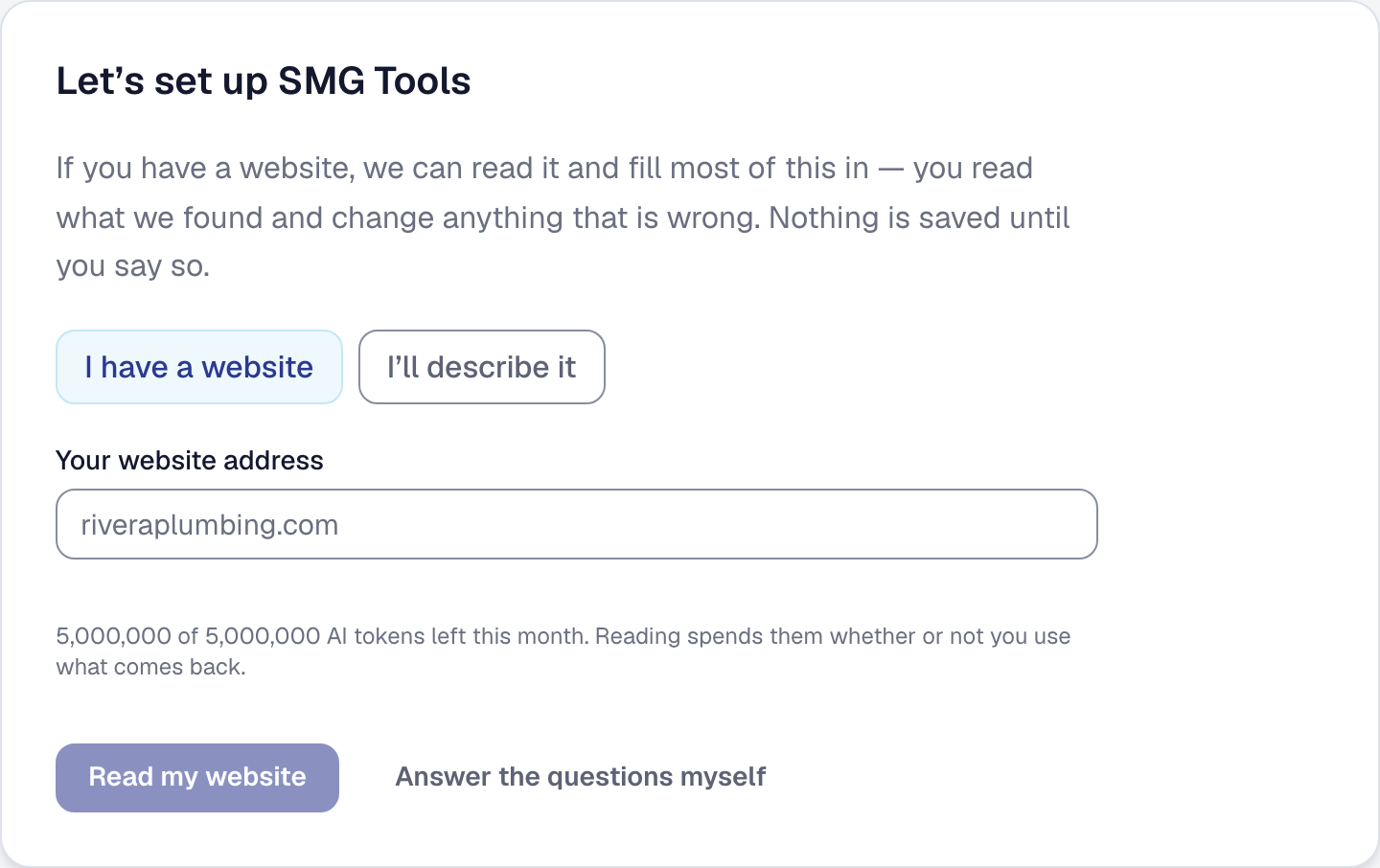
In full: Setting up from your website — Choose how you want to start
Take the plumbing kit
With the trade known, setup shows the plumbing kit: the tools that fit the work, and the starter content that makes them useful the first day — the kinds of work a plumber does, a visit checklist, the readings a visit takes, the units at a customer’s house. Every line can be unticked, and nothing is added until you continue. Afterwards the Tools page keeps the trade, suggests what the kit has that is still off, and adds any of it with Add — Online Booking once there is a service a customer can book.
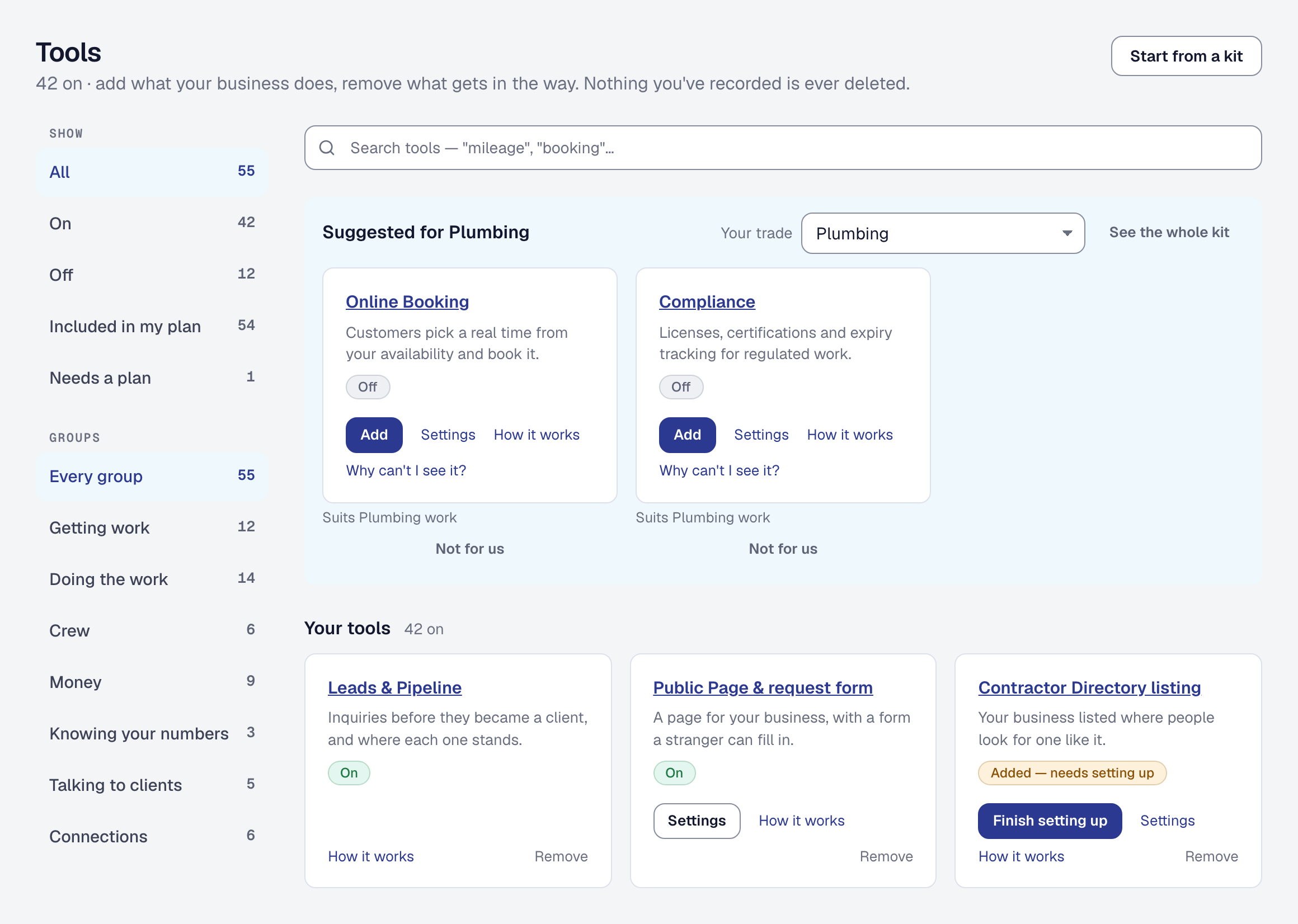
In full: Setting up and hiding what you do not use — Start with the tools for your trade
Bring your client list in
A client list kept in a spreadsheet comes in whole. Saved as a CSV file and chosen on the import page, every row is shown before anything is written, with any problem named by its row, and one button brings them all in.
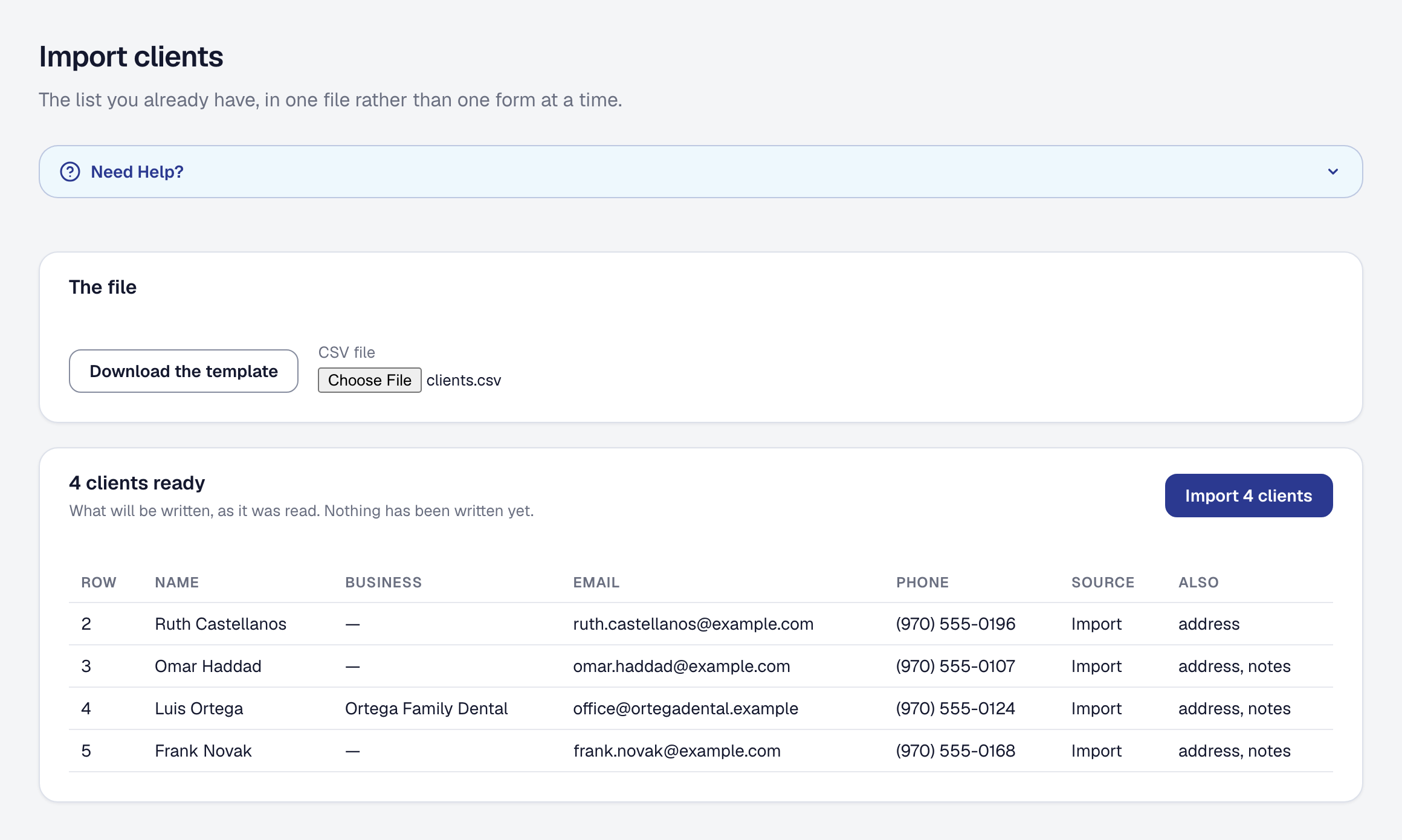
In full: Importing and exporting your data — Import in three steps
Set what an hour costs you and what you charge
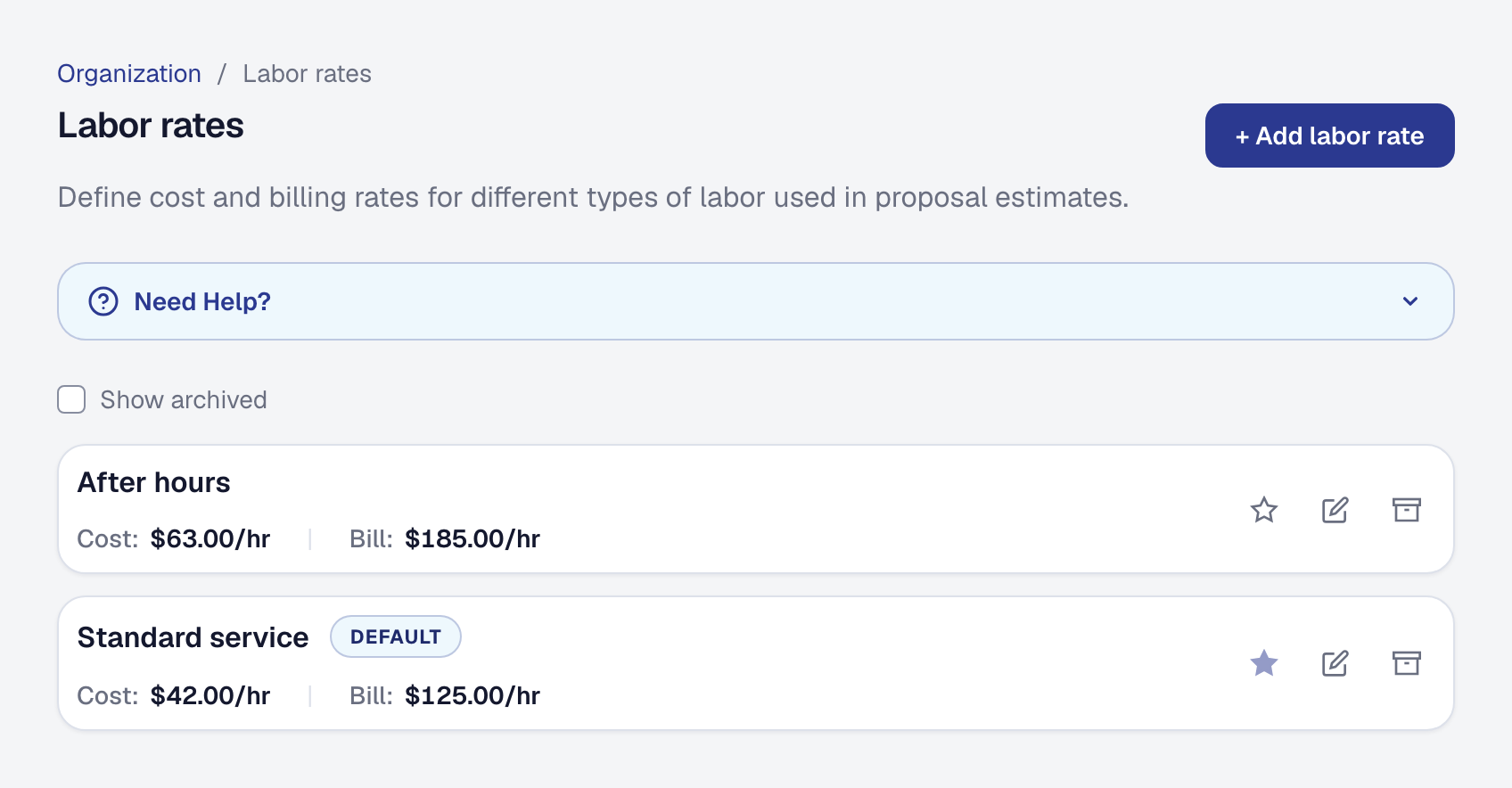
Every price SMG Tools works out starts from an hour: what it costs the business and what it charges. The labor rates are written down once — a standard rate and an after-hours one, each with its cost and its billable rate — and every line the business quotes is costed from them.
Hold back a share of what comes in for tax
Sawmill Creek pays its estimated tax by the quarter, so it tells SMG Tools to hold back a quarter of what it makes. The dashboard then shows, beside what came in, what to keep aside for the next payment — worked out from revenue, never from the sales tax collected for the state — and the deadlines arrive on the calendar.
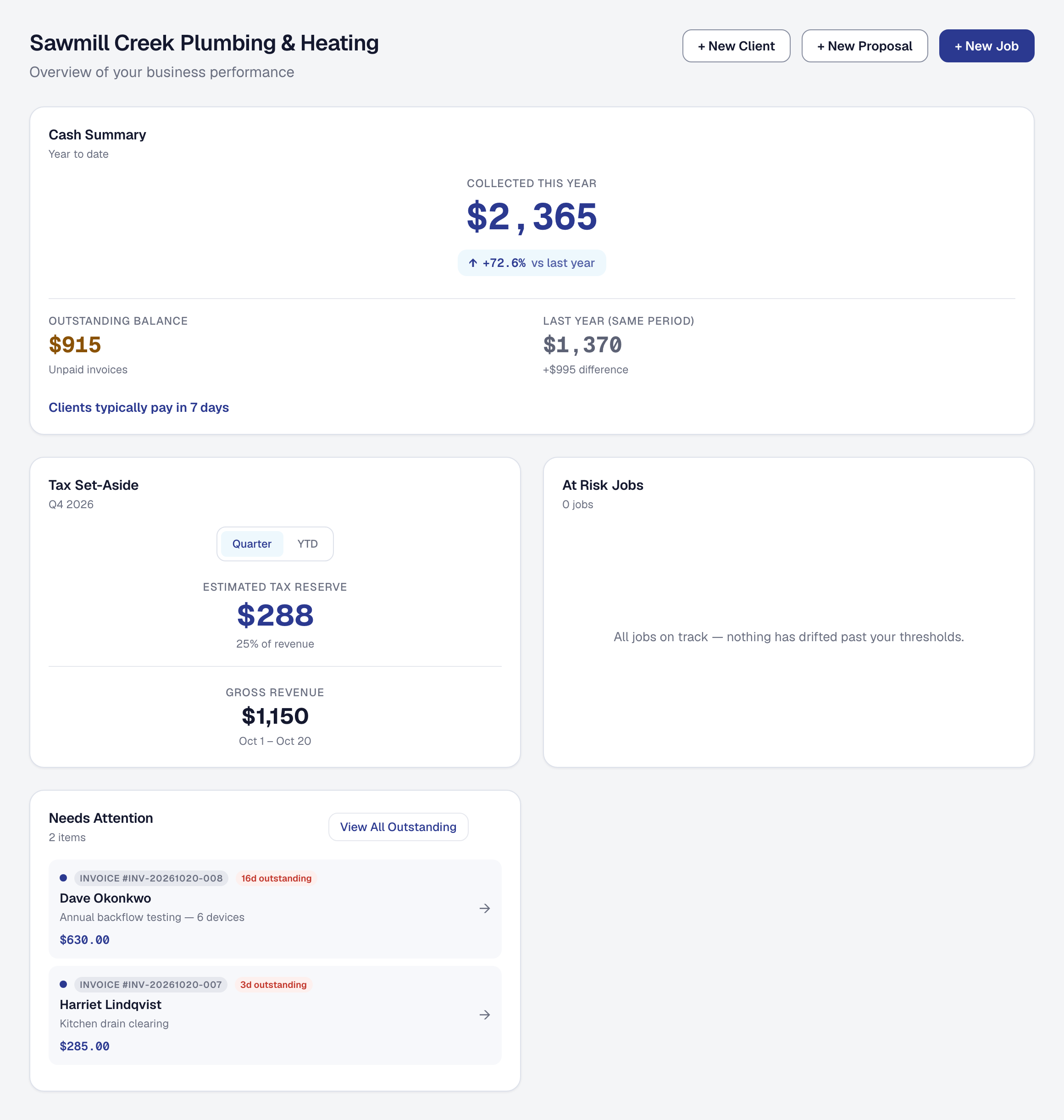
In full: Tax reporting — Put money aside for quarterly payments
A customer asks
Take bookings from your public page
A customer who finds the business’s public page can book without a call. They pick what they need — here, a water heater check — and see only the times the crew can actually make, from the business’s hours and its calendar. The time they choose lands on the calendar as a job, and they are sent a calendar invitation.
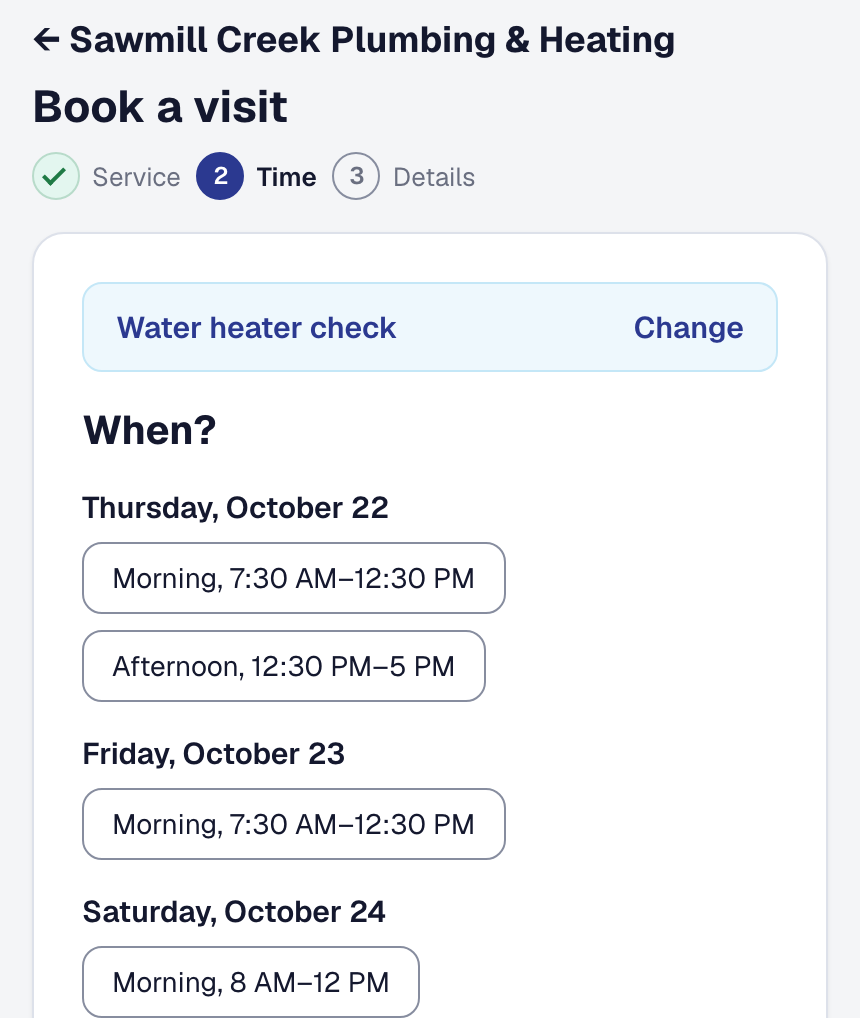
In full: Online booking and availability — Take bookings from your public page
See every lead on one board
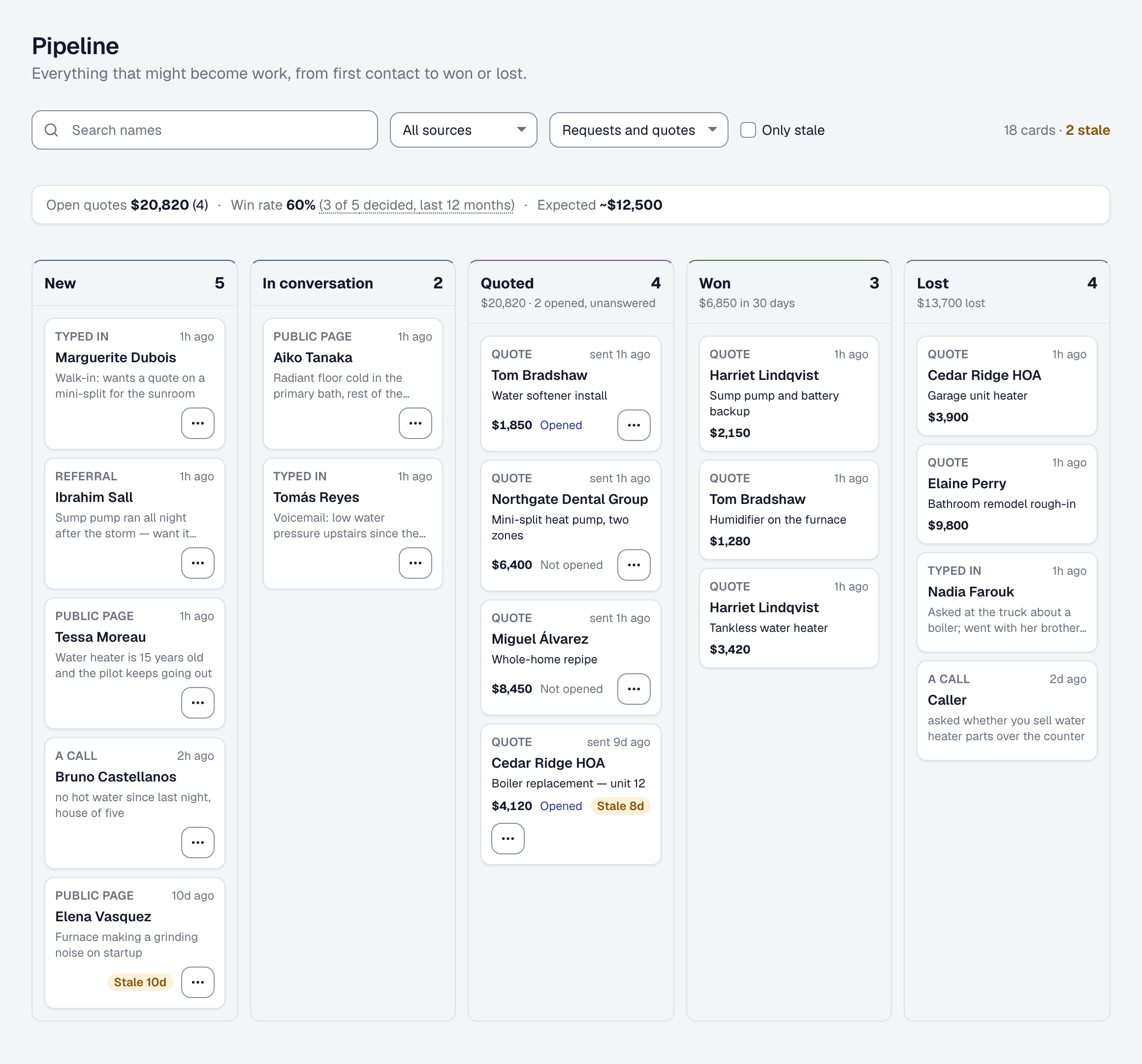
Not every customer books. A call, a request from the public page, a referral from a client — each is a lead, and the pipeline board shows every one by where it stands, beside the quotes sent and the jobs won. A lead or a quote that has waited too long is marked, so nothing goes quiet without anybody noticing.
Priced and quoted
Price from what each job costs you
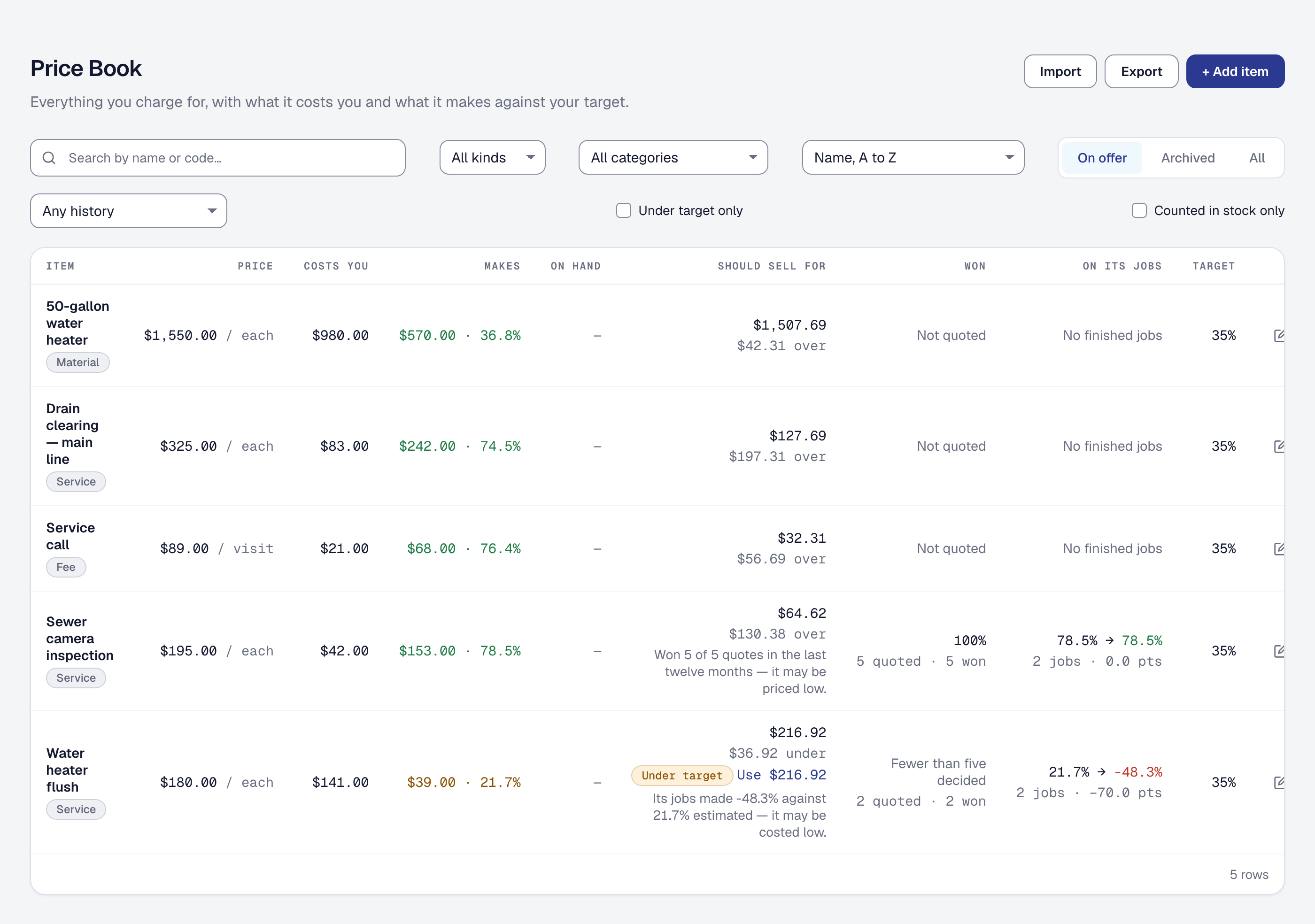
Quotes are built from the Price Book: each service and part with its price, what it costs in hours and materials, and what it makes. An item that makes less than the business’s target says what it should sell for, and one won every time it is quoted may be priced low — read from a year of the business’s own quotes.
Offer good, better and best
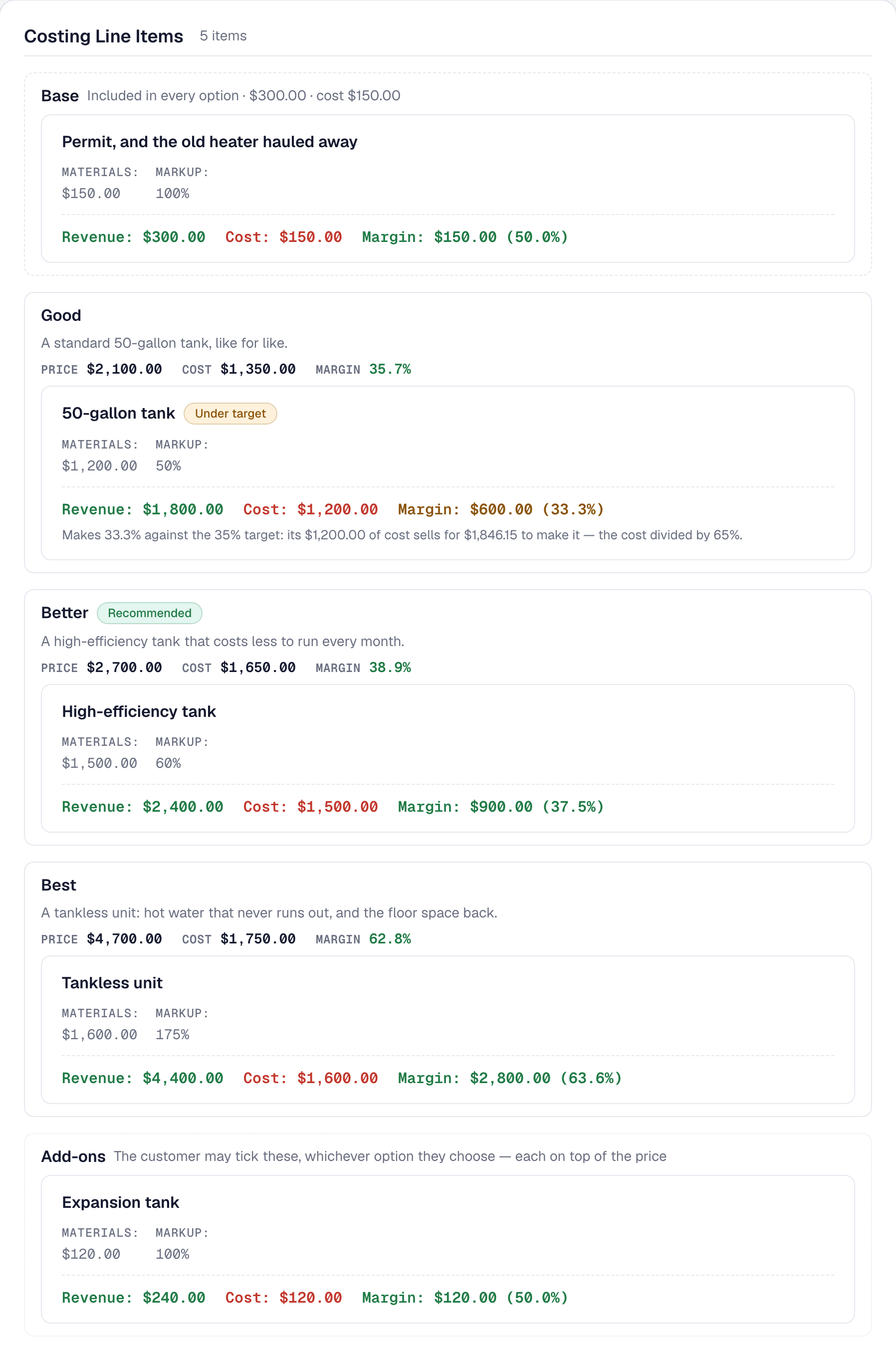
A water heater replacement goes out as three options — a tank, a high-efficiency tank and a tankless unit — with an expansion tank the customer can add. Each option shows its price, its cost and its margin before the customer sees it, so the option the business recommends is one worth selling.
Let the customer choose
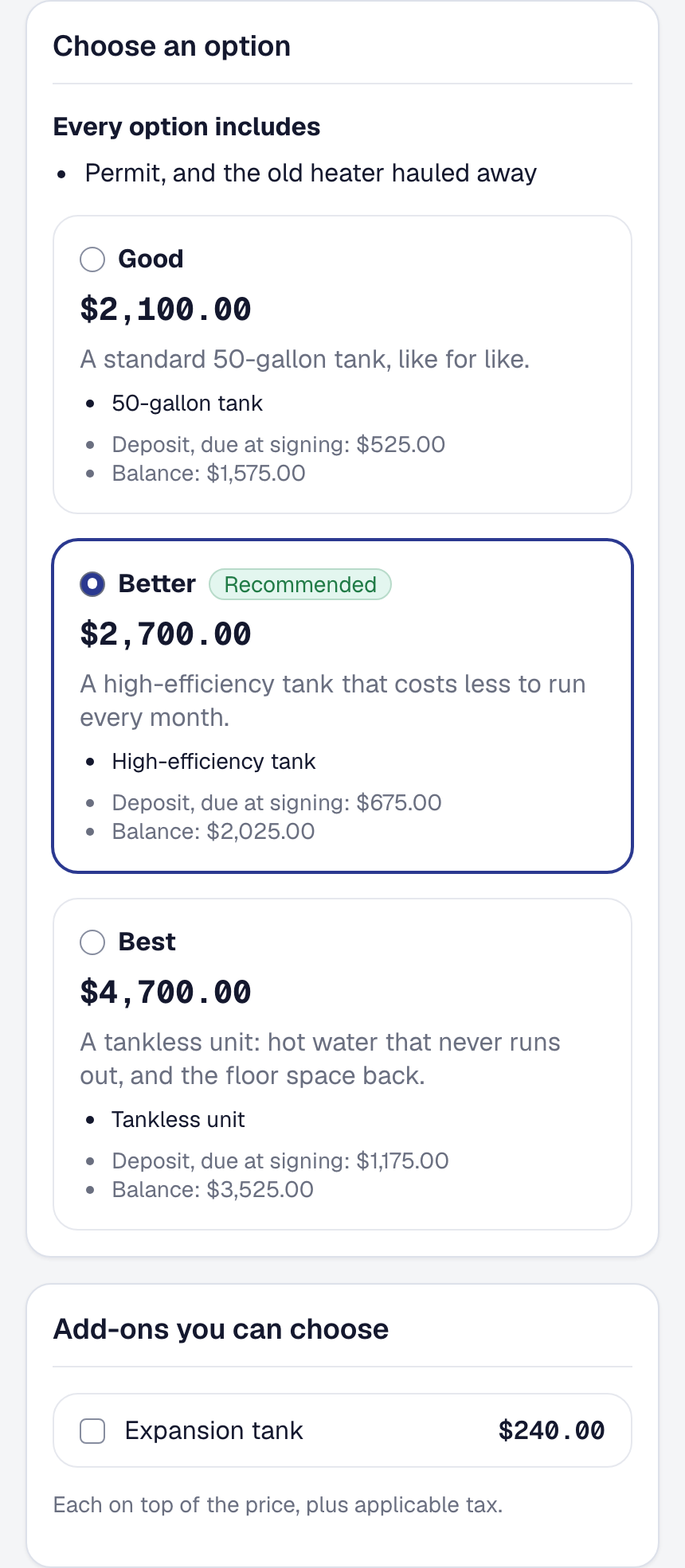
On the link in their email, the customer sees what every option includes once, then the three side by side. Nothing is picked for them: they choose Better, tick the expansion tank, and the price and the deposit follow.
Won, with a deposit
Ask for a deposit at signing
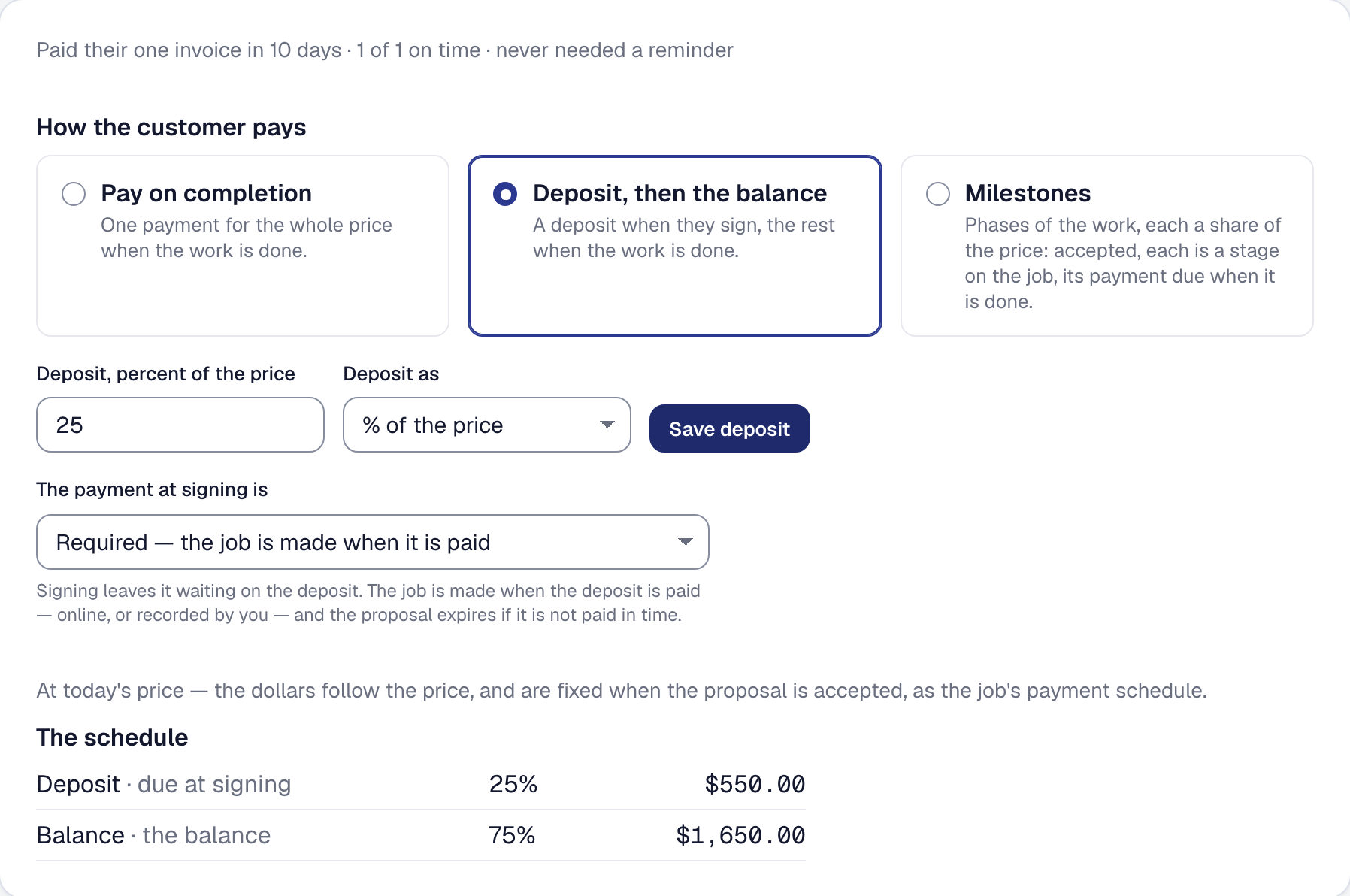
On the proposal’s Payment tab, the business asks a quarter of the price as a deposit and makes it required: the job is made only once the deposit is paid. The schedule shows it in dollars, so the customer sees what they pay at signing and what comes later.
In full: Proposals — Say how your client pays
Follow up a quote that goes quiet
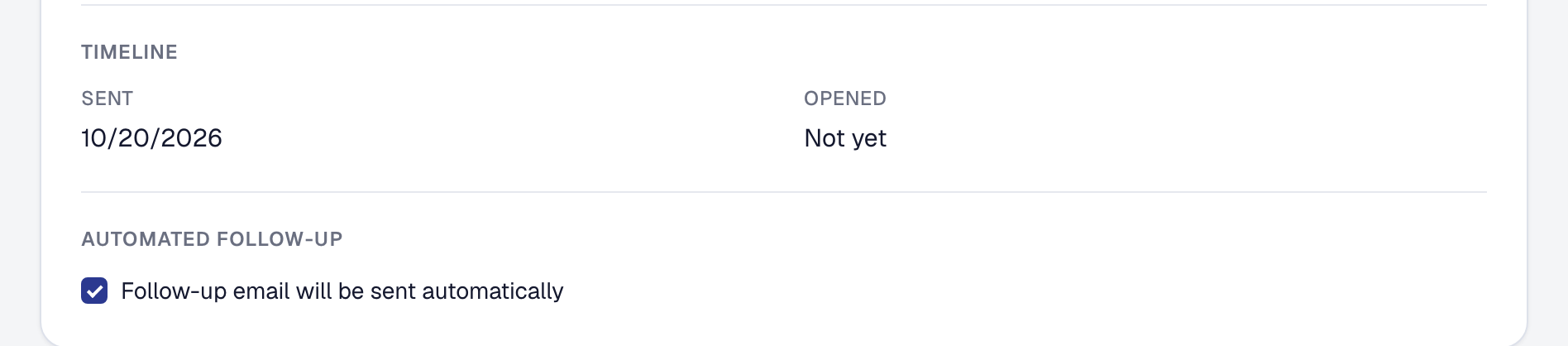
A sent proposal says when the customer opened it. Under Automated Follow-Up the box is already ticked: if they go quiet, one short email goes out for the business — and a quote nobody chased is a job nobody won.
Scheduled
Give each person their day
The Day Board lays out the day with a lane for each person — Sam Okafor and Dana Whitfield — holding their visits. To give a job to somebody else, it is moved to their lane, and it lands on that person’s own day, on their phone.
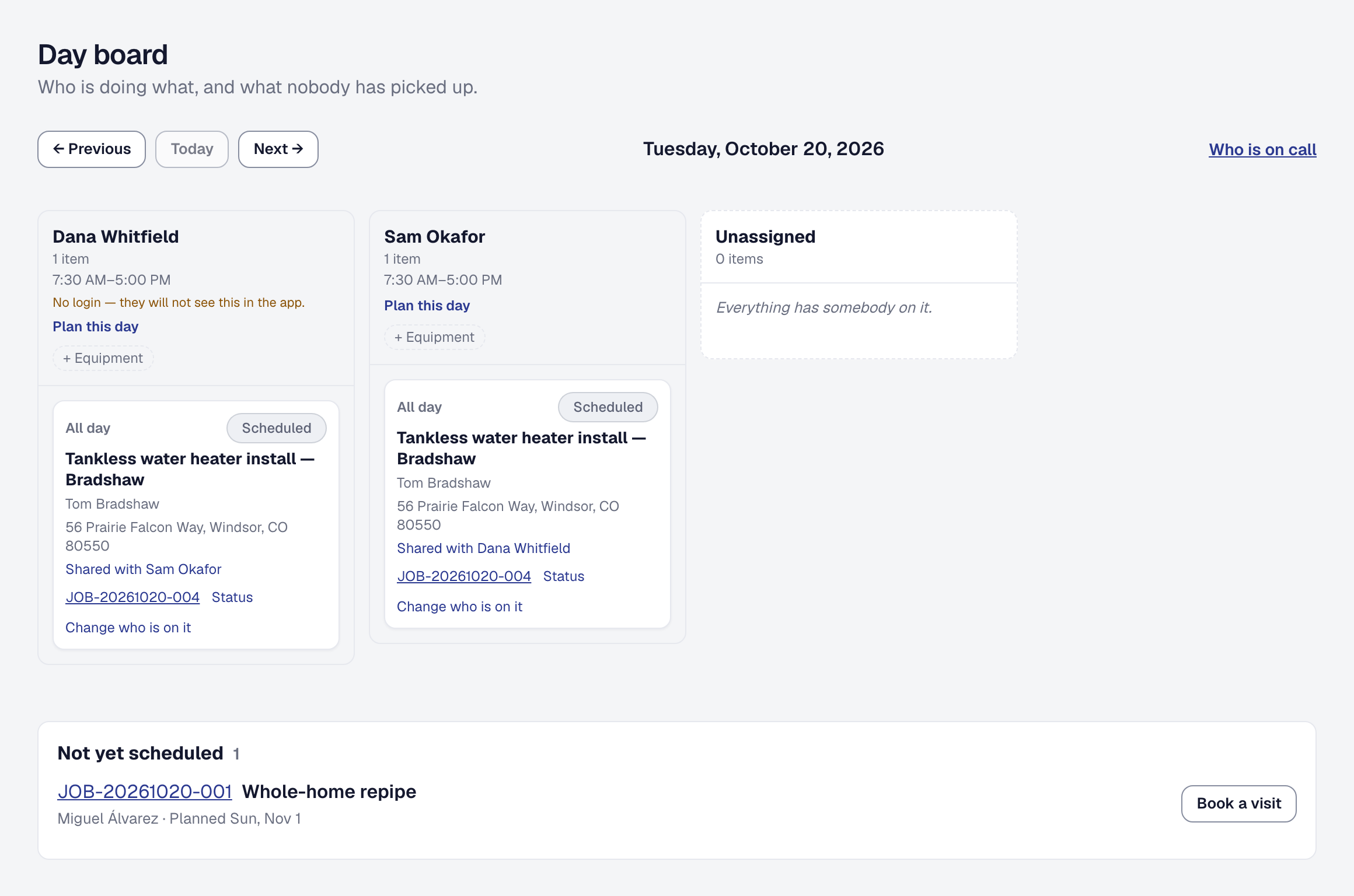
In full: Assigning work and the Day Board — See the day on one board
Tap On my way
On the crew’s phone, My Day lists the visits in order. The next one says where the work is, and when the crew sets off, one tap on On my way tells the office — and the customer.
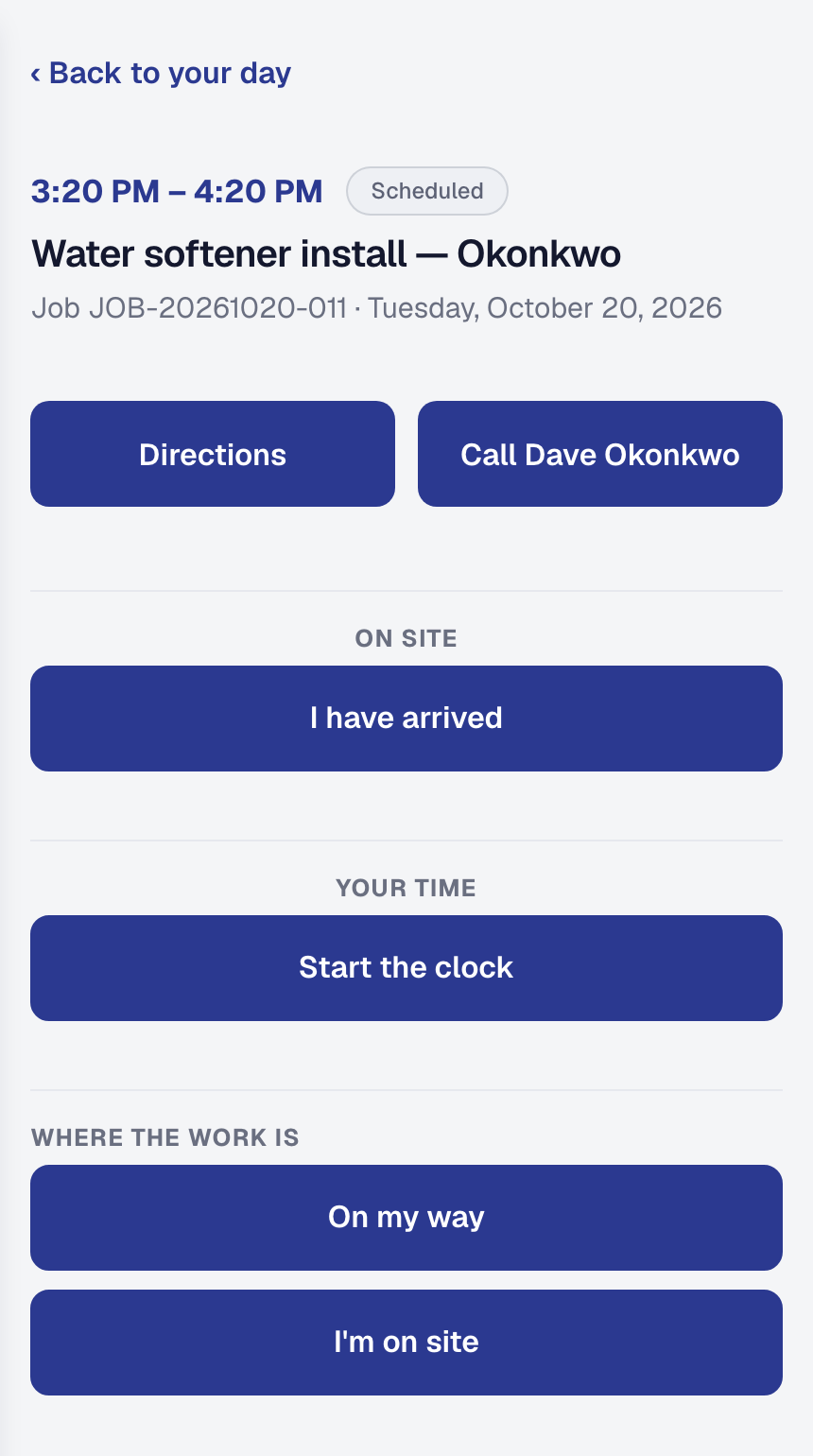
In full: The crew's phone — Open My Day
Tell the customer who is coming
The tap is the customer’s news too. Their own page — the link in the visit’s emails — says the business is on the way, when to expect the crew and where. A worker whose profile is shown to clients is named there, with a line about them, so a van nobody recognizes becomes a person they were expecting.
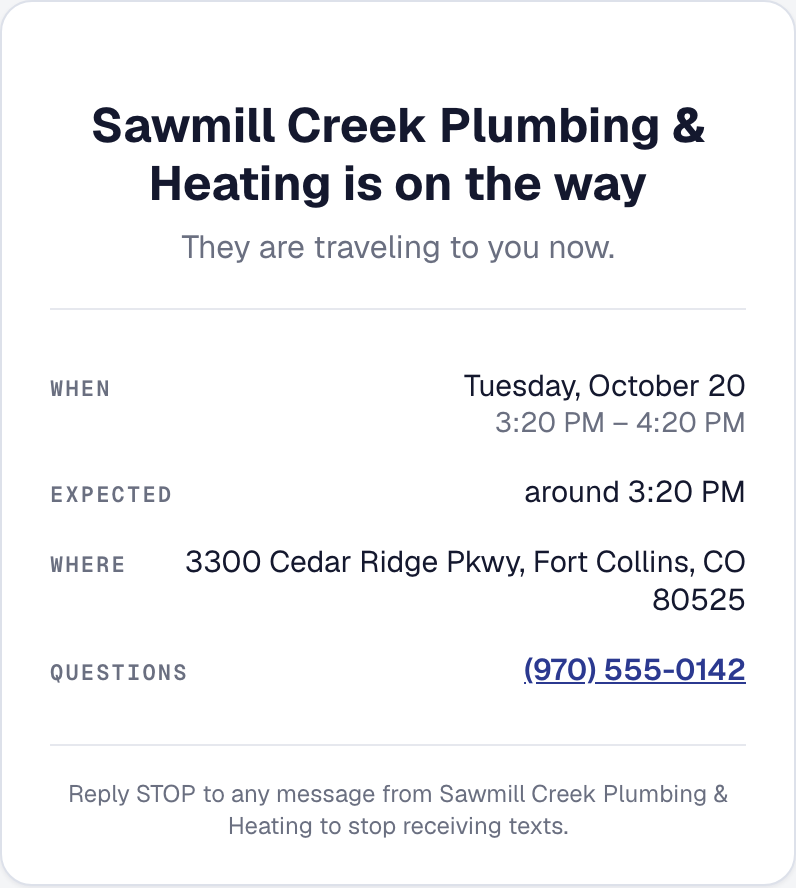
In full: Telling your customer somebody is on the way — What your customer gets
Done, and proved
Work the checklist on the job
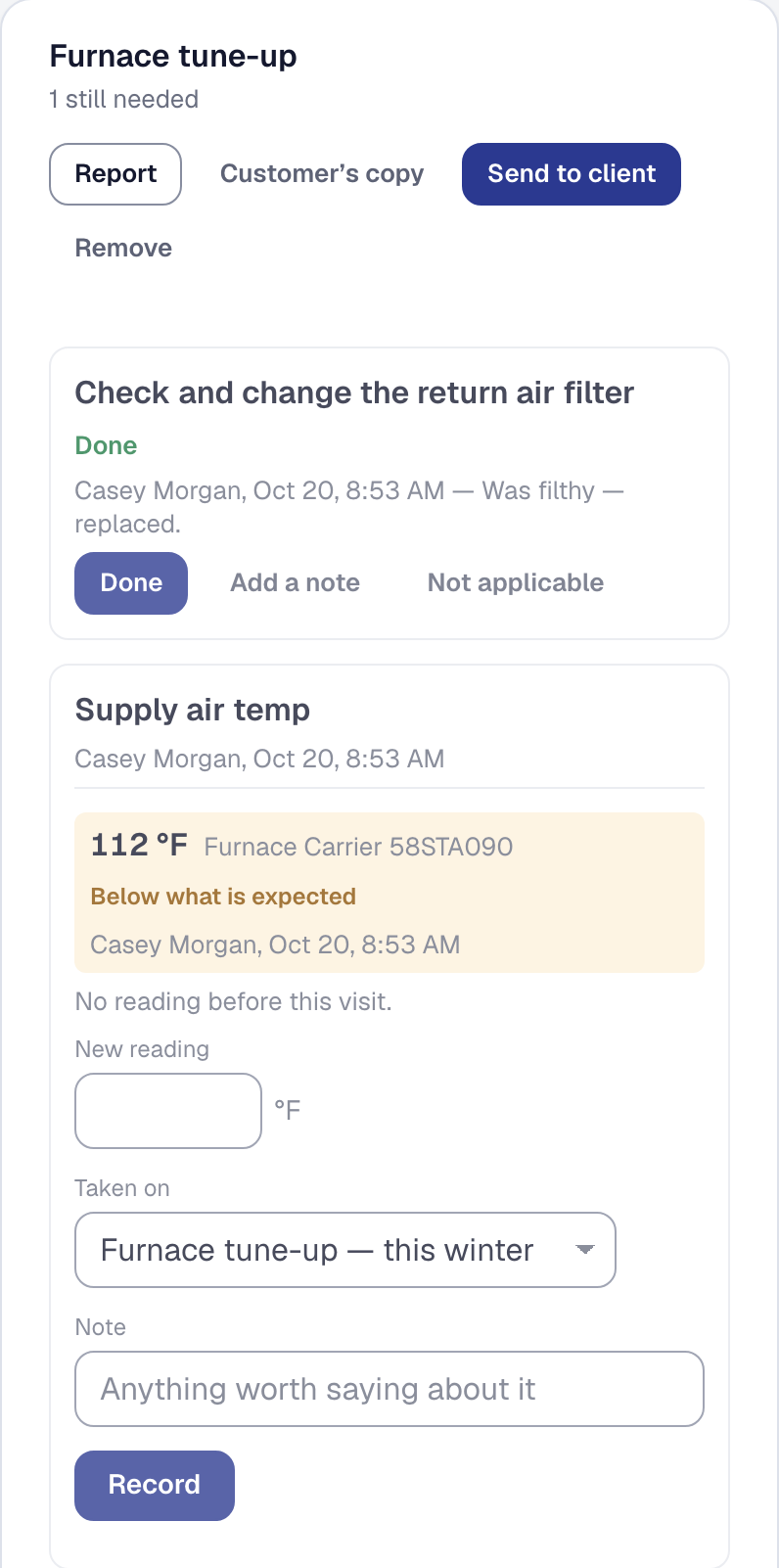
Every furnace tune-up carries its checklist, and the crew answers it on the job: ticks, readings and the customer’s signature. A reading outside what the business expects is marked — here, a supply air temperature below range — so nobody has to know the number by heart, and a required step stops the job being marked done until it is answered.
Price extra work before you do it
A crawlspace drain line has run past its estimate, and the job says so with a margin alert. From the alert, Create Change Order prices the extra trench before anybody digs it; the customer reads it and signs it from a link, and the job’s agreed price rises with it.
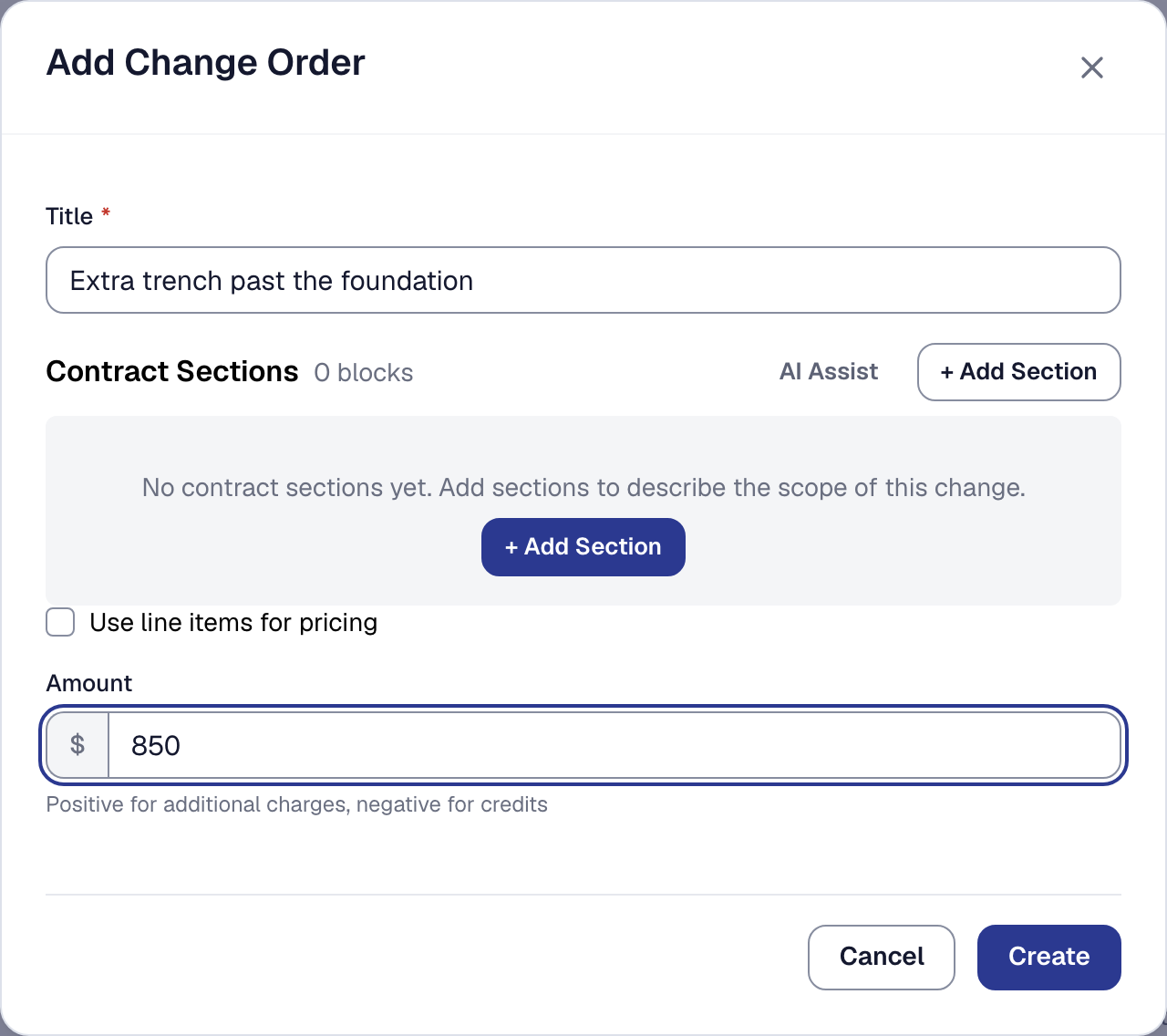
In full: E-signatures and change orders — Send a change order
Paid
Send the invoice
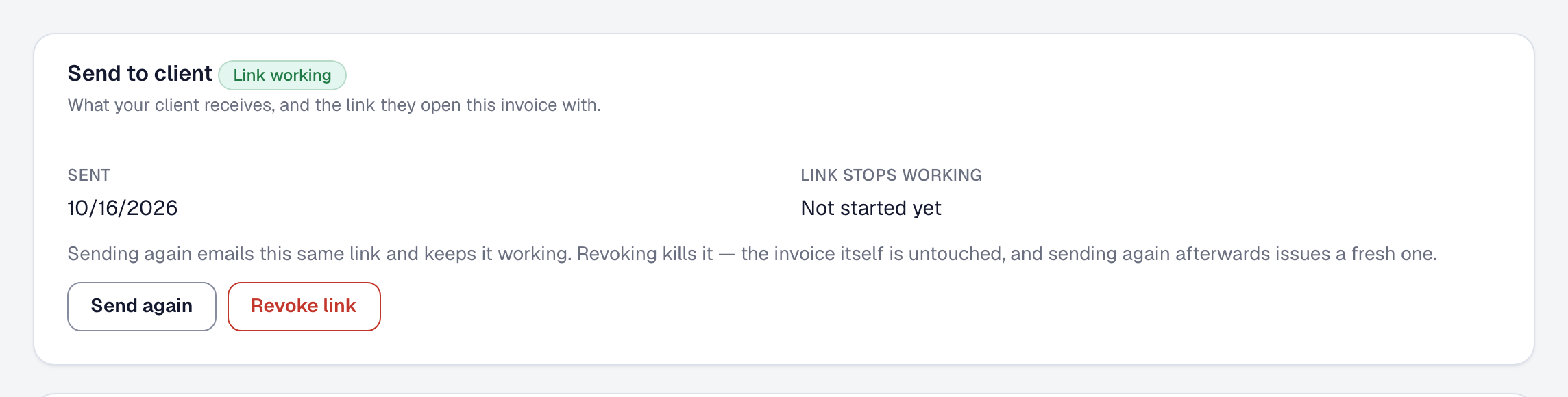
The finished job’s invoice goes to the customer with Send to client: an email with a pay button, and a link that needs no account and no password. If it gets buried, Send again puts it back at the top of their inbox.
Get paid from their phone
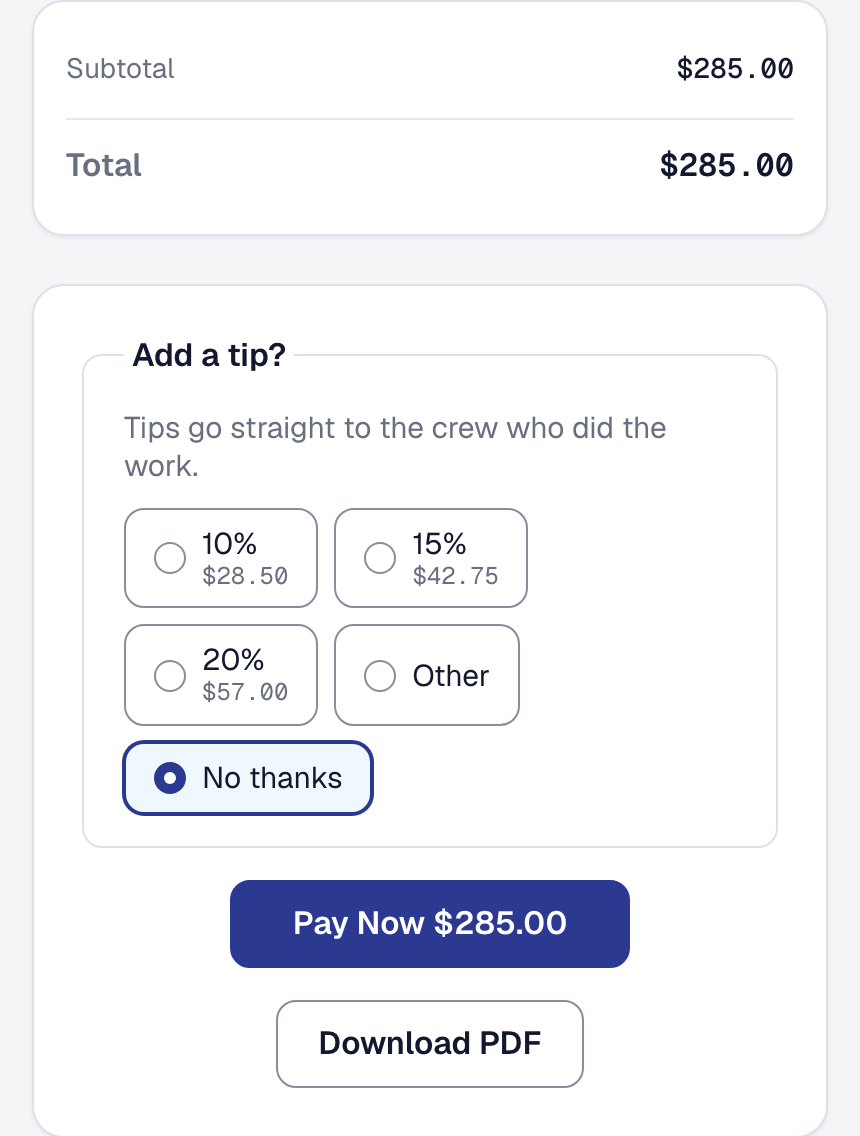
On their phone, the customer sees what is owed and presses Pay Now. The payment is recorded against the invoice the moment it goes through, so there is nothing to reconcile, and the card fees come out of the business’s side, never added to the customer’s.
Let reminders do the asking
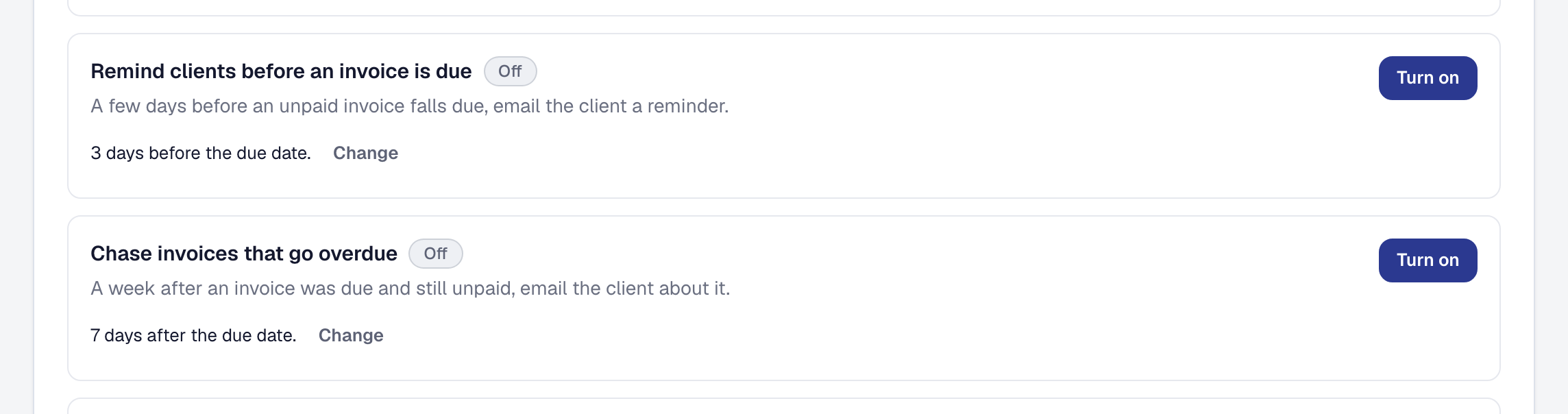
Two ready-made automations do the asking: one reminds the customer a few days before an invoice is due, and one chases it after, while it is still unpaid. Turned on once, they go out on every invoice, so nobody at Sawmill Creek has to be the one who asks.
What it made, and the books
See what the job made
A job’s Financials tab sets the estimate the customer accepted beside what the job really took — the hours at the rates they were logged at, and every expense tied to it. This break-room repipe ran five hours over, and the profit says what that cost, so the next one is quoted from what this one took.
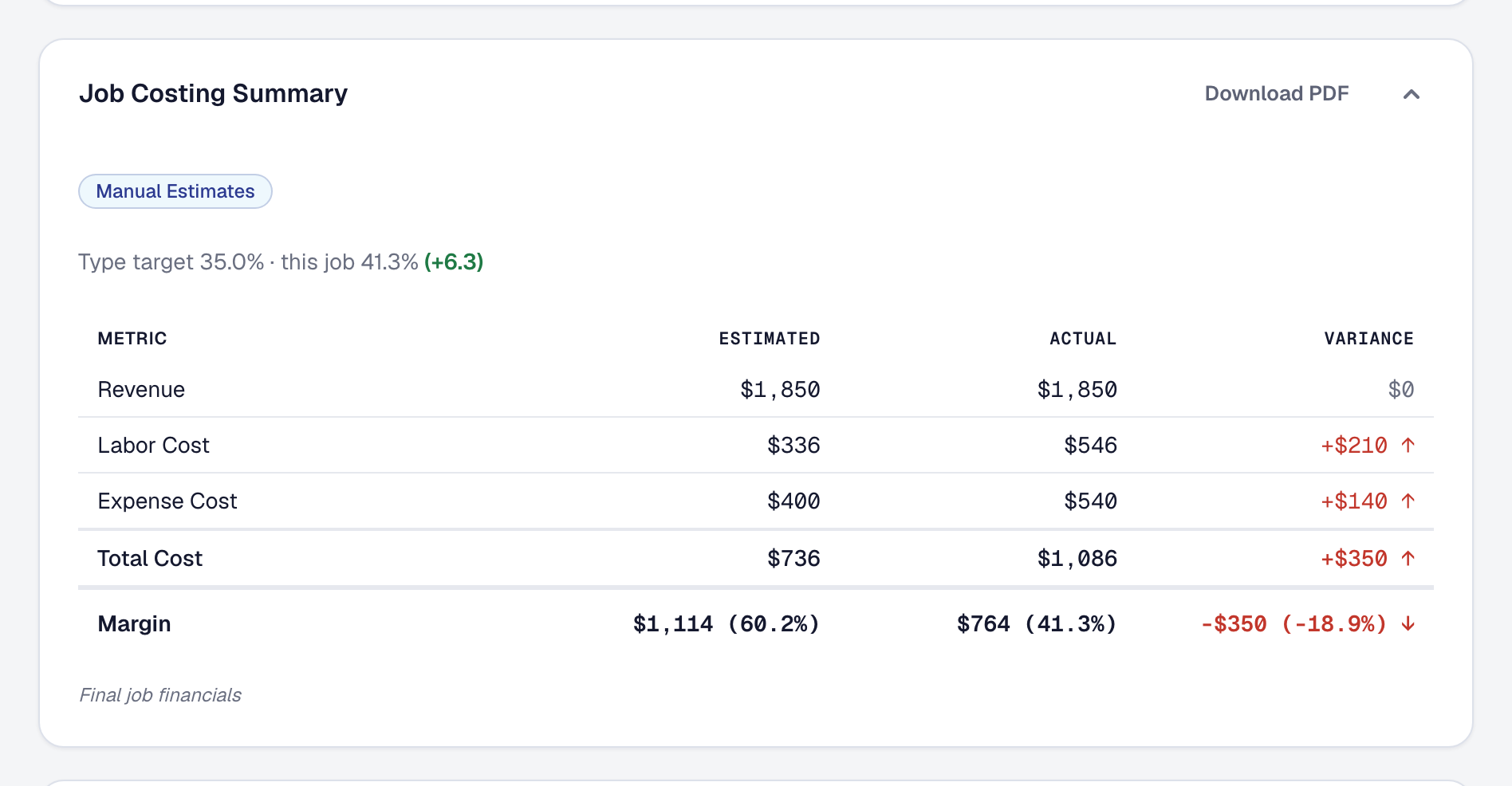
In full: Job costing and margins — Watch a running job against its estimate
Keep your books in step
With Accounting sync, the customers, items, invoices, payments and costs go to QuickBooks as they change, into the accounts the business confirmed. The log shows everything that was sent and what QuickBooks answered, and anything it refused says why, with a way to send it again.
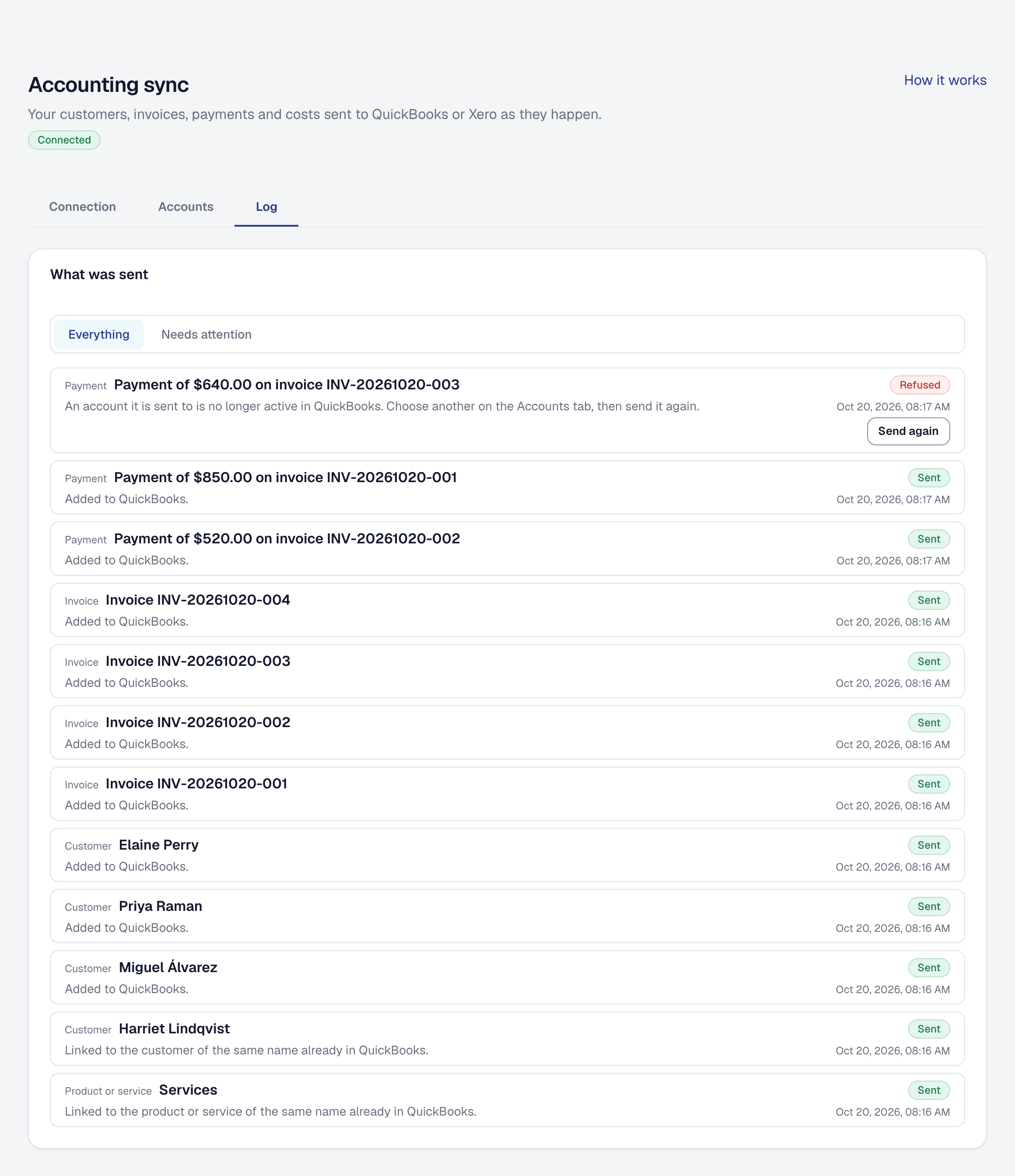
In full: Sending your records to QuickBooks or Xero — Read the log
Keeping the customer
Ask every customer for a review
A couple of hours after a job is finished, one automation emails the customer asking for a review. It needs the link to the business’s review page first — added once on Business Details — and then it is turned on once. Nobody is asked twice inside six months, and a customer the business has excluded is never asked.

In full: Automations — Turn one on
Sell a maintenance plan
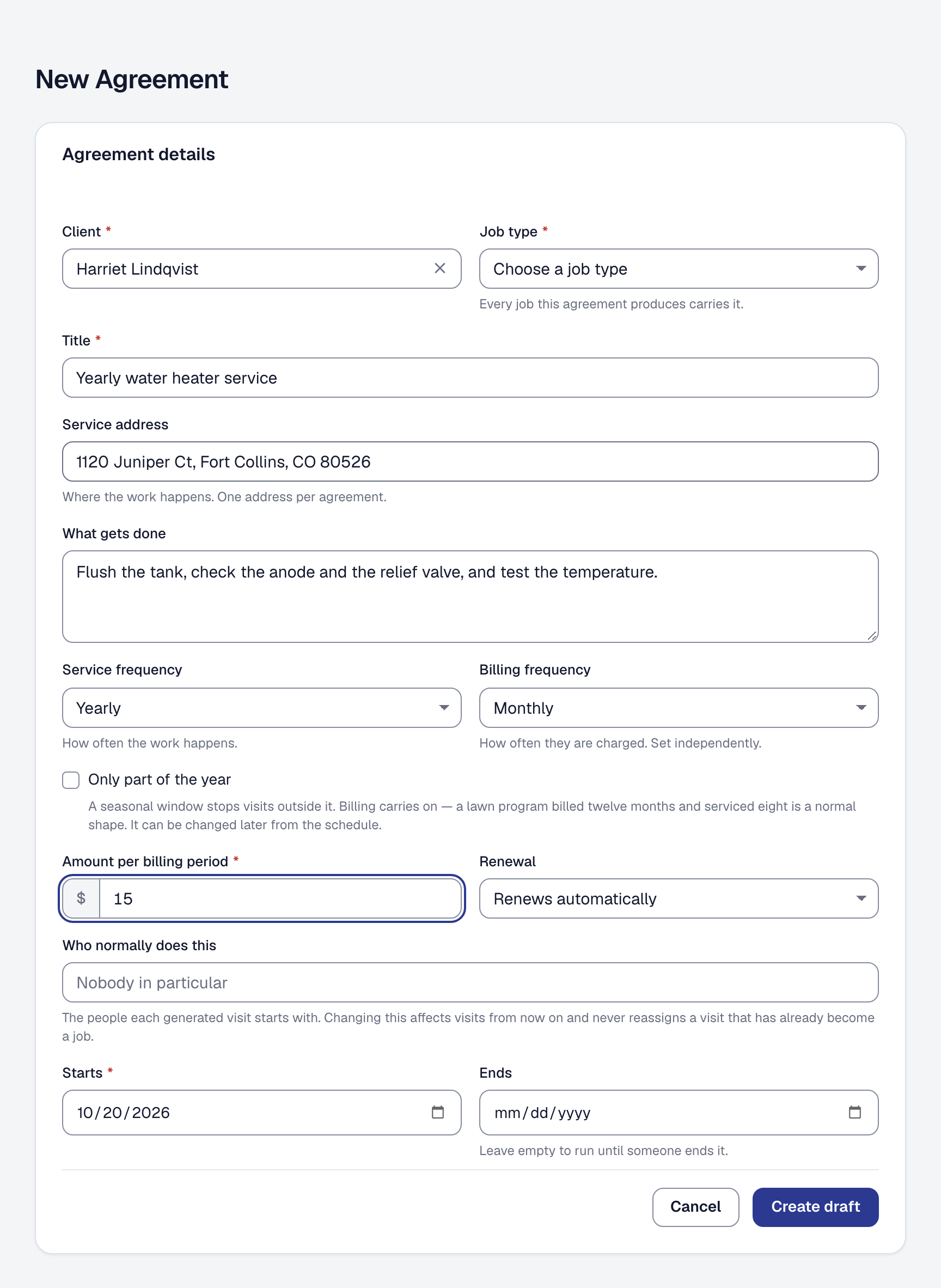
A one-time customer becomes next year’s work with a service agreement: a yearly water heater service, billed every month. Once it is activated, the agreement makes the visits on its own schedule, and the billing follows.
What it does not do yet
What a plumbing business might look for that SMG Tools does not do yet, and what you do today instead.
- A native phone app. Your crew’s day runs in the phone’s browser, with nothing to install.
- Card readers and tap to pay. Your client pays the invoice online, by card or Apple Pay.
- Where each vehicle is right now, and its drive and idle time priced into each job. The Day Board shows who is running behind, from the statuses your crew taps, and Arrival proof records when and where they arrived.
- Two-way accounting sync, with what changes in QuickBooks or Xero coming back. On Professional, Accounting sync sends your customers, invoices, payments and costs to QuickBooks Online or Xero as they happen.
The same business, start to finish, as a video: watch the walkthrough on YouTube.